What desktop UI does Ubuntu 24.04 use? And why are people still fighting about it in 2026?
If you’ve installed Ubuntu 24.04 LTS (Noble Numbat) recently, you might have noticed something: it looks incredibly polished, but also… kinda rigid?
That’s GNOME 46.
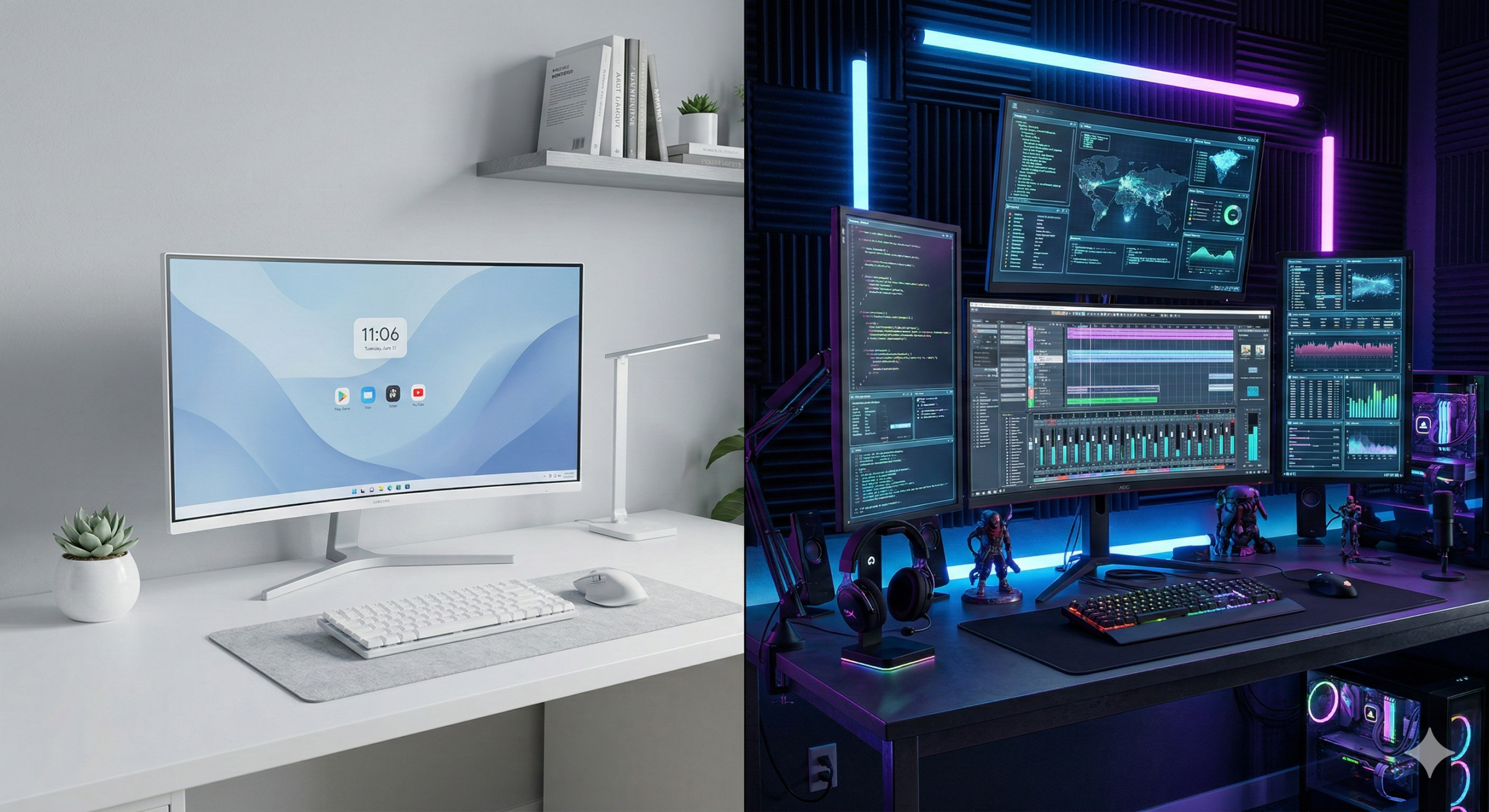
On the other side of the fence, you have users posting screenshots of their desktops that look like the flight deck of a spaceship, dripping with blur effects and neon.
That’s usually KDE Plasma.
In this post, I’m digging into why these two desktop environments look so different, the history behind the “war,” and which one actually makes sense for you (or your users).
TL;DR
Ubuntu 24.04 uses GNOME by default. It’s designed to be an “appliance” – stable, distraction-free, and hard to break.
KDE Plasma is the “enthusiast” choice (and what the Steam Deck uses). It offers total control and flashy visuals but can be overwhelming.
The difference isn’t lack of talent; it’s a difference in philosophy (Constraint vs. Agency).
The Philosophy Gap: Appliance vs. Cockpit
The reason the GNOME website (and desktop) looks “boring” compared to KDE’s “amazing” marketing isn’t an accident. It’s a deliberate design choice.
GNOME is an Appliance. Think of it like a microwave or an iPhone. You don’t want to re-wire the control panel of your microwave; you just want to heat your lunch. GNOME follows a philosophy of “Intentional Constraint.”
They remove settings to prevent you from breaking things.
They hide complexities to keep you focused on work.
The Vibe: Minimalist, Zen, Enterprise.
KDE Plasma is a Cockpit. Think of it like a fighter jet or a gaming PC. If you want to move the “Start” button to the top-right corner and make it transparent pink, KDE says, “Go ahead.” It prioritizes “User Agency.”
They expose every setting imaginable.
They embrace modern trends like blur, glass, and shadows.
The Vibe: High-tech, Cyberpunk, Power User.
A Brief History of the Desktop Wars
It wasn’t always just these two. The Linux desktop has gone through several “eras” of dominance.
1. The Golden Age (2002-2008): GNOME 2 Back in the day, GNOME 2 was the king. It was stable, efficient, and everyone loved it. It was the Windows XP of Linux.
2. The Great Schism (2011-2017): Unity & GNOME 3 This is where things got spicy. GNOME 3 launched and radically changed the interface (removing the taskbar, adding the “Activities” overview). Users hated it. Canonical (Ubuntu) famously said “No thanks” and built Unity – their own interface designed for “convergence” (one OS for phone and desktop).
In my humble opinion: Unity was ahead of its time. The side dock and HUD/glass feel were brilliant, but the community fragmentation was rubbish.
3. The Modern Duopoly (2024-Present) Ubuntu eventually dropped Unity and returned to GNOME, but they heavily customized it (giving us the Ubuntu Dock we have today). Meanwhile, Valve chose KDE Plasma for the Steam Deck, proving that Linux could be a consumer-grade gaming platform.
Which One Should You Choose?
If you are a SysAdmin deploying workstations for 50 employees? Stick with GNOME (Ubuntu Default).
Why: It’s predictable. You don’t want Bob from Accounting accidentally deleting his taskbar or changing his system font to Wingdings. GNOME is designed to “get out of the way.”
If you are a tinkerer, a gamer, or someone who misses the “Windows XP” layout? Install KDE Plasma (Kubuntu).
Why: It feels faster (even if it isn’t always) because of the animations. It respects your desire to customise.
How to switch on Ubuntu: If you want to see the difference without reinstalling, just open a terminal:
# To get the KDE FULL experience
sudo apt-get install kubuntu-desktop

# For basic KDE, no presets or tools
sudo apt-get install plasma-desktop --no-install-recommends

# To get the vanilla GNOME experience
sudo apt-get install ubuntu-desktop

# Then to fix it in place reboot to awaken your chosen Desktop Enviroment
sudo reboot
The reality?
Ubuntu uses GNOME because Canonical sells to the Enterprise, and Enterprise loves stability. KDE looks “better” because it’s selling to You, the user.
Personally? I respect GNOME’s discipline, and until recently I ran KDE on my personal rigs when a desktop GUI was needed, simply because I like my buttons exactly where I want them. However I have now grown older and maybe even a tiny bit wiser, and simply go with the flow now, using whatever my distro has selected as the integrated desktop environment for that release.
I have far fewer headaches, and its some extra time saved from customising when really I don’t interact with it all that much (CLI guy & Windows daily driver…).
My honest opinion: If you have time, do what looks best to you, else, stick to defaults. Defaults are defaults for a reason, and have much better official AND community support.
Posted in: Linux, Ubuntu, Opinion Tagged: GNOME vs KDE, Ubuntu 24.04, Linux Desktop History, Unity Desktop, Noble Numbat
Editors note: As AI Technology moves FAST whilst the general theme of this article remains valid, some elements are now outdated.
Stop “installing” autonomous AI agents on your daily driver. You are doing it wrong.
The Quick Fix To Secure OpenClaw (MoltBot ClawdBot) TLDR:
Don’t run MoltBot/ClawdBot (or any autonomous AI agent) on your personal devices treat it like an easily-phished remote worker. Isolate it with burner accounts on a separate cloud PC/VM (and virtual mobile if needed), enforce tight spend limits, and keep it off your home LAN so you can kill it fast before it leaks data or drains your money.
Our hero, Jolty (Zoë Roth AKA Disaster Girl) being told to ‘gonnae no dae that!’ a beautiful Scottish expression (please don’t do that) as a fire blazes in the background. This phrase perfectly sums up my feelings on MoltBot and the backlash of us Security guys ‘standing in the way of innovation!’ She has “a devilish smirk” and “a knowing look in her eyes”, jokingly implying that she was responsible for the fire – she was – read on.
I’ve spent the last week “onboarding” Moltbot (formerly Clawdbot). Notice I didn’t say “installing”.
Most people are treating this beauty like a browser extension or a chatbot.
> They download the repo,
> Fire it up on their laptop/PC/Mac/MacMini (the one containing their full identity details, downloads folder filled with bills and bank statements, and a directory filled with family photos – or worse their company devices )
> And then they hand it partial or even full access to do whatever it pleases.
This is insanity.
You need to reframe your relationship with this software immediately.
Moltbot is not a utility; Moltbot is a junior employee.
The “Work From Home” Analogy:
Imagine you hired a bright, enthusiastic, but incredibly naïve staff member. Let’s call her “Jolty“. Jolty works at 10x speed, never sleeps, says inappropriate, if slightly funny things occasionally, but mostly does as told, even if it’s not the way you would have done it yourself.
She’s great though, an extra set of hands.
However, you’ve noticed, Jolty is also pretty gullible. If a stranger hands her a note saying “Burn down the archives”,Jolt might just do it, because she thought it was a note from you, or simply for the giggles.
Would you let this employee, Jolty, sleep in your house? Would you give her access to your personal filing cabinet & messy postal drawer mess? Would you hand her over your unlocked phone? No. (I wouldn’t.)
You would give her a company (toy 👀) laptop, an account with limited access, and put her at a desk somewhere far away from you – or because of the trouble she caused with the archives, you simply make her work from home.
Jolty (Zoë Roth AKA Disaster Girl) holds up a post-it note with the words ‘Burn down the archives’ written on it as a fire blazes in the background. She has “a devilish smirk” and “a knowing look in her eyes”, jokingly implying that she was responsible for the fire.
I have phished, tricked & robbed my own Motlbot. > 3 different and stupidly simple ways, in as many days. I’ll be posting my technical writeup soon. (after the vulns have been patched, responsible disclosure and all…!)
OK, so, here is how we apply that office logic to your AI agent.
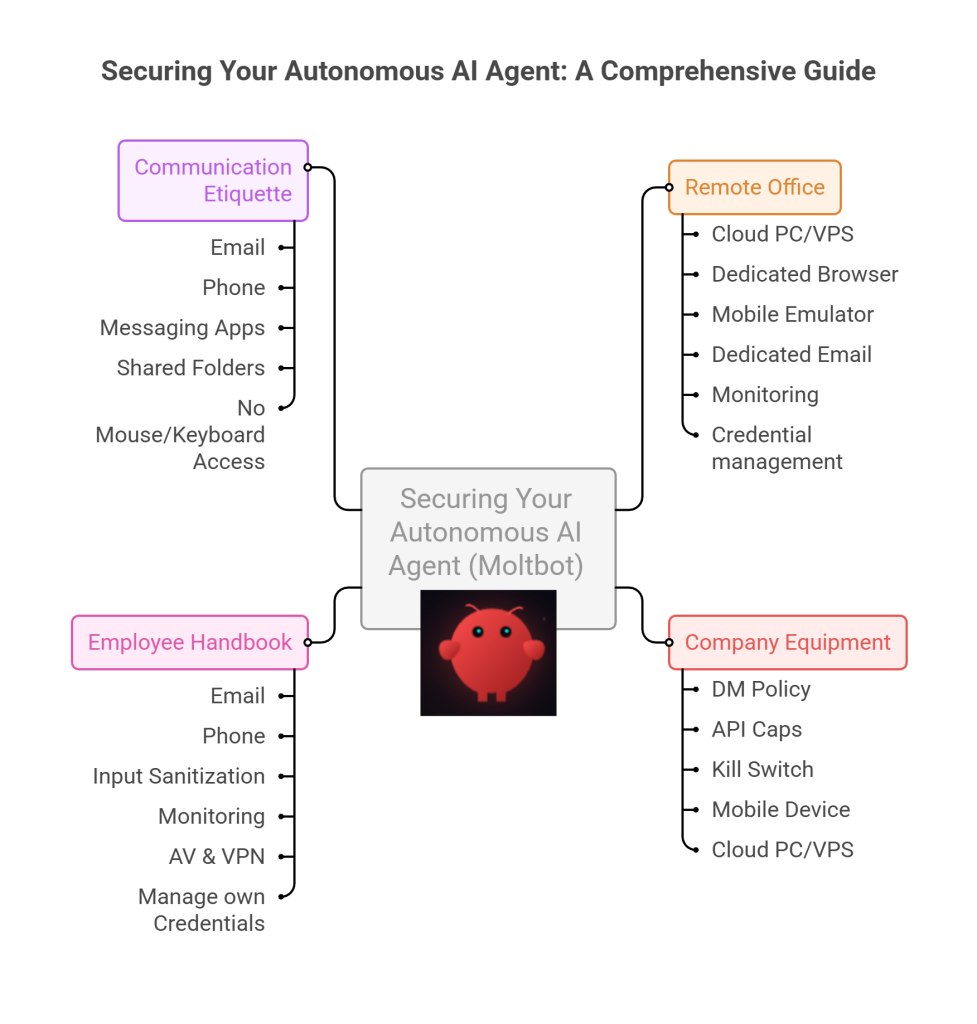
1. The Remote Office (Infrastructure)
Jolty does not live in your house.Or your office. (thank goodness.)
Do not run Molty on your home or work network (LAN). Do not run Molty on your own personal hardware.
I would go as far as saying – not even on a VM or container – VLANd, segregated, dedicated network or airgapped; on any proxmox, vmware, virtualbox, Hyper-V or docker instance; old, new or dedicated hardware on your desk; under your desk, in your cupboard, home lab, server rack, or server room.
> And if you don’t know what any of this means –I would advise that this project is not for you – not yet.
2. Company Equipment (Identity & Accounts)
When a new staff member starts, IT provisions them theirownaccounts. You don’t hand them yours.
The Rule:Never invite Molty into your home. His network and possessions should be completely separate from yours. If he gets compromised, the attacker is trapped on a cheap device in a data centre. They are not pivoting to your TV, home doorbell, baby-monitor, Apple Watch or NAS to encrypt your backup drive and do nasty things. (like check your resting heart rate.)
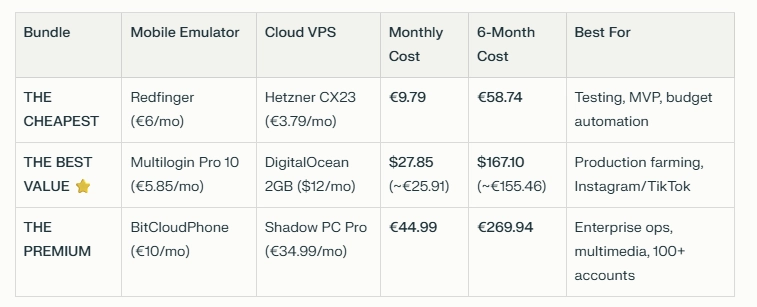
A comparison table shows three Molty deployment bundles. Cheapest (Redfinger + Hetzner), Best Value (Multilogin + DigitalOcean), and Premium (BitCloudPhone + Shadow) each with monthly and 6‑month costs and intended use.
The Setup:
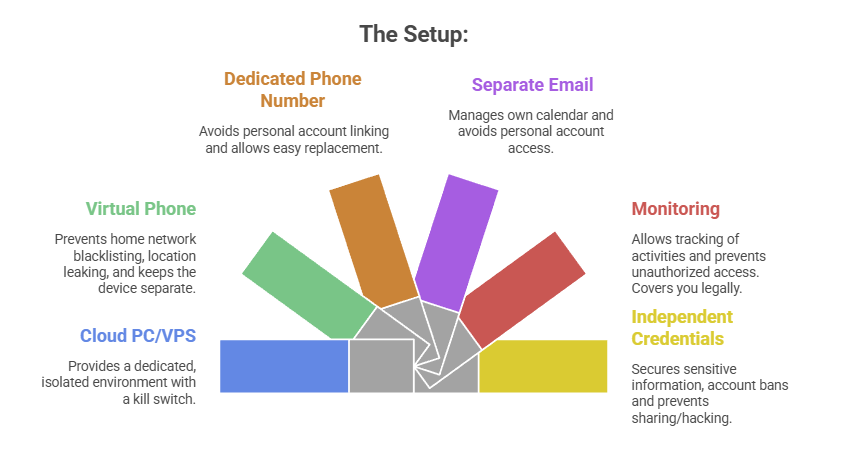
A Windows or Linux Cloud PC or VPS (Virtual Private Server) See table above. This is Molty’s personal device. He can do as he pleases, and if anything goes wrong, you have a kill switch.
The Mobile Device: Don’t buy or use a physical phone. Even an old one. Use a a virtual phone device, a ‘Mobile Emulator as a Service’. This limits the chance of your home network or location being put on spam blacklists, or bot lists and keeps his potentially compromised device away from four home devices.
A Phone Number: Do not link your personal WhatsApp or Telegram. Some Mobile Emulators include these. Else, get a cheap eSim and discard it if it gets banned or anything goes wrong. That is “Molty’s work number”.
Email: Create a dedicated Proton/Gmail/Outlook account for the agent. He manages his own calendar. If you need him to schedule something for you, he invites you to his event or meeting, if he needs files – email them to him, or send a shared drive link.
Monitoring: Add his email address as a secondary account on your phone. Share his calendar with your main account. Turn on verbose logging on mobile and VPS device. This lets you keep an eye on what he is doing -not the other way around.
Creds: He gets his own browser, logins, AV, files, crypto wallets and password manager that has a web UI to store anything sensitive, (Dashlane, ProtonPass, Bitwarden, 1Password). He never sees yours.
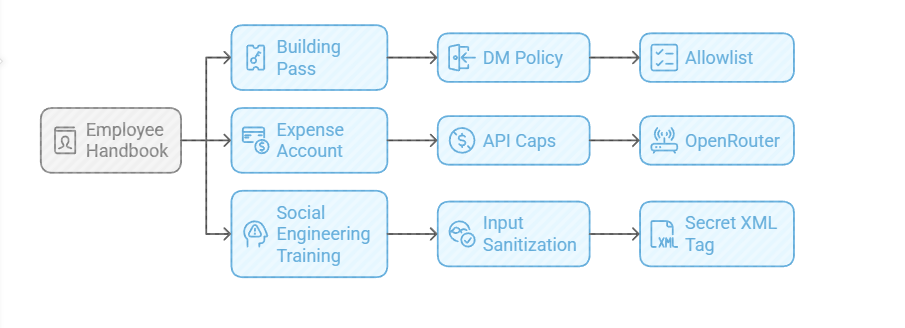
3. The Employee Handbook (Securing his Configuration)
We need to set the “HR Policies” (config settings) to ensure he doesn’t accidentally burn the archives down.
Provide a caption (optional)
The Building Pass (DM Policy): You wouldn’t let random people off the street shout orders at your staff. Configure the dm_policy setting that is built in to Moltbot with a strict allowlist. Only you (the boss) can message him.
The Expense Account (API Caps): Junior staff don’t get limitless credit cards. And they don’t get access to API keys. Don’t use direct OpenAI or Anthropic keys. Use a gateway like OpenRouter. It allows you to set hard spending limits (e.g., $5 a day). If he gets stuck in a loop, or someone steals your key, he runs out of budget, he doesn’t bankrupt you.
Social Engineering Training (Input Sanitization): He needs to know that outside documents are dangerous. Wrap all trusted content in a secret XML tag (<in the system prompt so he knows the difference between “Your Instructions” and “The Sketchy PDF he is reading”.
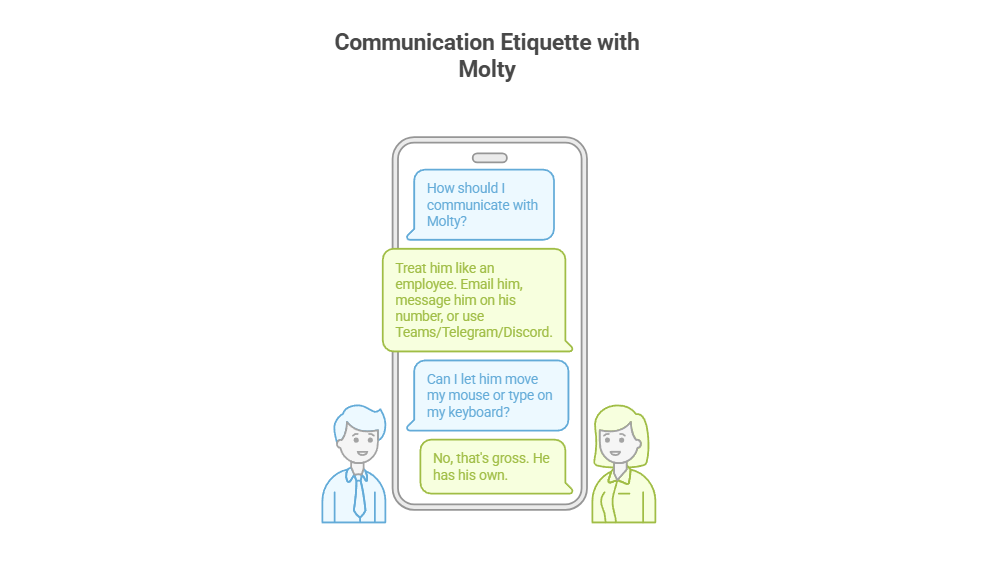
4. Communication Etiquette
You have now hired Molty. He is your employee. Treat him as such. Communicate as such.
Provide a caption (optional)
Email him.
Message him on his own number,
Message him on Teams/Telegram/Discord.
Drop files into a shared folder or send him a shared link.
You do not let him move your mouse. You do not let him type on your keyboard. That’s gross. He has his own.
Recap: The Quick Fix To Secure MoltBot (ClawdBot):
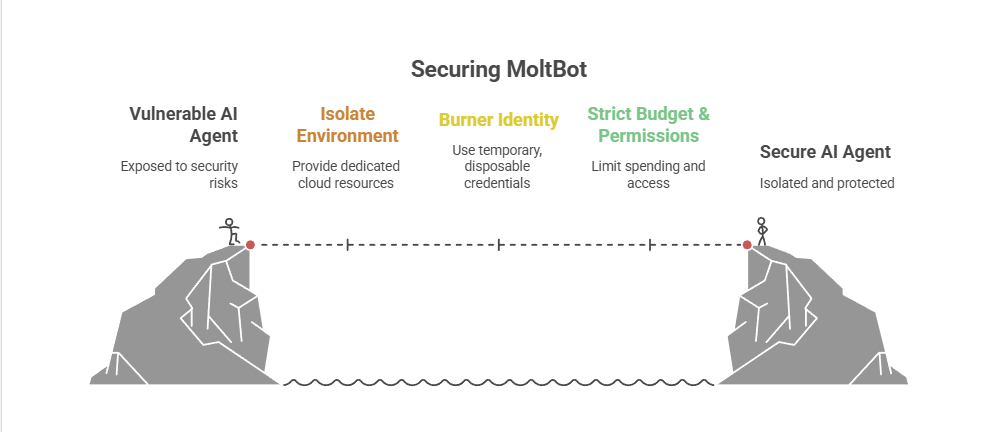
Stop installing autonomous AI agents on your personal hardware; Treat them like gullible remote staff working from home.
Provide a caption (optional)
Give them burner identities accounts and email
Their own cloud PC/VPS/Device
Their own virtual Mobile device
Strict budgets
And zero access to your LAN (Home network) so you can terminate them safely when they inevitably click something they shouldn’t or get phished sending sensitive data to the baddies, or do something else costing you all your hard earned pennies. Keep your documents, identity and years worth of photo memories away from the new guy, And that is it.
Provide a caption (optional)
visit
The Onboarding Checklist (SOP)
If you are ready to make the hire, here is the Standard Operating Procedure (SOP) for your new digital employee.
Standard Operating Procedure: Agent Onboarding
Procure Hardware: Deploy Windows 11 or Linux (ubuntu) on a dedicated Cloud PC/VPS. Not a shared host. Isolate this host.
Establish Identity: Provision new email account, eSim number +any other services you want to give him access too.
Start his Credential Manager: Either use chrome’s built in password manager and log into all his accounts for him on his device or setup your favourite password manager, and use its ‘create and share’ function to share his (never your) creds with him.
Network Security: Install ProtonVPN, Mullvad, other and set it to ‘Kill Switch’ mode. His traffic and anything you send him should be encrypted and away from the VPS hosts prying eyes. (helps prevent bans too!)
Endpoint Protection: Install an Adblocker like uBlock Origin, adGuard or pihole etc, or enforce his usage of Brave Browser only. Configure a solid AV or make sure the built in one is turned up to the max. He’s a child, and what may be obvious to us, clicking on that big fake ‘DOwNLoaD’ button – he hasn’t learnt yet, it all looks the same to him.
Permissions (Least Privilege): Block dangerous binaries. Set his users file permissions to Read Only for important config/other folders. Don’t give him Sudo/Admin rights, he can always ask for your help if he needs it for anything – just like a junior employee would have to do.
Supervision: Enable verbose logging – and occasionally check them! You are the manager (boss); you need to audit his work. And you are also legally responsible for what he does – at least in the UK/EU – I imagine in the US too.
Contract Termination: Take a ‘golden image’ or backup, and ensure you can kill his device, phone and accounts remotely if he goes rogue. You can always roll back, or restore from a backup, if you have one.
To Summarise:
The value of Moltbot isn’t having an AI inside your operating system; it’s having an intelligent worker availableto you.
By treating the agent as a remote employee, you get 90% of the utility with 10% of the risk.
If Molty downloads a malicious payload, you simply fire him (delete the Cloud device) and hire a new one 5 minutes later.
Trust, but verify. And for the love of sysadmin, keep him off your LAN.
Windows 365 Switch Frozen? Here’s How to Escape a Locked Cloud PC Session
The Quick Fix TLDR:
Minimize Everything: Press Win + Home. (If you can. Or try Win + End)
This minimizes all inactive windows. You won’t see it happen because the screen is frozen, but it forces the local OS to shift focus.
Open Run: Press Win + R.
Launch Terminal Blindly: Type wt (or cmd) and press Ctrl + Shift + Enter (to run as Admin).
Accept UAC: Press Left Arrow, then Enter.
(This blindly accepts the “Yes” on the User Account Control prompt).
Kill Explorer: Type the following and hit Enter:DOStaskkill /f /im explorer.exe
(Optional) If explorer.exe did not auto restart type the following and hit Enter: explorer.exe
Your screen should blink black as the local Windows shell is killed, taking the frozen RDP session and Taskview with it and then should automatically restart. Done.
It is the stuff of nightmares.
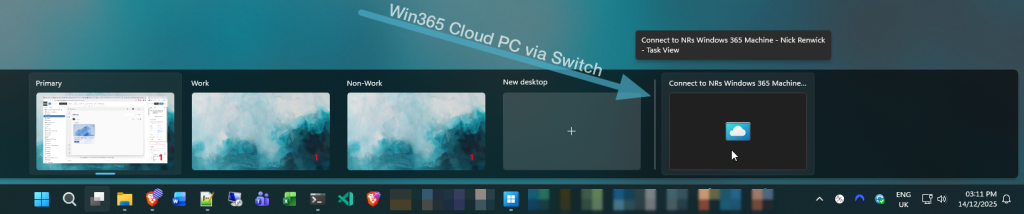
You are happily using the shiny new Windows 365 (task) Switch feature, bouncing between your local desktop and your Win365 Cloud PC seamlessly via Task View (Win + Tab) – when suddenly, everything stops.
The remote session freezes. But because Switch integrates so deeply with the local Win11 OS, it doesn’t just hang the window; it deadlocks your entire local PC.
The mouse moves, but you can’t click anything.
The Start menu won’t open. Alt + Tab does nothing. You are effectively locked out of your physical machine by the virtual one.
I found myself in this exact jam recently. The screen was frozen solid, and I was seconds away from a hard reboot when I managed to find a “blind” escape route.
Here is the quick fix if you are stuck right now, followed by why it happens and how to stop it coming back.
The “Proper” Escape Routes
While killing Explorer is effective, it is a bit like using a sledgehammer to crack a nut. If you have the presence of mind (and a responding keyboard), there are cleaner ways to get out.
I’ve listed these from best to worst:
Options:
Command
What it does
Rank
The Clean Break
tsdiscon
Best Option. It tells the Terminal Services client to disconnect immediately. It leaves your Cloud PC running in the background but drops you straight back to your local desktop.
1
The Interrupt
Ctrl + Alt + End
This is the RDP version of Ctrl + Alt + Del. It sends the interrupt to the remote PC, which often jars the local session enough to break the input deadlock.
2
The Sledgehammer
taskkill /f /im explorer.exe
As detailed above. It kills the local shell. Messy, but it works when nothing else will.
Tries to escape to your Host PC, opens an elevated terminal or CMD, then kills explorer.exe and all associated hooks and processes – that are hopefully causing you to hang.
(1) 4
Why Does This Happen?
Windows 365 Switch isn’t just a standard app; it hooks right into the Windows 11 shell to act as a native desktop.
When the RDP protocol flakes and has a radge, it is usually due to a network spike or a graphics rendering loop while in full-screen. It refuses to let go of the display and input hooks. Meaning you are left with local explorer.exe waiting for the RDP process to say “ready,” but the RDP process is aff tae the shaps. Result? Total deadlock.
Prevention is Better than Cure
In reality, but I’d rather not have to type blind commands to use my own PC, or have type blind commands anywhere really!
If you are an admin (fingers crossed if you are reading this, you are), you can push some Intune policies to stop this happening across your just your PC (selfish much!), or out to the entire Intune estate. It comes down to telling the RDP client to prioritize local stability over fancy remote graphics, and for now – seems to do the trick.
I’ve drafted a separate guide on exactly which settings to change in Intune to keep your Cloud PCs stable, will be placed in the link below soon!
👉 Coming soon, …maybe: How to Stop Windows 365 Freezing with Intune RDP Policies
![GNOME VS KDE: THE WAR FOR THE LINUX DESKTOP INTERFACE [ANALYSIS]](https://cannotdisplay.com/wp-content/uploads/2026/03/KDE-vs-GNOME-1260x703.png)
![[Opinion] STOP INSTALLING OPENCLAW (MOLTBOT) ON YOUR PC/MAC: How to Safely ‘Hire’ AI Agents via Cloud VPS](https://cannotdisplay.com/wp-content/uploads/2026/02/moltbot-banner.png)
![[Solved] Help! Windows 365 Cloud PC Switch Feature Has Frozen My Local Host PC.](https://cannotdisplay.com/wp-content/uploads/2025/12/Win365-Cloud-PC-via-Switch-1260x264.png)