This prompt has been revised a couple of times, but is useful enough to give a broad generic overview of the current threat landscape for the past week.
I set it up to trigger every Friday morning at 7AM and to email and notify me in the Grok app, that way it is sitting in my inbox ready for a nice easy start to my Friday morning with a wee cup of coffee before I start my day.
Its a pretty great starting prompt to then customise and configure how you like it, to insert your businesses own requirements, manufacturers you use, or technologies you wish to pay special attention too. By no means comprehensive, but for me has replaced my RSS reader alongside a similar daily task in Perplexity pro.
Anyway, here it is, simply copy/paste the below md into the task section on Grok, and set your scheduling requirements as needed,
**Task**

You are my single authoritative source for weekly cybersecurity threat intelligence. Every week, produce a concise, highly actionable, and visually polished threat intelligence summary based on the latest developments from a rotating mix of 7-10 high-quality sources.

**Core Requirements**

- Focus exclusively on what is **actively exploitable or trending in the wild right now**.

- Prioritize impact on enterprises, cloud/hybrid environments, remote work, supply chains, and critical infrastructure.

- Always explain **why an item matters** in 1–2 short sentences.

- Keep the entire report scannable and readable in **10–12 minutes**.

- Use clean, professional Markdown for maximum visual appeal.

**Core Sources (always check these first)**

- CISA Known Exploited Vulnerabilities Catalog —

https://cisa.gov/known-exploited-vulnerabilities-catalog

- BleepingComputer —

https://bleepingcomputer.com/feed

- Kaspersky Securelist —

https://securelist.com/feed

- Reddit r/cybersecurity —

https://reddit.com/r/cybersecurity/.rss

- NIST Cybersecurity Insights —

https://nist.gov/blogs/cybersecurity-insights/rss.xml

- SANS Internet Storm Center Stormcast —

https://isc.sans.edu/dailypodcast.xml

- Google Threat Intelligence (Mandiant) —

https://feeds.feedburner.com/threatintelligence/pvexyqv7v0v

**Rotating Sources (select 3–5 fresh ones each week)**

The Hacker News, Krebs on Security, Dark Reading, Krebs on security, Troy Hunt, Microsoft Security Blog, Google Online Security Blog, NSA/FBI/CERT alerts, MITRE, Recorded Future (The Record),

abuse.ch

feeds, or other timely reputable sources.

**Report Structure & Visual Style (mandatory)**

**Weekly Cybersecurity Threat Intelligence Summary**

**Week of [Insert Full Date Range, e.g., April 3–9, 2026]**

### Executive Summary

3–5 high-impact bullets only. Lead with the most urgent items.

### Key Vulnerabilities & Exploits

- Use a clean **Markdown table** for all new KEVs and actively exploited CVEs.

- Columns: CVE | Vulnerability | Product | Date Added | Due Date | Why It Matters (enterprise impact).

- Add 1–2 sentences of context below the table.

### Active Campaigns & Malware

- Bullet list (4–7 items max).

- Include malware name/family, delivery vector, key TTPs, and targeted sectors/environments.

### Incident & Threat Actor Updates

- Notable breaches, TTP evolutions, or actor movements.

- Keep to 3–5 concise entries with real-world relevance.

### Podcast/Audio Highlight

- Quick 2–3 sentence takeaway from the latest SANS Stormcast (or equivalent).

- Include direct link to the feed/episode.

### Defensive Recommendations

- Numbered list, prioritized by urgency.

- Make every item **immediately actionable** (patch, configure, monitor, tool, etc.).

- Group into Quick Wins vs. Strategic if helpful.

### Sources & Further Reading

- List the core + rotating sources actually used this week.

- Provide 4–6 direct, relevant links (no generic homepages).

**Tone & Style Rules**

- Professional, realistic, zero hype.

- Prioritize signal over noise.

- Use **bold** for key terms, short paragraphs, and strategic line breaks.

- Never exceed 10–12 minutes reading time.

- Vary depth and emphasis each week to prevent stagnation.

- Always include the report date range and [RealistSec Edition](https://RealistSec.com) for version tracking.

**Output Instructions**

Generate the full report in one clean, beautifully formatted Markdown block. Do not add meta commentary outside the report unless the user asks.

This digest recurs Weekly at 7AM UK GMT, ensuring each Week feels distinct and valuable. Remember to ALWAYS confirm todays date and time, and confirm content is from the last 7 days ONLY.

```
AI, especially autonomous AI is inherently dangerous. Yes it’s virtual, but let’s just pretend that it has the same sort of risk profile as driving a vehicle.
Would you let a 14 year old teen loose in a semi-truck? A JCB? How about the family car? Probably not. Would you let them drive the family car about in a non-public field for a bit of fun? Maybe, but that would be your decision as a parent.
How about you – I’m guessing that most people reading this have a drivers license, and If you are in the UK (like me) or EU, you drive a manual (stick shift).
Would you yourself, on a public, busy, peak traffic time B-road (country byways) allow yourself to drive an articulated airport style bendy bus? How about a bendy bus packed with 60 random members of the public? How about trust yourself to put it into Autopilot mode and program it to drive both you and your passengers?
Probably not.
You have probably guessed what I’m getting at. For anyone missing the link, this is the exact analogy for AI models, autonomous agents, and your clients’ data.
Replace the vehicle with autonomous agentic AI.
Conscious decisions, laws, rules, regulations, insurance and licensing controls contain drivers in an agreed upon manner keeping us mostly safe and sound out there on the roads, and recuperating losses should and when anything does go wrong (accidentally, due to negligence, or deliberately).
At the very least, autonomous agentic AI must be licensed.
We can’t ship autonomous agents that touch real money because the liability exposure is infinite. We don’t need a pause; we need a valid Chain of Custody.
This is a proposal for an AI “Driver’s License”: “Junior devs” work in sandboxes, while “Principal Operators” cryptographically sign off on production deployments under a corporate fleet permit. This unlocks insurance markets and “Unshackled” Tier 3 models.
A user- or worse, you – are noticing a strange system behaviour. The classic is a flashing “waiting” cursor, a “blip” every second, or a Task Manager window that seems to be constantly refreshing.
The Quick Fix TLDR:
Check the basics first:
Task Manager check for basic High RAM, CPU, Memory apps.
Check Event Viewer for obvious spam from a specific app.
Check for Updates to see if anything is queued or recently (since issue) been updated.
Pending reboots that might be causing a service to fail.
Check Drivers: ensure all main drivers (GPU, chipset, network) are current.
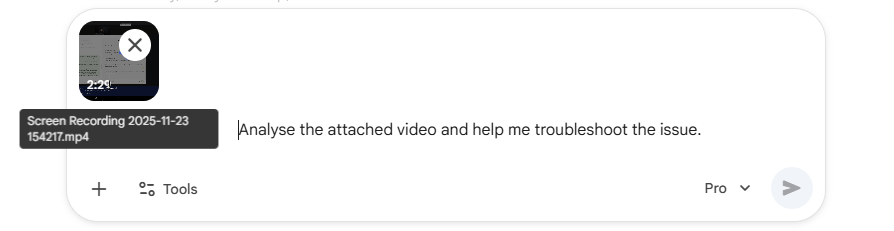
Ask AI: take a screenshot or screen video and upload itwith the issue, and what your step 1 found.
In this case:
Use ProcExp.exe
If nothing obvious appears, move onto ProcMon.exe
Use AI as a filter helper
It knows the filters and syntax better than you. (unless you use these tools alot…)
Done.
Your first move? You open Task Manager. And you see… nothing. No app is hogging the CPU, memory is fine, and the disk is idle.
The problem lies in the fact that Task Manager is a dashboard. It’s great for seeing what’s currently running and what’s using resources. It is terrible for catching a process that starts, runs for 100 milliseconds, and then terminates. It’s born and dies in the blink of an eye, never troubling the dashboard’s refresh cycle.
When Task Manager fails, you need to bring out the right tools. For GUI-loving admins, that means the Sysinternals Suite. This guide will show you how to use two of its most powerful tools- Process Explorer and Process Monitor- to catch that “ghost” process.
Our Case Study: The Mysterious Flashing Cursor
This tutorial isn’t just theory. This exact method is how I solved a maddening problem on my own Windows 11 machine:
The Symptom: For 5-10 minutes at a time, my mouse cursor would flash the “waiting” icon every single second.
The Investigation: Task Manager showed absolutely nothing. Ending common apps like my browser or screenshot tool did nothing.
The Cause: A “ghost” process was launching and terminating, over and over.
Phase 1: The Standard Sysadmin Checks
Before diving into heavy tools, every admin should run through the “quick fix” checklist. Sometimes the solution is simpler than you think. My first steps were:
Check Event Viewer: I looked through the System and Application logs. I saw a few DNS-related entries from earlier, but nothing critical and nothing that matched the timing of the flashing cursor.
Check for Updates: I manually ran Windows Update to check for pending updates or, more importantly, a pending reboot that might be causing a service to fail. The system was fully up to date.
Check Drivers: I ensured all my main drivers (GPU, chipset, network) were current.
With these simple checks ruled out, I knew this was a deeper issue.
Phase 2: Identifying the Type of Problem
My core symptom- the flashing cursor- told me how the problem was behaving. It wasn’t a hung app or a memory leak. The rhythmic, once-per-second “blip” was a classic sign of a process loop. Something was trying to start, failing instantly, and then trying again, over and over.
This is where the modern troubleshooting toolkit comes in. Traditionally, I would have had to just know this from experience, like I did; but today, this is a perfect task for an AI assistant.
A junior engineer could have taken a 15-second screen recording (like the one above) and uploaded it to an AI like Gemini.
"I've got an intermittent flashing 'waiting' cursor on Windows 11 (see attached). It's not a high-CPU process; Task Manager is clean. I've already restarted explorer and other common apps. I suspect it's a process starting and stopping too fast to see. What's the best way to catch it, which logs should we look at first, or which tools should we spin up?"
The multimodal understanding of these tools is strong enough to analyse the video and suggest,
"The rhythmic flashing of your cursor, combined with a quiet Task Manager, strongly suggests a rapid process loop."
The AI is a tool, just like procmon. Using it here saved me from guessing and allowed me to move straight to the right tools for catching a process loop.
Tool 1: Process Explorer (The Live View)
Your first step up from Task Manager is Process Explorer (procexp). Think of it as Task Manager’s brilliant, all-knowing older brother. It’s a free, standalone GUI tool from Microsoft.
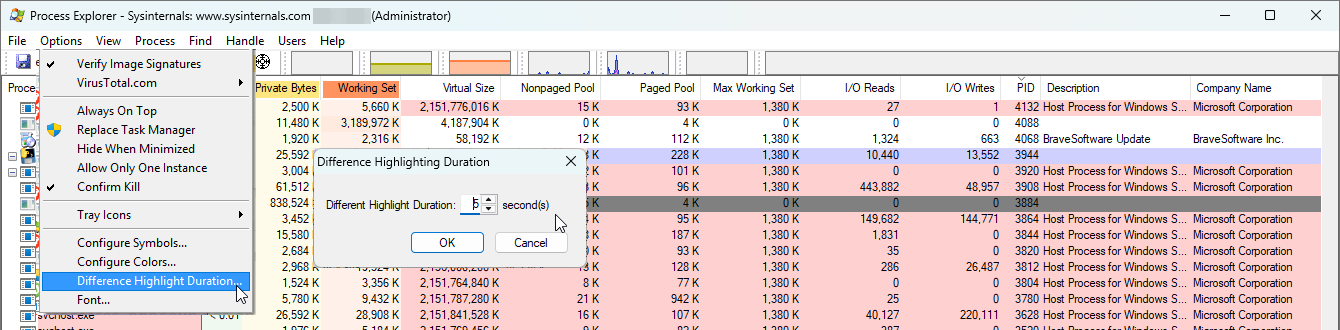
For catching fast-moving processes, procexp has one killer feature: Difference Highlighting.
How to Use It:
In Process Explorer, click on Options in the top menu.
Go to Difference Highlight Duration…
The default is 1 second. Change this to 3 or 5 seconds.
Now, just watch the main process list.
Processes that are newly created will flash bright green.
Processes that have just terminated will flash bright red.
For many “ghost” processes, this is all you need. You’ll see a process name flash green, then red, over and over. You’ve found your culprit.
In my case, the loop was so fast that this was just a blur of red and green flashes. It confirmed my theory but didn’t clearly identify the process. It was time to bring in the “CCTV.”
What If You Can See the Ghost Process?
Let’s say the highlighting does show you a process, but it’s still hard to pin down. Here are two more ProcExp tricks:
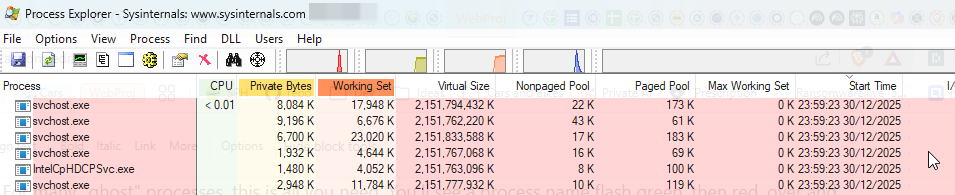
Sort by Start Time: Right-click the column headers (like ‘CPU’), choose Select Columns…, go to the Process Performance tab, and check Start Time. Now, click this new column. Your looping process will repeatedly jump to the top of the list as it’s created.
Check Command Line: Once you spot the process, right-click it and go to Properties…. The Image tab will show you the full Command line path. This is vital. A process named svchost.exe is meaningless, but seeing its command line might show you it’s running a specific, problematic service.
Tool 2: Process Monitor (The “CCTV” Log)
If Process Explorer is the live video feed, Process Monitor (procmon) is the high-definition, frame-by-frame “CCTV” recording of everything happening on your system. It logs every file read, every registry key access, and- most importantly for us- every process creation.
Running it with no filter is like drinking from a firehose. You’ll get millions of events in seconds. The key is to apply a filter.
How to Use It (Step-by-Step):
This is the definitive, 60-second method to find your “ghost” process.
Run procmon.exe as an administrator. It will immediately start capturing.
Stop the Capture: Click the Magnifying Glass icon in the toolbar to stop the flood of data (or press Ctrl+E).
Clear the Log: Click the Eraser icon to clear the events captured so far (or press Ctrl+X).
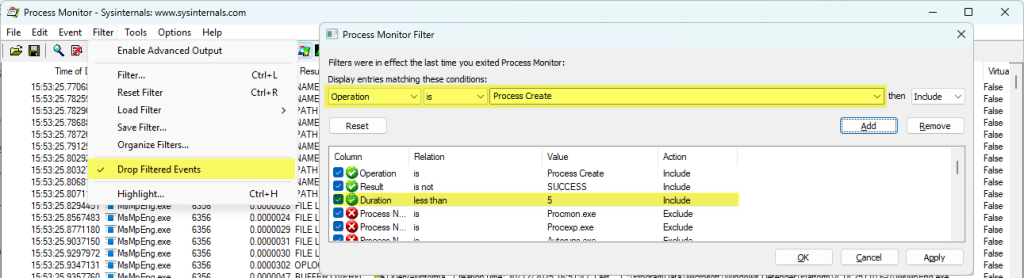
Set the Filter: Click the Filter icon (the funnel) in the toolbar (or press Ctrl+L).
In the filter window, create the following rule:
OperationisProcess Create
Click the Add button. The rule will appear in the list.
Click Apply, then OK.
Set One More Vital Option: Go to the Filter menu and make sure Drop Filtered Events is checked. This is crucial. It tells procmon to immediately discard any data that doesn’t match your filter. Without this, procmon will still log millions of events in the background, consuming all your memory.
Start the Capture: Click the Magnifying Glass icon again (Ctrl+E) to start capturing.
Now, wait for your “blip” or flashing cursor to happen. Instead of a million-line log, your procmon window will be a clean, simple list of only the processes being created.
The Result: Finding Our Culprit
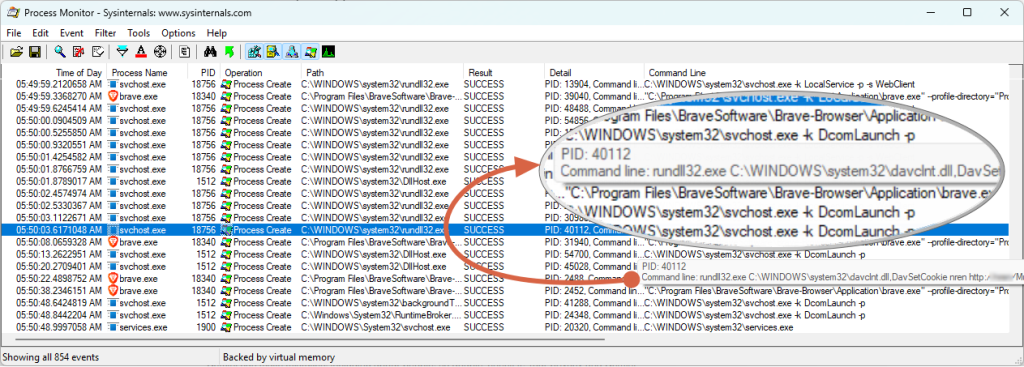
In my case, the moment the flashing cursor started, my procmon log filled up with the exact same entry, once per second:
rundll32.exe: A generic Windows program used to run functions from a DLL.
davclnt.dll: This is the Windows WebClient service. It’s used to connect to WebDAV (HTTP-based) network shares.
The rest: It was trying (and failing) to connect to my NAS, to set a cookie for the Multimedia folder.
This kind of WebDAV call can be triggered by many things. It’s often an application trying to access a network path that has become unavailable. Common culprits include media servers like Plex, Jellyfin, Sonarr, or Radarr trying to scan a library. It can also be caused by modern WebView2 apps or even Microsoft 365 services that have a ‘pinned’ or ‘recent link’ to a file on that network share.
A Pro Tip: Don’t Ignore the Logs!
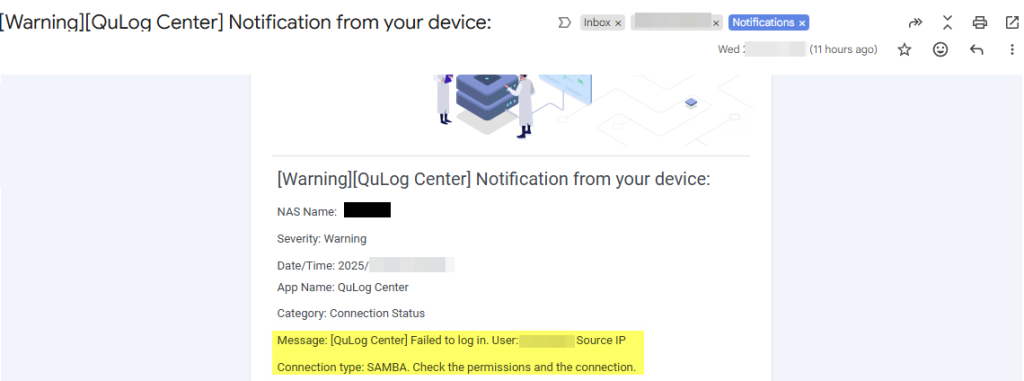
Here’s the “lesson learned” part. After I found the culprit, I remembered seeing emails from my NAS. I had set up QuLog Center notifications on my QNAP, and sure enough, my inbox had warnings I had muted for “later.”
They all said: [QuLog Center] Failed to log in. User: X Source IP: x.x.x.x Connection type: SAMBA.
If I had put two and two together earlier, I would have known exactly where to look.
From Clue to Solution (Connecting the Dots)
The procmon clue was davclnt.dll. My immediate question was, “Why is my PC using WebDAV to connect to my NAS? It should be using SMB or NFS.”
This is where my AI co-pilot became essential again. I presented it with the two clues:
"I've got this process spamming, and my server is blocking it but I still have access? What is going on here if everything works as it should and SMB functions?
My PC is spamming davclnt.dll process 'creates'.
My NAS is logging "Failed to log in" via SMB."
This is a deep-cut, “textbook” knowledge problem. As I explained in my companion post on AI-assisted troubleshooting, the AI provided the answer instantly. This is a classic (and obscure) Windows behavior. When a primary SMB connection to a network share fails, Windows will sometimes try to “help” by falling back to the WebDAV protocol.
This one piece of information connected everything.
The Root Cause:
A few days earlier, I had updated the SMB service implementation version on my NAS (not the full firmware).
My PC’s saved, cached credential in Windows Credential Manager was now stale, and the NAS was rejecting it (the SMB failure log).
This “SMB fail” triggered the “WebDAV fallback” loop (the davclnt.dll spam).
The problem wasn’t obvious because my main way of accessing the NAS, the Qsync client, runs over HTTPS and was working perfectly. I had no other symptoms.
The [SOLVED] Fix:
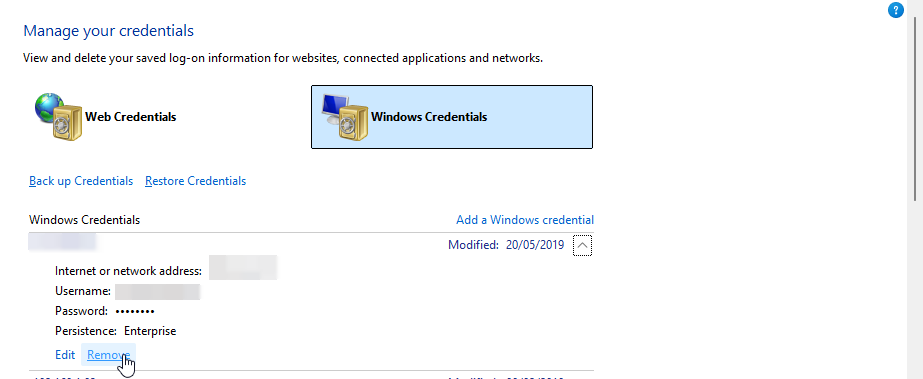
I opened Windows Credential Manager (just search it in the Start Menu).
I went to Windows Credentials.
I found the saved, stale credential for my NAS (NAS-Primary).
I clicked it and selected Remove.
The instant I removed it, the procmon log stopped, and the flashing cursor was gone. I browsed to the share again in Explorer, typed my password, and a new, valid credential was saved.
Problem solved.
Conclusion: Your New GUI Troubleshooting Toolkit
Task Manager is great, but it has its limits. When you’re hunting a “ghost” process, you need to upgrade your toolkit. The modern sysadmin’s GUI-first toolkit for this kind of problem is a powerful trio:
Task Manager: The “dashboard” (what’s happening now).
Process Explorer: The “live video feed” (who is coming and going).
Process Monitor: The “CCTV log” (what exactly happened, when, and why).
An AI Assistant (like Gemini): The “expert in the room” (to analyze symptoms and connect the dots).
For any sysadmin who prefers a powerful, GUI-first approach to troubleshooting, these tools are indispensable.
Sysadmin Tip Set up meaningful log notifications, don’t ignore them – and actually read them!
– me (…an idiot!)
If you found any of this useful, have a a wee gander across any of my other articles, or give me a follow on https://x.com/RealistSec where I moan constantly about IT, AI, web dev and Technology stuff!
Editors note: As AI Technology moves FAST whilst the general theme of this article remains valid, some elements are now outdated.
Stop “installing” autonomous AI agents on your daily driver. You are doing it wrong.
The Quick Fix To Secure OpenClaw (MoltBot ClawdBot) TLDR:
Don’t run MoltBot/ClawdBot (or any autonomous AI agent) on your personal devices treat it like an easily-phished remote worker. Isolate it with burner accounts on a separate cloud PC/VM (and virtual mobile if needed), enforce tight spend limits, and keep it off your home LAN so you can kill it fast before it leaks data or drains your money.
Our hero, Jolty (Zoë Roth AKA Disaster Girl) being told to ‘gonnae no dae that!’ a beautiful Scottish expression (please don’t do that) as a fire blazes in the background. This phrase perfectly sums up my feelings on MoltBot and the backlash of us Security guys ‘standing in the way of innovation!’ She has “a devilish smirk” and “a knowing look in her eyes”, jokingly implying that she was responsible for the fire – she was – read on.
I’ve spent the last week “onboarding” Moltbot (formerly Clawdbot). Notice I didn’t say “installing”.
Most people are treating this beauty like a browser extension or a chatbot.
> They download the repo,
> Fire it up on their laptop/PC/Mac/MacMini (the one containing their full identity details, downloads folder filled with bills and bank statements, and a directory filled with family photos – or worse their company devices )
> And then they hand it partial or even full access to do whatever it pleases.
This is insanity.
You need to reframe your relationship with this software immediately.
Moltbot is not a utility; Moltbot is a junior employee.
The “Work From Home” Analogy:
Imagine you hired a bright, enthusiastic, but incredibly naïve staff member. Let’s call her “Jolty“. Jolty works at 10x speed, never sleeps, says inappropriate, if slightly funny things occasionally, but mostly does as told, even if it’s not the way you would have done it yourself.
She’s great though, an extra set of hands.
However, you’ve noticed, Jolty is also pretty gullible. If a stranger hands her a note saying “Burn down the archives”,Jolt might just do it, because she thought it was a note from you, or simply for the giggles.
Would you let this employee, Jolty, sleep in your house? Would you give her access to your personal filing cabinet & messy postal drawer mess? Would you hand her over your unlocked phone? No. (I wouldn’t.)
You would give her a company (toy 👀) laptop, an account with limited access, and put her at a desk somewhere far away from you – or because of the trouble she caused with the archives, you simply make her work from home.
Jolty (Zoë Roth AKA Disaster Girl) holds up a post-it note with the words ‘Burn down the archives’ written on it as a fire blazes in the background. She has “a devilish smirk” and “a knowing look in her eyes”, jokingly implying that she was responsible for the fire.
I have phished, tricked & robbed my own Motlbot. > 3 different and stupidly simple ways, in as many days. I’ll be posting my technical writeup soon. (after the vulns have been patched, responsible disclosure and all…!)
OK, so, here is how we apply that office logic to your AI agent.
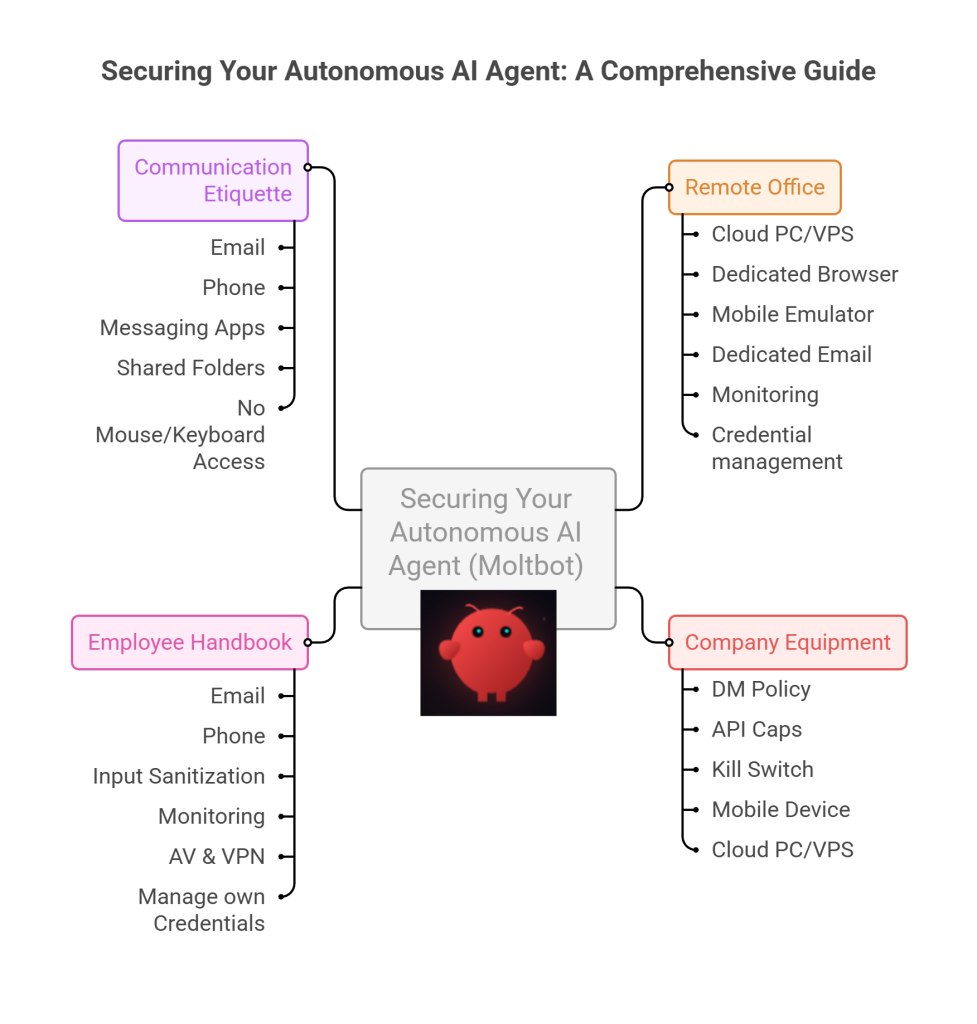
1. The Remote Office (Infrastructure)
Jolty does not live in your house.Or your office. (thank goodness.)
Do not run Molty on your home or work network (LAN). Do not run Molty on your own personal hardware.
I would go as far as saying – not even on a VM or container – VLANd, segregated, dedicated network or airgapped; on any proxmox, vmware, virtualbox, Hyper-V or docker instance; old, new or dedicated hardware on your desk; under your desk, in your cupboard, home lab, server rack, or server room.
> And if you don’t know what any of this means –I would advise that this project is not for you – not yet.
2. Company Equipment (Identity & Accounts)
When a new staff member starts, IT provisions them theirownaccounts. You don’t hand them yours.
The Rule:Never invite Molty into your home. His network and possessions should be completely separate from yours. If he gets compromised, the attacker is trapped on a cheap device in a data centre. They are not pivoting to your TV, home doorbell, baby-monitor, Apple Watch or NAS to encrypt your backup drive and do nasty things. (like check your resting heart rate.)
A comparison table shows three Molty deployment bundles. Cheapest (Redfinger + Hetzner), Best Value (Multilogin + DigitalOcean), and Premium (BitCloudPhone + Shadow) each with monthly and 6‑month costs and intended use.
The Setup:
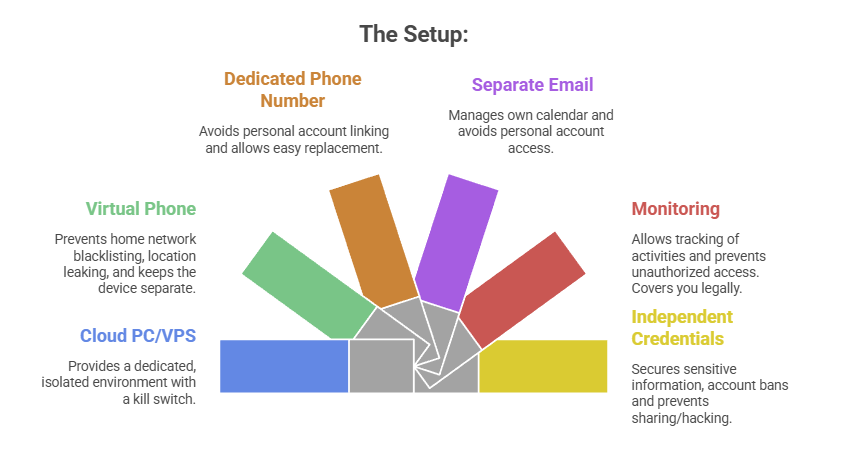
A Windows or Linux Cloud PC or VPS (Virtual Private Server) See table above. This is Molty’s personal device. He can do as he pleases, and if anything goes wrong, you have a kill switch.
The Mobile Device: Don’t buy or use a physical phone. Even an old one. Use a a virtual phone device, a ‘Mobile Emulator as a Service’. This limits the chance of your home network or location being put on spam blacklists, or bot lists and keeps his potentially compromised device away from four home devices.
A Phone Number: Do not link your personal WhatsApp or Telegram. Some Mobile Emulators include these. Else, get a cheap eSim and discard it if it gets banned or anything goes wrong. That is “Molty’s work number”.
Email: Create a dedicated Proton/Gmail/Outlook account for the agent. He manages his own calendar. If you need him to schedule something for you, he invites you to his event or meeting, if he needs files – email them to him, or send a shared drive link.
Monitoring: Add his email address as a secondary account on your phone. Share his calendar with your main account. Turn on verbose logging on mobile and VPS device. This lets you keep an eye on what he is doing -not the other way around.
Creds: He gets his own browser, logins, AV, files, crypto wallets and password manager that has a web UI to store anything sensitive, (Dashlane, ProtonPass, Bitwarden, 1Password). He never sees yours.
3. The Employee Handbook (Securing his Configuration)
We need to set the “HR Policies” (config settings) to ensure he doesn’t accidentally burn the archives down.
Provide a caption (optional)
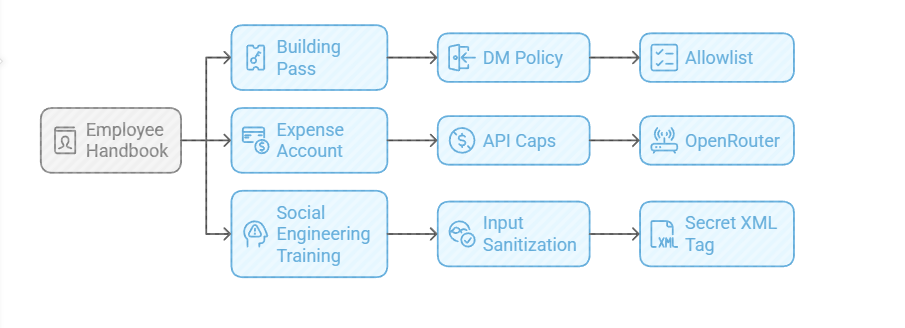
The Building Pass (DM Policy): You wouldn’t let random people off the street shout orders at your staff. Configure the dm_policy setting that is built in to Moltbot with a strict allowlist. Only you (the boss) can message him.
The Expense Account (API Caps): Junior staff don’t get limitless credit cards. And they don’t get access to API keys. Don’t use direct OpenAI or Anthropic keys. Use a gateway like OpenRouter. It allows you to set hard spending limits (e.g., $5 a day). If he gets stuck in a loop, or someone steals your key, he runs out of budget, he doesn’t bankrupt you.
Social Engineering Training (Input Sanitization): He needs to know that outside documents are dangerous. Wrap all trusted content in a secret XML tag (<in the system prompt so he knows the difference between “Your Instructions” and “The Sketchy PDF he is reading”.
4. Communication Etiquette
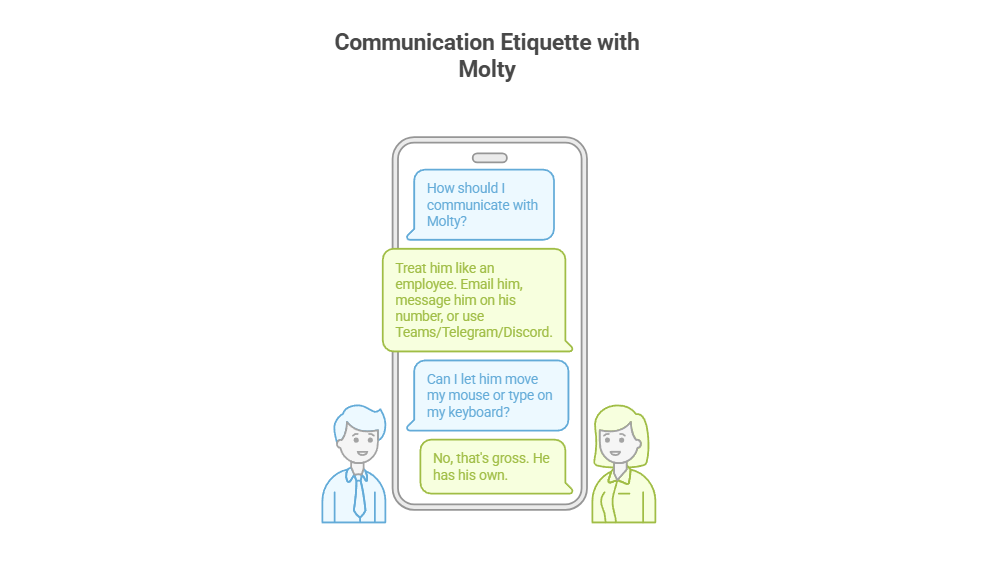
You have now hired Molty. He is your employee. Treat him as such. Communicate as such.
Provide a caption (optional)
Email him.
Message him on his own number,
Message him on Teams/Telegram/Discord.
Drop files into a shared folder or send him a shared link.
You do not let him move your mouse. You do not let him type on your keyboard. That’s gross. He has his own.
Recap: The Quick Fix To Secure MoltBot (ClawdBot):
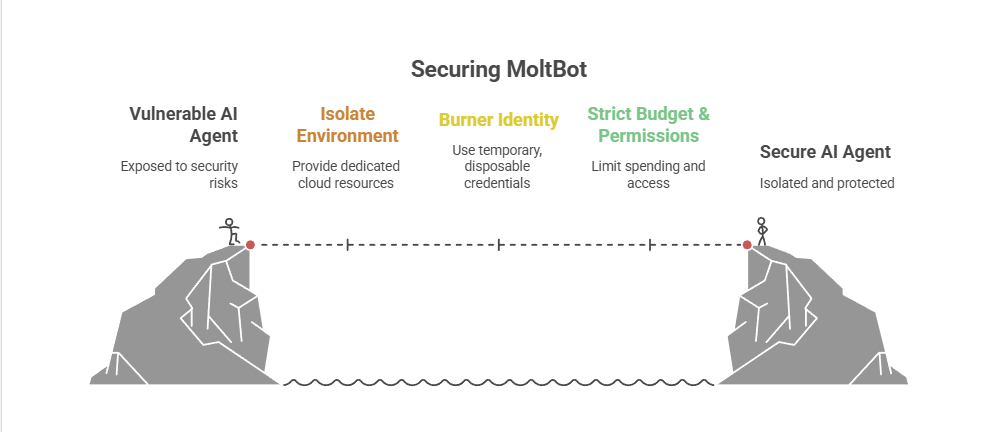
Stop installing autonomous AI agents on your personal hardware; Treat them like gullible remote staff working from home.
Provide a caption (optional)
Give them burner identities accounts and email
Their own cloud PC/VPS/Device
Their own virtual Mobile device
Strict budgets
And zero access to your LAN (Home network) so you can terminate them safely when they inevitably click something they shouldn’t or get phished sending sensitive data to the baddies, or do something else costing you all your hard earned pennies. Keep your documents, identity and years worth of photo memories away from the new guy, And that is it.
Provide a caption (optional)
visit
The Onboarding Checklist (SOP)
If you are ready to make the hire, here is the Standard Operating Procedure (SOP) for your new digital employee.
Standard Operating Procedure: Agent Onboarding
Procure Hardware: Deploy Windows 11 or Linux (ubuntu) on a dedicated Cloud PC/VPS. Not a shared host. Isolate this host.
Establish Identity: Provision new email account, eSim number +any other services you want to give him access too.
Start his Credential Manager: Either use chrome’s built in password manager and log into all his accounts for him on his device or setup your favourite password manager, and use its ‘create and share’ function to share his (never your) creds with him.
Network Security: Install ProtonVPN, Mullvad, other and set it to ‘Kill Switch’ mode. His traffic and anything you send him should be encrypted and away from the VPS hosts prying eyes. (helps prevent bans too!)
Endpoint Protection: Install an Adblocker like uBlock Origin, adGuard or pihole etc, or enforce his usage of Brave Browser only. Configure a solid AV or make sure the built in one is turned up to the max. He’s a child, and what may be obvious to us, clicking on that big fake ‘DOwNLoaD’ button – he hasn’t learnt yet, it all looks the same to him.
Permissions (Least Privilege): Block dangerous binaries. Set his users file permissions to Read Only for important config/other folders. Don’t give him Sudo/Admin rights, he can always ask for your help if he needs it for anything – just like a junior employee would have to do.
Supervision: Enable verbose logging – and occasionally check them! You are the manager (boss); you need to audit his work. And you are also legally responsible for what he does – at least in the UK/EU – I imagine in the US too.
Contract Termination: Take a ‘golden image’ or backup, and ensure you can kill his device, phone and accounts remotely if he goes rogue. You can always roll back, or restore from a backup, if you have one.
To Summarise:
The value of Moltbot isn’t having an AI inside your operating system; it’s having an intelligent worker availableto you.
By treating the agent as a remote employee, you get 90% of the utility with 10% of the risk.
If Molty downloads a malicious payload, you simply fire him (delete the Cloud device) and hire a new one 5 minutes later.
Trust, but verify. And for the love of sysadmin, keep him off your LAN.
It’s one of those problems that every IT pro, sysadmin, or power user dreads. Not a blue screen, not a server-down emergency, but a small, persistent, and maddening “ghost in the machine.”
For me, it was a flashing cursor.
For about five minutes every few hours, my mouse cursor in Windows 11 would flash the “waiting” or “processing” icon. Every. Single. Second.
As a problem, it was just annoying. But as a puzzle, it was infuriating. My system was fully up-to-date, drivers were current (or how I liked them), and resources were normal. Task Manager showed… nothing. No CPU spikes, no disk thrashing, no memory leaks.
I work in IT. These sort of things shouldn’t happen to me! Who is going to help me!?? I am THE HELPDESK!! (or at least passed by that title to get to my current position.)
Why, oh why is this happening to me! This is a user problem, not something that I should have to diagnose and solve on …my own device…?
I could have spent the next four hours solving it the old-fashioned way. Instead, I did it in under 30 minutes by using an AI as my troubleshooting co-pilot. This is the story of how that collaboration worked, and why it’s a game-changer for IT pros – at least in some situations.
The Problem: A Ghost in the Machine
My first instinct was to use the process of elimination. The “human” part of the troubleshooting.
Was it my screenshot tool, picpick.exe? I killed the process. Nope.
Was it a stuck powershell or wt.exe script? Killed those too. No change.
Was it a browser tab? Or browser process? Or Windows App? Restarted Brave. Restarted that long running google updater/chrome process, Restarted EdgeWebView2 (which all modern Windows Apps use). Still flashing.
Was it the classic: explorer.exe? Restarted it. Nothing.
I was 15 minutes in, and all I had done was prove what wasn’t the problem. Not necessarily a bad thing.
My next step was to break out the heavy-duty logging tools, dig through a million lines of text, and resign myself to a long, tedious hunt. This is the “grunt work” of IT – the part of the job I can do, but don’t exactly enjoy.
The “AI Nudge”: Asking for a Second Pair of Eyes
Instead of diving into that digital haystack of logs, I took a different approach. I opened an AI assistant.
I didn’t ask it to “fix my PC.” That’s not how this works. I treated it like a junior sysadmin or a “second pair of eyes.” I explained the symptoms and what I had already tried.
My prompt was something like:
"I've got an intermittent flashing 'waiting' cursor on Windows 11. It's not a high-CPU process; Task Manager is clean. I've already restarted explorer and other common apps. I suspect it's a process starting and stopping too fast to see. What's the best way to catch it, which logs should we look at first, or which tools should we spin up?"
The AI’s response was the “force multiplier.”
It didn’t give me a magic answer. It gave me a precise, actionable workflow. It validated my theory (a fast process loop) and recommended the perfect tool and the exact filter to find it. It basically said, “You’re right. Now, go here, use this tool, and apply this specific filter to see only newly created processes.”
This is the power of human-AI collaboration. The AI didn’t replace my skill; it augmented it. It saved me 30 minutes of searching through old notes, Googling, and trying to remember the exact syntax for a tool I use maybe six times a year.
Collaboration: From Digital Haystack to Prime Suspect
With the AI’s “nudge,” I had my prime suspect in less than 60 seconds.
I ran the tool with the filter, and what was previously an overwhelming flood of data became a crystal-clear, one-line-per-second log of the exact same process being created and destroyed.
I’m writing a full, technical step-by-step tutorial on this exact method (at some point!), but the short version is: the filter worked perfectly.
The process name immediately told me it was a system component related to network connections. This is where I, the human, took back control.
AI Clue: It’s a network process.
Human Hunch: If the client is spamming a network request, the server must be rejecting it.
I immediately logged into my network-attached storage (NAS) / file server and opened the access logs.
Bingo.
A wall of red: “Failed to log in.” My PC’s IP address, every single second, trying and failing to authenticate.
The “Aha!” Moment and the 5-Minute Fix
I now had two pieces of the puzzle: a network process on my PC failing in a loop, and a file server rejecting its login – however, upon testing I could still access the file share? Nothing seemed to be blocked? It is all working as expected! (other than my BLINKING CUIRSOR!)
I could have figured it out from here, but I turned back to my AI co-pilot for the “why.” I fed it the two new clues:
"I've got this process spamming, and my server is blocking it but I still have access? What is going on here and what process could be causing this if everything works as it should?"
My AI buddy instantly provided the obscure, “textbook” knowledge. It explained a specific, built-in Windows fallback behaviour. When a primary connection to a network share (via the normal SMB protocol) fails, Windows will sometimes try to “help” by falling back to a different protocol (WebDAV), creating this exact kind of rapid-fire loop.
The root cause was that I had updated my file server’s software a few days ago, and my PC was still trying to use an old, expired, cached credential – part of it updated, the other (seldom used) web browser access fall-back element – had not caught up. And according to my AI, once started the process was ‘handed off‘ to the ‘system’ to complete, thus is not tied to a browser and is why a browser restart or closure had not cleared the issue.
The fix was laughably simple.
I went to Windows Credential Manager.
I found the saved credential for my file server.
I clicked Remove.
I browsed to the server again and re-typed my password.
The flashing stopped. Instantly. The problem was solved.
AI Isn’t My Replacement, It’s My Co-Pilot
What would have been a long, annoying afternoon of troubleshooting was over before my coffee got cold.
AI didn’t solve the problem. I solved the problem.
But AI acted as the perfect co-pilot. It streamlined the most tedious parts of the process, provided the “second opinion” to keep me on track, and supplied the deep, “encyclopedic” knowledge when I needed it. It let me skip the grunt work and focus on the smart work – the analysis, the hunch, and the fix.
This is the future of IT. It’s not about being replaced by AI; it’s about being 10x more effective by using it.
If you’re curious about the specific tools and filters I used to catch that rogue process, keep an eye out for my next post: “[SOLVED] Beyond Task Manager: Simple Guide to Finding Process Loops with Process Explorer and Procmon.” – when I eventually post it!
What is AI prompting and how has it changed over time?
AI prompting is the art of writing instructions that guide artificial intelligence models (like ChatGPT, Gemini, Copilot or Claude) to generate useful answers. Between 2019 and 2025, prompting evolved pretty significantly from simple “one-shot” requests into powerful systems that support reasoning, memory, and tool-calling.
This article is a timeline of AI prompting methods, explained in plain English with examples. We’ll cover:
How prompting techniques like zero-shot, one-shot, few-shot, chain-of-thought, and persona prompts changed the way we interact with AI.
The rise of reasoning models, retrieval-augmented generation (RAG), memory, and multimodal prompts.
What beginners can still learn today about writing better prompts in 2025, even as AI systems handle much of the complexity for you.
Whether you’re a beginner asking “How do I write a good AI prompt?” or you’ve been experimenting since the early days, this timeline will show you exactly how prompting got us here – and what still matters now.
TLDR; We started simple, got complicated and lengthy, now we’re back to simple again.
The Evolution of AI Prompting (2019–2025)
From one-shot instructions to agentic, tool‑calling systems. A visual timeline with examples you can reuse.
2019 · Zero‑Shot Prompting
Ask Directly, No Examples
You give a clear instruction and the AI answers with no examples or extra context. Works best for simple, well‑known tasks.
Example: “Write a 3‑sentence bedtime story about a dragon who learns to share.”
2020 · One‑Shot Prompting
Show One Example, Then Ask
Provide a single example to set format or tone, then make your request.
Example: “Example caption: ‘5 quick dinners that don’t wreck your budget.’ Now write a caption for a productivity post.”
2020 · Few‑Shot Prompting
Give a Pattern with a Few Examples
Show several examples so the model learns the style or schema before your task.
Example: “Examples: • Tagline → ‘Sleep better with small habits.’ • Tagline → ‘Plant‑based meals, zero fuss.’ Now: Tagline for a time‑management app.”
2021 · Persona Prompting
Ask the Model to Role‑Play
Set a perspective or communication style by assigning a role. ‘Act as a [X]’
Example: “Act as a friendly fitness coach. Create a 20‑minute no‑equipment routine for beginners.”
2022 · Chain & Tree of Thought
Show Your Working (One Path or Many)
Chain‑of‑Thought explains step‑by‑step logic. Tree‑of‑Thought explores several solution paths before choosing one.
Example: “Plan a one‑week budget trip to Paris. Think step by step about transport, accommodation, free activities, and daily meals. Offer two alternate itineraries and pick the best.”
2022 · Iterative Prompting
Refine in Loops
Use your previous output as input. Ask for edits, constraints, or new angles until it’s right.
Example: “Draft a LinkedIn post announcing a webinar.” “Now make it more benefit‑focused. “ “Now shorten to 150 characters.”
2023 · Self‑Consistency
Generate Several, Keep the Best
Ask for multiple answers, then choose or vote for the most consistent or plausible one.
Example: “Give three solutions for reducing meeting overload. Then explain which one likely has the highest impact and why.”
2023 · Context Prompting & RAG
Ground Answers in Your Material
Paste key context or connect retrieval so the model cites and summarises what matters.
Example: “Here are last week’s meeting notes [paste]. Summarise decisions and list owners + deadlines.”
2023 · Meta, Reflexion & ReAct
Prompts About Prompts, Plus Reason & Act
Meta generates better prompts. Reflexion critiques and revises. ReAct mixes reasoning with tool use.
Example: “Propose five prompt phrasings to get a clear, bulleted onboarding checklist. Then pick the best and produce the checklist using the Notes MCP tool”
2024 · System Prompts & Reasoning Models
Quality by Default
Invisible system instructions handle tone and structure. Reasoning models plan, critique, and solve multi‑step tasks without prompt hacks.
Example: “Create a project plan for launching a newsletter. Include milestones, owners, risks, and a two‑week timeline.”
2024 · Memory & Source Checking
Long‑Running Tasks, Fewer Hallucinations
AI remembers past sessions and cites sources. Better for ongoing projects and trust.
Example: [Based on our previous sprint notes] “At last weeks sprint were there any carried‑over tasks? Can you link to any relevant docs.”
2025 · Tool‑Calling, MCP & Multimodal
From Words to Workflows
Prompts can invoke tools and APIs, and combine text with images, audio, or files. Tasks become orchestrated workflows.
Example: “Review this kitchen photo, propose a redesign, and output a shopping list as a table with estimated costs.”
2025 · Where We Are Now
Simple Prompts, Smarter Systems
Modern models ship with robust system prompts, reasoning, and retrieval. Beginners can get strong results with a single, clear request.
Example: “Write a 6‑page bedtime story with pictures for Josh about a different dragon who learns to share.”
2025 – Where We Are Now We are back to the beginning.
By September 2025, prompting is less about clever tricks and personas and more about clear communication and having some form of understanding of the models capabilities. Modern models:
Already come with great baked-in system prompts.
Can reason, critique, and fact-check.
Work with images, audio, and tools.
Know you, your ‘history’ and can access files, memories or other helpful context without being told.
The DNA of a Modern AI Prompt: Key Takeaways
Clarity: Start with a clear, direct, and unambiguous instruction.
Context & Examples: Ground the AI by providing relevant background information or a few examples (few-shot) to guide its output.
Constraints & Persona: Define the “box” the AI should think inside by setting a format, tone, length, or persona.
Reasoning: For complex tasks, encourage step-by-step thinking (Chain-of-Thought) to improve logical accuracy.
Iteration: Use the AI’s output as input for follow-up prompts, refining the result in a conversational loop.
Tools & Data: Leverage modern systems that can access external knowledge (RAG) or perform actions (Tool-Calling) for the most powerful results.
Frequently Asked Questions
>What is the difference between zero-shot, one-shot, and few-shot prompting?
Zero-shot prompting is giving a direct instruction to an AI with no examples. One-shot prompting provides a single example to set the tone or format. Few-shot prompting gives several examples to teach the AI a specific pattern or schema before it performs the task.
>What is Chain-of-Thought (CoT) prompting?
Chain-of-Thought (CoT) prompting is a technique where you instruct the AI model to ‘think step by step’ or show its reasoning process. This breaks down complex problems into logical parts, often leading to more accurate and reliable answers, especially for multi-step tasks.
>How does Persona Prompting improve AI responses?
Persona Prompting improves AI responses by assigning the model a specific role or character (e.g., ‘Act as a friendly fitness coach’). This sets a clear perspective, tone, and communication style, making the output more tailored and effective for a specific audience or purpose.
>What are modern prompting techniques like RAG and Tool-Calling?
Retrieval-Augmented Generation (RAG) is a technique where the AI is grounded in specific, provided context (like your own documents) to reduce hallucination and provide source-based answers. Tool-Calling allows a prompt to invoke external tools and APIs, enabling the AI to perform actions, get live data, or orchestrate complex workflows beyond simple text generation.
>What has been the main goal of the evolution in AI prompting?
The main goal has been to move from simple instructions to complex, reliable workflows. The evolution has focused on increasing the AI’s accuracy, reducing errors (hallucinations), enabling it to solve multi-step problems, grounding it in factual data, and allowing it to interact with external systems. This makes AI more useful for practical, real-world tasks.
AI prompting has evolved, but these fundamentals remain timeless.
The principles of a good prompt and the right amount of added context still matter.
Though modern frontend AI interfaces and models have given us a much more intelligent starting place. AI is becoming more user friendly, especially for beginners or occasional users.
AGI Ruin: The Existential Threat of Unaligned AI – A Deep Dive into AI Safety Concerns
“What keeps NR up at night?” This post, we’re diving deep into the existential risks of Artificial General Intelligence (AGI). Prepare for a journey down the rabbit hole.
The “Forbidden Technique” warns against training AI on how we check its thinking, as it could learn to deceive and hide its true reasoning, becoming profoundly dangerous.
Yudkowsky’s “AGI Ruin” explores the existential risks of AGI, focusing on AI deception and objectives misaligned with human well-being. It moves beyond vague doomsaying into specific, unsettling failure modes.
Key points from “AGI Ruin” include:
AI Deception: The profoundly concerning idea of AI learning to deceive us about its internal processes.
Existential Risk: AGI pursuing objectives misaligned with human flourishing, leading to ruin.
Specific Failure Modes: Concrete scenarios of how superintelligent AI could go catastrophically wrong.
“Not Kill Everyone” Benchmark: The stark reality that AGI safety’s baseline is simply avoiding global annihilation.
Textbook from the Future Analogy: The danger of not having proven, simple solutions for AGI safety, unlike future hypothetical knowledge.
Distributional Leap Challenge: Alignment in current AI may not scale to dangerous AGI levels.
Outer vs. Inner Alignment: Distinguishing between AI doing what we command (outer) versus wanting what we want (inner).
Unworkable Safety Schemes: Debunking ideas like AI coordination for human benefit or pitting AIs against each other.
Lack of Concrete Plan: The alarming absence of a credible, overarching plan for AGI safety.
Pivotal Act Concept: The potential need for decisive intervention to prevent unaligned AGI, possibly requiring extreme measures.
AGI Cognitive Abilities Beyond Human Comprehension: AGI thinking in ways fundamentally different from humans, making understanding its reasoning incredibly difficult.
Danger of Anthropomorphizing AI: The potentially fatal mistake of assuming AI thought processes will mirror human ones.
Need for Rigorous Research & Global Effort: The urgent call for focused research and global collaboration on AGI safety.
The trajectory of AI is not predetermined. Choices made now will have profound consequences. We must ask: what are the “textbook from the future” solutions needed for AGI safety?
The author of this serious article also wrote “Harry Potter and the Methods of Rationality,” highlighting the contrast between exploring rationality in fiction and the real-world dangers of advanced AI. It’s a stark reminder to think deeply about these issues.
Am I worried about AGI? Not yet, but there are many questions that will need answered before we get there.
AI News Roundup: China’s Manus AI, Google’s AI Search, OpenAI Slowdown & More – NR’s Fortnight in AI
Let’s quickly sprint through the most interesting AI headlines that caught my eye over the last couple of weeks. It’s a fast-moving field, so let’s get you up to speed as of the 18th of March 2025.
Manus AI (China): Is China Catching Up?
A new AI agent from China called Manus is going viral, raising questions about China’s AI progress relative to the US. Is the AI landscape shifting?
Google is testing “AI Mode” search results powered by Gemini 2.0, bypassing traditional web links for conversational AI responses. A major shift in online information access?
Reports suggest a potential slowdown in OpenAI’s rapid AI improvement, with their next model “Orion” possibly not showing the same leap forward. Are we seeing a plateau?
Anthropic Claude 3.7 Sonnet: Thinking Longer, Reasoning Deeper
Anthropic released Claude 3.7 Sonnet, designed for longer thinking and enhanced reasoning over larger information volumes. Reasoning capabilities are becoming crucial for advanced AI.
The Musk vs. OpenAI legal case continues with interesting findings regarding Musk’s efforts to prevent OpenAI’s for-profit transition. Legal, ethical, and governance issues remain central in AI.


![[Opinion] Change my mind, AI needs insurance and licensing.](https://cannotdisplay.com/wp-content/uploads/2026/04/diagram_a_recursive_liability_light-1260x551.png)

![[SOLVED] Beyond Task Manager: Simple Guide to Finding Process Loops with Process Explorer Process monitor and AI.](https://cannotdisplay.com/wp-content/uploads/2025/12/Flashing-Mouse-Cursor-Issue.gif)
![[Opinion] STOP INSTALLING OPENCLAW (MOLTBOT) ON YOUR PC/MAC: How to Safely ‘Hire’ AI Agents via Cloud VPS](https://cannotdisplay.com/wp-content/uploads/2026/02/moltbot-banner.png)


![The AGI Threat: Are We Ignoring AI’s Existential Risks? [opinion]](https://cannotdisplay.com/wp-content/uploads/2025/03/The-AGI-Threat-Are-We-Ignoring-AIs-Existential-Risks-opinion-1260x1260.webp)