![[Solved] Help! Windows 365 Cloud PC Switch Feature Has Frozen My Local Host PC.](https://cannotdisplay.com/wp-content/uploads/2025/12/Win365-Cloud-PC-via-Switch-1260x264.png)
Windows 365 Switch Frozen? Here’s How to Escape a Locked Cloud PC Session
The Quick Fix TLDR:
- Minimize Everything: Press
Win + Home. (If you can. Or tryWin + End)- This minimizes all inactive windows. You won’t see it happen because the screen is frozen, but it forces the local OS to shift focus.
- Open Run: Press
Win + R. - Launch Terminal Blindly: Type
wt(orcmd) and pressCtrl + Shift + Enter(to run as Admin). - Accept UAC: Press Left Arrow, then Enter.
- (This blindly accepts the “Yes” on the User Account Control prompt).
- Kill Explorer: Type the following and hit Enter:DOS
taskkill /f /im explorer.exe - (Optional) If explorer.exe did not auto restart type the following and hit Enter:
explorer.exe
Your screen should blink black as the local Windows shell is killed, taking the frozen RDP session and Taskview with it and then should automatically restart.
Done.
It is the stuff of nightmares.
You are happily using the shiny new Windows 365 (task) Switch feature, bouncing between your local desktop and your Win365 Cloud PC seamlessly via Task View (Win + Tab) – when suddenly, everything stops.
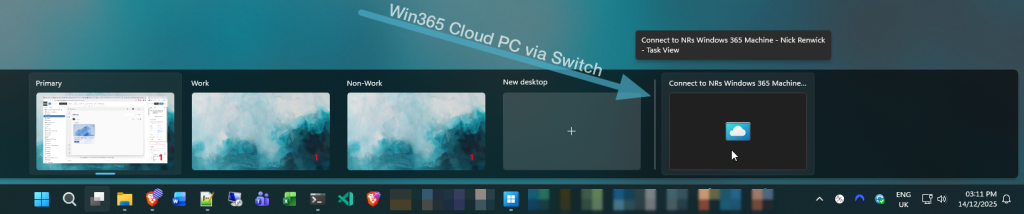
The remote session freezes. But because Switch integrates so deeply with the local Win11 OS, it doesn’t just hang the window; it deadlocks your entire local PC.
The mouse moves, but you can’t click anything.
The Start menu won’t open. Alt + Tab does nothing. You are effectively locked out of your physical machine by the virtual one.
I found myself in this exact jam recently. The screen was frozen solid, and I was seconds away from a hard reboot when I managed to find a “blind” escape route.
Here is the quick fix if you are stuck right now, followed by why it happens and how to stop it coming back.
The “Proper” Escape Routes
While killing Explorer is effective, it is a bit like using a sledgehammer to crack a nut. If you have the presence of mind (and a responding keyboard), there are cleaner ways to get out.
I’ve listed these from best to worst:
| Options: | Command | What it does | Rank |
|---|---|---|---|
| The Clean Break | tsdiscon | Best Option. It tells the Terminal Services client to disconnect immediately. It leaves your Cloud PC running in the background but drops you straight back to your local desktop. | 1 |
| The Interrupt | Ctrl + Alt + End | This is the RDP version of Ctrl + Alt + Del. It sends the interrupt to the remote PC, which often jars the local session enough to break the input deadlock. | 2 |
| The Sledgehammer | taskkill /f /im explorer.exe | As detailed above. It kills the local shell. Messy, but it works when nothing else will. | 3 |
| The ‘Hail Mary’ Quick Fix Combination | See TLDR | Tries to escape to your Host PC, opens an elevated terminal or CMD, then kills explorer.exe and all associated hooks and processes – that are hopefully causing you to hang. | (1) 4 |
Why Does This Happen?
Windows 365 Switch isn’t just a standard app; it hooks right into the Windows 11 shell to act as a native desktop.
When the RDP protocol flakes and has a radge, it is usually due to a network spike or a graphics rendering loop while in full-screen. It refuses to let go of the display and input hooks. Meaning you are left with local explorer.exe waiting for the RDP process to say “ready,” but the RDP process is aff tae the shaps. Result? Total deadlock.
Prevention is Better than Cure
In reality, but I’d rather not have to type blind commands to use my own PC, or have type blind commands anywhere really!
If you are an admin (fingers crossed if you are reading this, you are), you can push some Intune policies to stop this happening across your just your PC (selfish much!), or out to the entire Intune estate.
It comes down to telling the RDP client to prioritize local stability over fancy remote graphics, and for now – seems to do the trick.
I’ve drafted a separate guide on exactly which settings to change in Intune to keep your Cloud PCs stable, will be placed in the link below soon!
👉 Coming soon, …maybe: How to Stop Windows 365 Freezing with Intune RDP Policies