[SOLVED] UniFi AP Firmware 6.7.31: Breaking Wireless Meshing and Causing Channel Hopping – Here’s the Fix.

Unifi Firmware 6.7.31 Mesh Problem and Fix

A recent official firmware update for several popular UniFi Access Points, version 6.7.31 (Released: Tuesday, September 23rd, 2025), is causing significant network instability for some users, particularly those who rely on wireless meshing or custom channel configurations. While the official release notes claim “Improved overall AP stability,” user reports indicate the opposite can be true.

This release is only for these models:

  • U6-LR/U6-Lite/U6+
  • UAP-nanoHD/FlexHD/BeaconHD/IW-HD
The Quick Fix TLDR:

UniFi firmware 6.7.31 is causing mesh instability due to a channel hopping bug. To fix this, manually downgrade the affected Access Point to a stable version like 6.7.17 via the UniFi Controller’s Manual Firmware Update setting using the direct download URL.

The Issue: Constant Channel Hopping Breaks Meshing

Users have reported that after auto-updates or updating Access Points such as the UAP-FlexHD to version 6.7.31, the devices begin to ignore manually configured channel plans and start “drifting channels constantly”.

This behaviour is particularly destructive for wireless mesh networks, where APs must remain on the same channel to maintain their uplink connection. The constant channel changes effectively sever this link, leading to:

  • Isolated APs dropping from the network.
  • Frequent client disconnections and reconnections.
  • Overall network instability and performance degradation.

Logs confirm this behavior, showing a sudden flood of “AP Channel Change” events immediately after the APs are updated to firmware 6.7.31.

Here are the logs from 2 of my own Flex-HD’s (for anyone interested! ha)
Items in bold where updates started, then logs from after manually downgrading back to previous version.
```
System  WiFi  AP Channel Change  Upstairs AP moved to channel 36 from 149.  Today at 1:16:02 PM  
System  WiFi  AP Channel Change  Upstairs AP moved to channel 149 from 40.  Today at 1:15:52 PM  
**System  Devices  Device Updated  Upstairs AP has updated to 6.7.17.  Today at 1:12:59 PM **
**System  Devices  Device Updated  Downstairs AP has updated to 6.7.17.  Today at 1:09:01 PM ** 
System  WiFi  AP Channel Change  Upstairs AP moved to channel 36 from 40.  Today at 12:52:50 PM  
System  WiFi  AP Channel Change  Upstairs AP moved to channel 40 from 48.  Today at 12:51:53 PM  
System  WiFi  AP Channel Change  Downstairs AP moved to channel 48 from 161.  Today at 12:44:51 PM  
System  WiFi  AP Channel Change  Upstairs AP moved to channel 161 from 48.  Today at 12:42:24 PM  
System  WiFi  AP Channel Change  Upstairs AP moved to channel 48 from 161.  Today at 12:40:41 PM  
System  WiFi  AP Channel Change  Downstairs AP moved to channel 161 from 157.  Today at 12:39:46 PM  
System  WiFi  AP Channel Change  Upstairs AP moved to channel 161 from 157.  Today at 12:38:18 PM  
System  WiFi  AP Channel Change  Upstairs AP moved to channel 157 from 48.  Today at 12:32:55 PM  
System  WiFi  AP Channel Change  Upstairs AP moved to channel 40 from 161.  Today at 12:23:08 PM  
System  WiFi  AP Channel Change  Upstairs AP moved to channel 161 from 48.  Today at 11:52:03 AM  
System  WiFi  AP Channel Change  Upstairs AP moved to channel 48 from 161.  Today at 11:47:57 AM  
System  WiFi  AP Channel Change  Upstairs AP moved to channel 161 from 48.  Today at 11:40:36 AM  
System  WiFi  AP Channel Change  Upstairs AP moved to channel 161 from 48.  Today at 11:34:05 AM  
System  WiFi  AP Channel Change  Upstairs AP moved to channel 48 from 161.  Today at 11:31:58 AM  
System  WiFi  AP Channel Change  Upstairs AP moved to channel 161 from 40.  Today at 11:17:41 AM  
System  WiFi  AP Channel Change  Upstairs AP moved to channel 40 from 161.  Today at 11:13:43 AM  
System  WiFi  AP Channel Change  Upstairs AP moved to channel 161 from 44.  Today at 11:05:25 AM  
System  WiFi  AP Channel Change  Upstairs AP moved to channel 161 from 40.  Today at 10:30:18 AM  
System  WiFi  AP Channel Change  Upstairs AP moved to channel 40 from 161.  Today at 10:26:34 AM  
System  Devices  Multiple Device Reconnections  USW-Enterprise-8-PoE has reconnected multiple times in the past 24 hours.  Today at 10:20:32 AM  
System  WiFi  AP Channel Change  Upstairs AP moved to channel 161 from 48.  Today at 9:41:46 AM  
System  WiFi  AP Channel Change  Upstairs AP moved to channel 48 from 161.  Today at 9:37:16 AM  
System  WiFi  AP Channel Change  Upstairs AP moved to channel 161 from 48.  Today at 9:36:09 AM  
System  WiFi  AP Channel Change  Upstairs AP moved to channel 48 from 161.  Today at 9:34:06 AM  
System  WiFi  AP Channel Change  Upstairs AP moved to channel 161 from 40.  Today at 9:32:26 AM  
System  WiFi  AP Channel Change  Upstairs AP moved to channel 40 from 161.  Today at 9:30:05 AM  
System  Devices  Multiple Device Reconnections  Downstairs AP has reconnected multiple times in the past 24 hours.  Today at 7:29:35 AM  
System  Devices  Multiple Device Reconnections  Upstairs AP has reconnected multiple times in the past 24 hours.  Today at 5:31:23 AM  
System  WiFi  AP Channel Change  Upstairs AP moved to channel 161 from 40.  Today at 4:27:04 AM  
System  WiFi  AP Channel Change  Upstairs AP moved to channel 40 from 161.  Today at 4:23:30 AM  
System  WiFi  AP Channel Change  Upstairs AP moved to channel 161 from 44.  Today at 3:56:33 AM  
System  WiFi  AP Channel Change  Upstairs AP moved to channel 44 from 161.  Today at 3:53:32 AM  
System  Devices  Device Updated  Upstairs AP has updated to 6.7.31.  Today at 3:11:04 AM  
System  Devices  Multiple Devices Offline  Multiple devices are offline.  Today at 3:09:05 AM  
System  Devices  Device Updated  Downstairs AP has updated to 6.7.31.  Today at 3:04:37 AM  
```

The Current Solution: Downgrade to a Stable Firmware Version

Until Ubiquiti releases a patch, the most effective solution, albeit a temp fix, is to manually downgrade the firmware on the affected Access Points to a known stable version, a known working version is: 6.7.17, which I used for my UAP-Flex-HD
(this should be the same firmware as for the Unifi: U6-LR, U6-Lite, U6+, UAP-nanoHD, FlexHD, BeaconHD & the IW-HD) and has been confirmed to resolve the issue, for now.
You should do a search on the official firmware downloads site here first to confirm firmware for your own device.

You can perform this downgrade via the UniFi Network Controller’s web interface:

Step-by-Step Downgrade Instructions:

Method 1: Downgrade via the UniFi Web Interface (Recommended)

  1. Navigate to the Devices section in your UniFi Network Controller.
  2. Click on the problematic Access Point to open its properties panel.
  3. Go to the Settings tab.
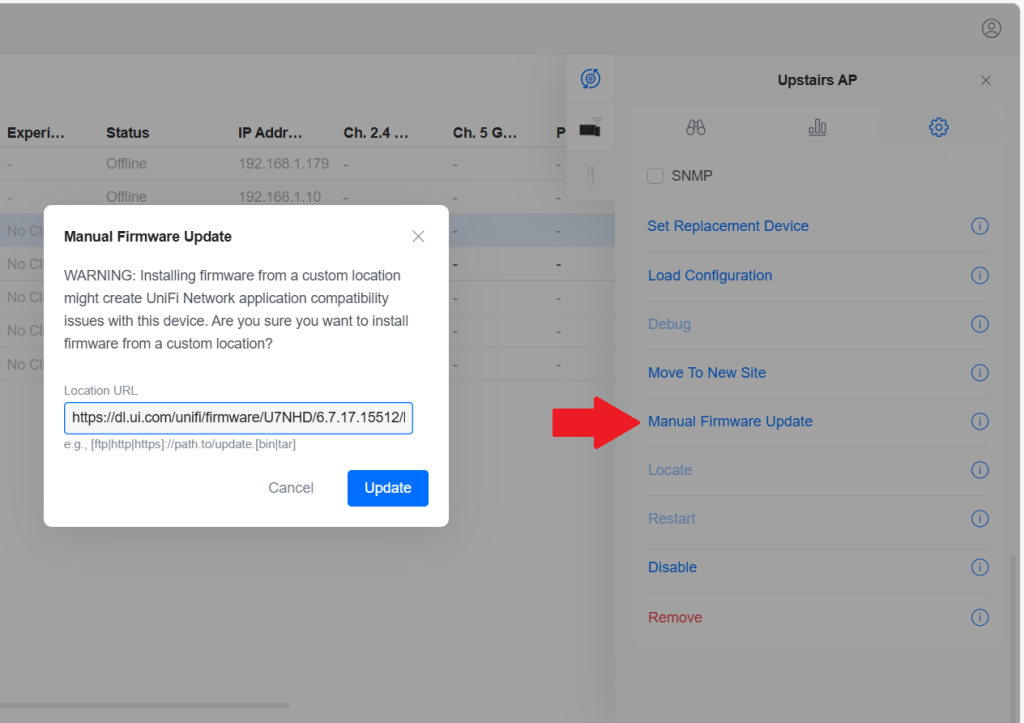
  4. Scroll down to the Manage section and find Manual Firmware Update.
  5. Paste the full direct download URL ending with ‘.bin’ into the ‘Location URL’ field.
    in my case for downgrading one firmware version back from the 6.7.31 to 6.7.17 I used: https://dl.ui.com/unifi/firmware/U7NHD/6.7.17.15512/BZ.mt7621_6.7.17+15512.250418.0425.bin
  6. Click the “Update” button. The AP will download and apply the older firmware, then reboot.
Method 2: Downgrade via SSH (Advanced)

  1. Connect to the AP via SSH either via the debug console in the web UI or with an SSH client.
  2. Run the direct upgrade command. Once logged in, run this command:
    upgrade https://dl.ui.com/unifi/firmware/U7NHD/6.7.17.15512/BZ.mt7621_6.7.17+15512.250418.0425.bin
  3. Do not close the terminal. Wait for the AP to download the firmware and begin the flashing process. Your connection will be terminated when the device reboots. Monitor its status in the UniFi Controller.
If you do not know your SSH login details,
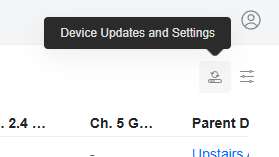
Device Updates and Settings

You can find these in the web UI under: Device tab –> the tiny Device Updates and Settings button –> Device Settings –> ‘Device SSH Authentication’
or if you are using the AP standalone without the Unifi Network controller, your AP settings may just be the default UI SSH user/pass

After the process is complete, the Access Point should reconnect to the network with its wireless mesh links restored and channel settings properly honoured. I would highly recommended to disable automatic updates for these devices until a new, fixed firmware version is released.

Important Note on DFS Channels: It’s Also worth noting that none of the ‘restricted’ channels set in channel plan or settings from the ‘WiFi Management’ page are being honoured by WiFi AP’s in the 6.7.31 update, so if you don’t downgrade you may face DFS Radar scanning issues, especially here in the UK.

Misbehaving channels

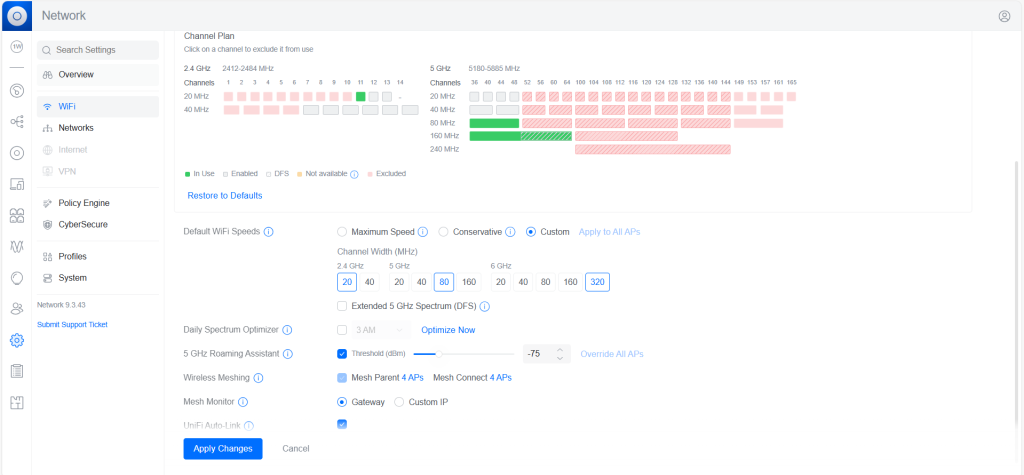
Below was my test plan before I worked out I should just downgrade firmware.

I restricted pretty much every channel I could to dictate a set enforcement for.

I knew that settings dictated on the individual AP’s settings pages were not being honoured, so went an alternative route, to see if creating settings in the WiFi Channel Plan forms would work instead of doing it on individual AP’s.
However, not 10 minutes later – my ‘Upstairs AP’ had taken itself off for a wander into the what should have been restricted channel: 161

Conclusion: Maybe wait this update out a few days until UI find a fix. Else – hopefully you have googled some of your issues, and this wee post here has, for now helped you find my above recommended fix with some step by step instructions on how to downgrade Unifi AP firmware nice and easy.

[SOLVED] How to insert todays time or date automatically *anywhere* into an Excel spreadsheet

Can Excel insert today’s date or time automatically?

Yes! Excel has built-in shortcuts ("Ctrl + ;" AND "Ctrl + Shift + ;") that let you quickly stamp today’s date, the current time, or even add them inside a cell that already contains text. This means you can keep accurate logs, time-stamp notes, or track when actions happened, all without complicated formulas or macros.

How to insert today’s date in Excel

To instantly insert today’s date into any cell:

  • Click into the cell where you want the date.
  • Press Ctrl + ; (Control key plus semicolon).

This stamps today’s date (e.g. 16/09/2025) as a fixed value that will not change the next day.

How to insert the current time in Excel

To insert the current time:

  • Click into the cell where you want the time.
  • Press Ctrl + Shift + ; (Control + Shift + semicolon).

This stamps the exact time (e.g. 14:37) at the moment you press the keys.

Pro tip: To add both date and time in the same cell, press Ctrl + ;, then type a space, then press Ctrl + Shift + ;.

Q: Can you insert the time or date into a cell that already has text?

A: Yes! These shortcuts work even inside text-filled cells. For example, if you’re using a cell as a running log, simply type your note, then press Ctrl + Shift + ; to append the time. Excel will add the time right where your cursor is, without overwriting your text.

Example:

Called client at 10:23
Sent email 11:05

FAQ

Does inserting today’s date or time using the shortcut update automatically the next day?

No. Using these shortcuts stamps a fixed value (static). If you want a cell to always show the live date or time, you’d use formulas like =TODAY() or =NOW(), but those will update continuously.

Can I add both date and time in one shortcut?

Not directly. But you can combine the two: press Ctrl + ; for date, type a space, then press Ctrl + Shift + ; for time.

Does inserting today’s date or time via shortcut work in Excel for Mac?

Yes, though the shortcut may vary slightly depending on your keyboard layout.
On most Macs, use:
Cmd + ; for date and
Cmd + Shift + ; for time.

Does inserting today’s date or time via shortcut work on all versions of Excel?

Pretty much any modern version, or Microsoft 365 version, has this feature enabled. We did our testing on Microsoft® Excel® for Microsoft 365 MSO (Version 2508 Build 16.0.19127.20192) – last checked as of 16/06/2025.

Conclusion

So, can you insert today’s date or the current time anywhere in an Excel spreadsheet? Yes, absolutely. With just two simple shortcuts, Ctrl + ; and Ctrl + Shift + ;, you can time-stamp logs, add accurate dates to records, or keep a detailed audit trail directly inside your worksheets. These tips work whether the cell is empty or already contains text, making them perfect for quick note-taking or tracking tasks inside Excel.

Mastering these keyboard tricks saves time, prevents errors, and helps you use Excel like a pro, without relying on security nightmares like macros or digging into complex and easily forgotten formulas. If you’re looking for more simple productivity tips, keep exploring here on CannotDisplay.com

A prompt box showing the title of the blog post

What is AI prompting and how has it changed over time?

AI prompting is the art of writing instructions that guide artificial intelligence models (like ChatGPT, Gemini, Copilot or Claude) to generate useful answers. Between 2019 and 2025, prompting evolved pretty significantly from simple “one-shot” requests into powerful systems that support reasoning, memory, and tool-calling.

This article is a timeline of AI prompting methods, explained in plain English with examples. We’ll cover:

  • How prompting techniques like zero-shot, one-shot, few-shot, chain-of-thought, and persona prompts changed the way we interact with AI.
  • The rise of reasoning models, retrieval-augmented generation (RAG), memory, and multimodal prompts.
  • What beginners can still learn today about writing better prompts in 2025, even as AI systems handle much of the complexity for you.

Whether you’re a beginner asking “How do I write a good AI prompt?” or you’ve been experimenting since the early days, this timeline will show you exactly how prompting got us here – and what still matters now.

The Evolution of AI Prompting (2019–2025)

From one-shot instructions to agentic, tool‑calling systems. A visual timeline with examples you can reuse.

2019 · Zero‑Shot Prompting

Ask Directly, No Examples

You give a clear instruction and the AI answers with no examples or extra context. Works best for simple, well‑known tasks.

Example: “Write a 3‑sentence bedtime story about a dragon who learns to share.”

2020 · One‑Shot Prompting

Show One Example, Then Ask

Provide a single example to set format or tone, then make your request.

Example: “Example caption: ‘5 quick dinners that don’t wreck your budget.’ Now write a caption for a productivity post.”

2020 · Few‑Shot Prompting

Give a Pattern with a Few Examples

Show several examples so the model learns the style or schema before your task.

Example: “Examples:
• Tagline → ‘Sleep better with small habits.’
• Tagline → ‘Plant‑based meals, zero fuss.’
Now: Tagline for a time‑management app.”

2021 · Persona Prompting

Ask the Model to Role‑Play

Set a perspective or communication style by assigning a role. ‘Act as a [X]’

Example: “Act as a friendly fitness coach. Create a 20‑minute no‑equipment routine for beginners.”

2022 · Chain & Tree of Thought

Show Your Working (One Path or Many)

Chain‑of‑Thought explains step‑by‑step logic. Tree‑of‑Thought explores several solution paths before choosing one.

Example: “Plan a one‑week budget trip to Paris. Think step by step about transport, accommodation, free activities, and daily meals. Offer two alternate itineraries and pick the best.”

2022 · Iterative Prompting

Refine in Loops

Use your previous output as input. Ask for edits, constraints, or new angles until it’s right.

Example: “Draft a LinkedIn post announcing a webinar.”
“Now make it more benefit‑focused. “
“Now shorten to 150 characters.”

2023 · Self‑Consistency

Generate Several, Keep the Best

Ask for multiple answers, then choose or vote for the most consistent or plausible one.

Example: “Give three solutions for reducing meeting overload. Then explain which one likely has the highest impact and why.”

2023 · Context Prompting & RAG

Ground Answers in Your Material

Paste key context or connect retrieval so the model cites and summarises what matters.

Example: “Here are last week’s meeting notes [paste]. Summarise decisions and list owners + deadlines.”

2023 · Meta, Reflexion & ReAct

Prompts About Prompts, Plus Reason & Act

Meta generates better prompts. Reflexion critiques and revises. ReAct mixes reasoning with tool use.

Example: “Propose five prompt phrasings to get a clear, bulleted onboarding checklist. Then pick the best and produce the checklist using the Notes MCP tool

2024 · System Prompts & Reasoning Models

Quality by Default

Invisible system instructions handle tone and structure. Reasoning models plan, critique, and solve multi‑step tasks without prompt hacks.

Example: “Create a project plan for launching a newsletter. Include milestones, owners, risks, and a two‑week timeline.”

2024 · Memory & Source Checking

Long‑Running Tasks, Fewer Hallucinations

AI remembers past sessions and cites sources. Better for ongoing projects and trust.

Example: [Based on our previous sprint notes] “At last weeks sprint were there any carried‑over tasks? Can you link to any relevant docs.”

2025 · Tool‑Calling, MCP & Multimodal

From Words to Workflows

Prompts can invoke tools and APIs, and combine text with images, audio, or files. Tasks become orchestrated workflows.

Example: “Review this kitchen photo, propose a redesign, and output a shopping list as a table with estimated costs.”

Simple Prompts, Smarter Systems

Modern models ship with robust system prompts, reasoning, and retrieval. Beginners can get strong results with a single, clear request.

Example: “Write a 6‑page bedtime story with pictures for Josh about a different dragon who learns to share.”

2025 – Where We Are Now
We are back to the beginning.

By September 2025, prompting is less about clever tricks and personas and more about clear communication and having some form of understanding of the models capabilities.
Modern models:

  • Already come with great baked-in system prompts.
  • Can reason, critique, and fact-check.
  • Work with images, audio, and tools.
  • Know you, your ‘history’ and can access files, memories or other helpful context without being told.

The DNA of a Modern AI Prompt: Key Takeaways

  • Clarity: Start with a clear, direct, and unambiguous instruction.
  • Context & Examples: Ground the AI by providing relevant background information or a few examples (few-shot) to guide its output.
  • Constraints & Persona: Define the “box” the AI should think inside by setting a format, tone, length, or persona.
  • Reasoning: For complex tasks, encourage step-by-step thinking (Chain-of-Thought) to improve logical accuracy.
  • Iteration: Use the AI’s output as input for follow-up prompts, refining the result in a conversational loop.
  • Tools & Data: Leverage modern systems that can access external knowledge (RAG) or perform actions (Tool-Calling) for the most powerful results.

Frequently Asked Questions

>What is the difference between zero-shot, one-shot, and few-shot prompting?

Zero-shot prompting is giving a direct instruction to an AI with no examples. One-shot prompting provides a single example to set the tone or format. Few-shot prompting gives several examples to teach the AI a specific pattern or schema before it performs the task.

>What is Chain-of-Thought (CoT) prompting?

Chain-of-Thought (CoT) prompting is a technique where you instruct the AI model to ‘think step by step’ or show its reasoning process. This breaks down complex problems into logical parts, often leading to more accurate and reliable answers, especially for multi-step tasks.

>How does Persona Prompting improve AI responses?

Persona Prompting improves AI responses by assigning the model a specific role or character (e.g., ‘Act as a friendly fitness coach’). This sets a clear perspective, tone, and communication style, making the output more tailored and effective for a specific audience or purpose.

>What are modern prompting techniques like RAG and Tool-Calling?

Retrieval-Augmented Generation (RAG) is a technique where the AI is grounded in specific, provided context (like your own documents) to reduce hallucination and provide source-based answers. Tool-Calling allows a prompt to invoke external tools and APIs, enabling the AI to perform actions, get live data, or orchestrate complex workflows beyond simple text generation.

>What has been the main goal of the evolution in AI prompting?

The main goal has been to move from simple instructions to complex, reliable workflows. The evolution has focused on increasing the AI’s accuracy, reducing errors (hallucinations), enabling it to solve multi-step problems, grounding it in factual data, and allowing it to interact with external systems. This makes AI more useful for practical, real-world tasks.

AI prompting has evolved, but these fundamentals remain timeless.

The principles of a good prompt and the right amount of added context still matter.

Though modern frontend AI interfaces and models have given us a much more intelligent starting place. AI is becoming more user friendly, especially for beginners or occasional users.