[SOLVED] UniFi AP Firmware 6.7.31: Breaking Wireless Meshing and Causing Channel Hopping – Here’s the Fix.

Unifi Firmware 6.7.31 Mesh Problem and Fix

A recent official firmware update for several popular UniFi Access Points, version 6.7.31 (Released: Tuesday, September 23rd, 2025), is causing significant network instability for some users, particularly those who rely on wireless meshing or custom channel configurations. While the official release notes claim “Improved overall AP stability,” user reports indicate the opposite can be true.

This release is only for these models:

  • U6-LR/U6-Lite/U6+
  • UAP-nanoHD/FlexHD/BeaconHD/IW-HD
The Quick Fix TLDR:

UniFi firmware 6.7.31 is causing mesh instability due to a channel hopping bug. To fix this, manually downgrade the affected Access Point to a stable version like 6.7.17 via the UniFi Controller’s Manual Firmware Update setting using the direct download URL.

The Issue: Constant Channel Hopping Breaks Meshing

Users have reported that after auto-updates or updating Access Points such as the UAP-FlexHD to version 6.7.31, the devices begin to ignore manually configured channel plans and start “drifting channels constantly”.

This behaviour is particularly destructive for wireless mesh networks, where APs must remain on the same channel to maintain their uplink connection. The constant channel changes effectively sever this link, leading to:

  • Isolated APs dropping from the network.
  • Frequent client disconnections and reconnections.
  • Overall network instability and performance degradation.

Logs confirm this behavior, showing a sudden flood of “AP Channel Change” events immediately after the APs are updated to firmware 6.7.31.

Here are the logs from 2 of my own Flex-HD’s (for anyone interested! ha)
Items in bold where updates started, then logs from after manually downgrading back to previous version.
```
System  WiFi  AP Channel Change  Upstairs AP moved to channel 36 from 149.  Today at 1:16:02 PM  
System  WiFi  AP Channel Change  Upstairs AP moved to channel 149 from 40.  Today at 1:15:52 PM  
**System  Devices  Device Updated  Upstairs AP has updated to 6.7.17.  Today at 1:12:59 PM **
**System  Devices  Device Updated  Downstairs AP has updated to 6.7.17.  Today at 1:09:01 PM ** 
System  WiFi  AP Channel Change  Upstairs AP moved to channel 36 from 40.  Today at 12:52:50 PM  
System  WiFi  AP Channel Change  Upstairs AP moved to channel 40 from 48.  Today at 12:51:53 PM  
System  WiFi  AP Channel Change  Downstairs AP moved to channel 48 from 161.  Today at 12:44:51 PM  
System  WiFi  AP Channel Change  Upstairs AP moved to channel 161 from 48.  Today at 12:42:24 PM  
System  WiFi  AP Channel Change  Upstairs AP moved to channel 48 from 161.  Today at 12:40:41 PM  
System  WiFi  AP Channel Change  Downstairs AP moved to channel 161 from 157.  Today at 12:39:46 PM  
System  WiFi  AP Channel Change  Upstairs AP moved to channel 161 from 157.  Today at 12:38:18 PM  
System  WiFi  AP Channel Change  Upstairs AP moved to channel 157 from 48.  Today at 12:32:55 PM  
System  WiFi  AP Channel Change  Upstairs AP moved to channel 40 from 161.  Today at 12:23:08 PM  
System  WiFi  AP Channel Change  Upstairs AP moved to channel 161 from 48.  Today at 11:52:03 AM  
System  WiFi  AP Channel Change  Upstairs AP moved to channel 48 from 161.  Today at 11:47:57 AM  
System  WiFi  AP Channel Change  Upstairs AP moved to channel 161 from 48.  Today at 11:40:36 AM  
System  WiFi  AP Channel Change  Upstairs AP moved to channel 161 from 48.  Today at 11:34:05 AM  
System  WiFi  AP Channel Change  Upstairs AP moved to channel 48 from 161.  Today at 11:31:58 AM  
System  WiFi  AP Channel Change  Upstairs AP moved to channel 161 from 40.  Today at 11:17:41 AM  
System  WiFi  AP Channel Change  Upstairs AP moved to channel 40 from 161.  Today at 11:13:43 AM  
System  WiFi  AP Channel Change  Upstairs AP moved to channel 161 from 44.  Today at 11:05:25 AM  
System  WiFi  AP Channel Change  Upstairs AP moved to channel 161 from 40.  Today at 10:30:18 AM  
System  WiFi  AP Channel Change  Upstairs AP moved to channel 40 from 161.  Today at 10:26:34 AM  
System  Devices  Multiple Device Reconnections  USW-Enterprise-8-PoE has reconnected multiple times in the past 24 hours.  Today at 10:20:32 AM  
System  WiFi  AP Channel Change  Upstairs AP moved to channel 161 from 48.  Today at 9:41:46 AM  
System  WiFi  AP Channel Change  Upstairs AP moved to channel 48 from 161.  Today at 9:37:16 AM  
System  WiFi  AP Channel Change  Upstairs AP moved to channel 161 from 48.  Today at 9:36:09 AM  
System  WiFi  AP Channel Change  Upstairs AP moved to channel 48 from 161.  Today at 9:34:06 AM  
System  WiFi  AP Channel Change  Upstairs AP moved to channel 161 from 40.  Today at 9:32:26 AM  
System  WiFi  AP Channel Change  Upstairs AP moved to channel 40 from 161.  Today at 9:30:05 AM  
System  Devices  Multiple Device Reconnections  Downstairs AP has reconnected multiple times in the past 24 hours.  Today at 7:29:35 AM  
System  Devices  Multiple Device Reconnections  Upstairs AP has reconnected multiple times in the past 24 hours.  Today at 5:31:23 AM  
System  WiFi  AP Channel Change  Upstairs AP moved to channel 161 from 40.  Today at 4:27:04 AM  
System  WiFi  AP Channel Change  Upstairs AP moved to channel 40 from 161.  Today at 4:23:30 AM  
System  WiFi  AP Channel Change  Upstairs AP moved to channel 161 from 44.  Today at 3:56:33 AM  
System  WiFi  AP Channel Change  Upstairs AP moved to channel 44 from 161.  Today at 3:53:32 AM  
System  Devices  Device Updated  Upstairs AP has updated to 6.7.31.  Today at 3:11:04 AM  
System  Devices  Multiple Devices Offline  Multiple devices are offline.  Today at 3:09:05 AM  
System  Devices  Device Updated  Downstairs AP has updated to 6.7.31.  Today at 3:04:37 AM  
```

The Current Solution: Downgrade to a Stable Firmware Version

Until Ubiquiti releases a patch, the most effective solution, albeit a temp fix, is to manually downgrade the firmware on the affected Access Points to a known stable version, a known working version is: 6.7.17, which I used for my UAP-Flex-HD
(this should be the same firmware as for the Unifi: U6-LR, U6-Lite, U6+, UAP-nanoHD, FlexHD, BeaconHD & the IW-HD) and has been confirmed to resolve the issue, for now.
You should do a search on the official firmware downloads site here first to confirm firmware for your own device.

You can perform this downgrade via the UniFi Network Controller’s web interface:

Step-by-Step Downgrade Instructions:

Method 1: Downgrade via the UniFi Web Interface (Recommended)

  1. Navigate to the Devices section in your UniFi Network Controller.
  2. Click on the problematic Access Point to open its properties panel.
  3. Go to the Settings tab.
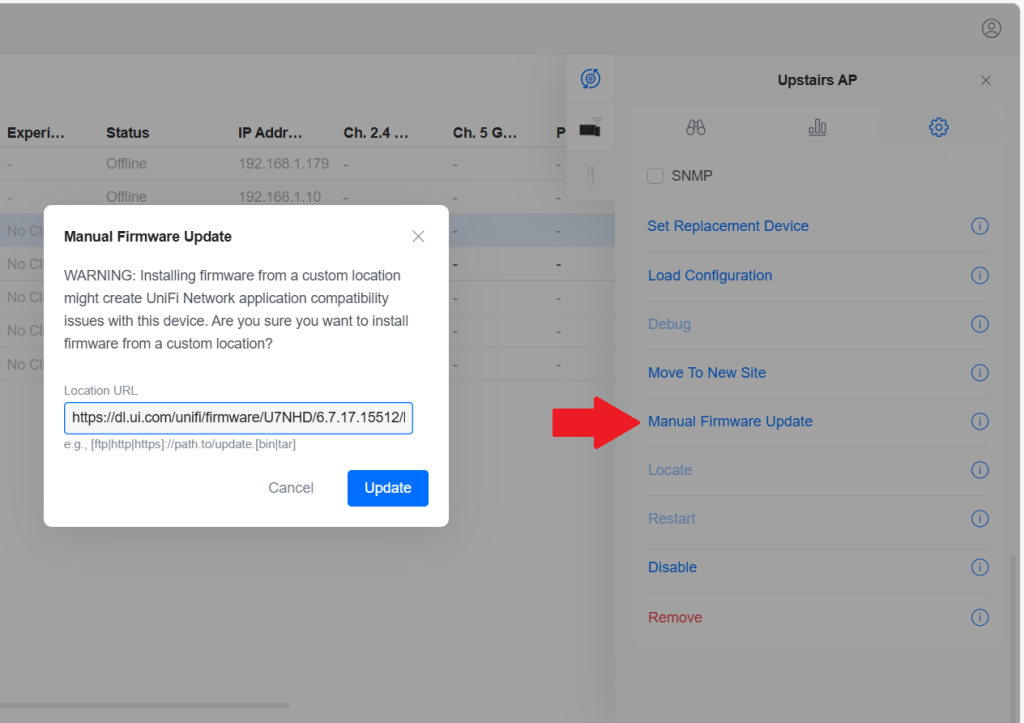
  4. Scroll down to the Manage section and find Manual Firmware Update.
  5. Paste the full direct download URL ending with ‘.bin’ into the ‘Location URL’ field.
    in my case for downgrading one firmware version back from the 6.7.31 to 6.7.17 I used: https://dl.ui.com/unifi/firmware/U7NHD/6.7.17.15512/BZ.mt7621_6.7.17+15512.250418.0425.bin
  6. Click the “Update” button. The AP will download and apply the older firmware, then reboot.
Method 2: Downgrade via SSH (Advanced)

  1. Connect to the AP via SSH either via the debug console in the web UI or with an SSH client.
  2. Run the direct upgrade command. Once logged in, run this command:
    upgrade https://dl.ui.com/unifi/firmware/U7NHD/6.7.17.15512/BZ.mt7621_6.7.17+15512.250418.0425.bin
  3. Do not close the terminal. Wait for the AP to download the firmware and begin the flashing process. Your connection will be terminated when the device reboots. Monitor its status in the UniFi Controller.
If you do not know your SSH login details,
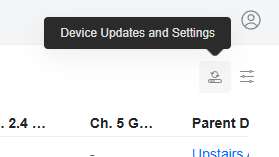
Device Updates and Settings

You can find these in the web UI under: Device tab –> the tiny Device Updates and Settings button –> Device Settings –> ‘Device SSH Authentication’
or if you are using the AP standalone without the Unifi Network controller, your AP settings may just be the default UI SSH user/pass

After the process is complete, the Access Point should reconnect to the network with its wireless mesh links restored and channel settings properly honoured. I would highly recommended to disable automatic updates for these devices until a new, fixed firmware version is released.

Important Note on DFS Channels: It’s Also worth noting that none of the ‘restricted’ channels set in channel plan or settings from the ‘WiFi Management’ page are being honoured by WiFi AP’s in the 6.7.31 update, so if you don’t downgrade you may face DFS Radar scanning issues, especially here in the UK.

Misbehaving channels

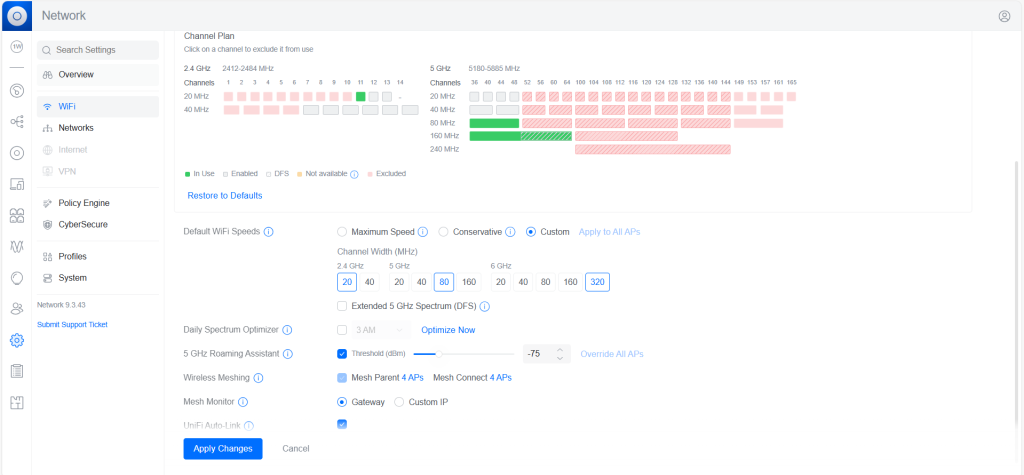
Below was my test plan before I worked out I should just downgrade firmware.

I restricted pretty much every channel I could to dictate a set enforcement for.

I knew that settings dictated on the individual AP’s settings pages were not being honoured, so went an alternative route, to see if creating settings in the WiFi Channel Plan forms would work instead of doing it on individual AP’s.
However, not 10 minutes later – my ‘Upstairs AP’ had taken itself off for a wander into the what should have been restricted channel: 161

Conclusion: Maybe wait this update out a few days until UI find a fix. Else – hopefully you have googled some of your issues, and this wee post here has, for now helped you find my above recommended fix with some step by step instructions on how to downgrade Unifi AP firmware nice and easy.

[Solved] Default username and password for Unifi Gateway Pro (UXG-Pro)

Default passwords for Unifi kit

Whilst most AP’s and Unifi devices can be ssh’d into using ubnt/ubnt there are a few exceptions to this rule, for example the UXG-Pro is root/ubnt.
Prior to setup/adoption, all devices have a set of default credentials below is what they are as of 06/2024. 

  • UniFi Consoles –  root / ui (root / ubnt on older devices)
  • UniFi Gateways – root / ui (root / ubnt on older devices)
  • UniFi Devices – ui / ui (ubnt / ubnt on older devices)

Unifi: self-hosted UniFi server or a Cloud Key or other UniFi server?

If you are considering using the UniFi controller software to manage your network, you may be wondering whether to use a self-hosted UniFi server or a Cloud Key or other UniFi server. In this post, we’ll take a look at the pros and cons of each option to help you make an informed decision.

First, let’s define what we mean by a self-hosted UniFi server. A self-hosted UniFi server is a dedicated Linux server that runs the UniFi controller software. This allows you to manage your UniFi network using the UniFi controller software on your own server, rather than using a cloud-based server or a dedicated hardware device like a Cloud Key.

Now, let’s compare the pros and cons of using a self-hosted UniFi server vs a Cloud Key or other UniFi server.

Pros of a Self-Hosted UniFi Server

  • Greater control: With a self-hosted UniFi server, you have complete control over the server and the UniFi controller software. This allows you to customize the software and configure it to meet your specific needs. You can also choose your own hardware and operating system for the server, giving you more flexibility and options.
  • No subscription fees: A self-hosted UniFi server does not require a subscription fee, unlike some cloud-based UniFi servers. This can save you money in the long run, especially if you have a large network or multiple locations.
  • On-site management: With a self-hosted UniFi server, you can manage your network on-site, which can be convenient if you have a large network or multiple locations. This also allows you to manage your network even if you don’t have an internet connection, which can be useful in certain situations.

Cons of a Self-Hosted UniFi Server

  • Initial setup: Setting up a self-hosted UniFi server requires some technical expertise and can be time-consuming. You’ll need to install the UniFi controller software on a dedicated Linux server and configure it to your liking. This can be a challenge if you don’t have experience with Linux servers or the UniFi controller software.
  • Maintenance: As with any server, a self-hosted UniFi server requires regular maintenance and updates to keep it running smoothly. This can be time-consuming and may require additional technical expertise, depending on the complexity of your network. You’ll also need to make sure the server is backed up and secure to protect against data loss or cyber threats

Pros of a Cloud Key or Other UniFi Server

  • Easy setup: A Cloud Key or other UniFi server is a dedicated hardware device that comes pre-configured with the UniFi controller software. This makes it easy to set up and get started with the UniFi controller software, even if you don’t have much technical expertise. You simply plug the device into your network and follow the instructions to connect it to the UniFi controller software.
  • No maintenance: A Cloud Key or other UniFi server requires very little maintenance. The UniFi controller software is pre-installed and updates are handled automatically, so you don’t have to worry about keeping it up to date. This can save you time and hassle, especially if you don’t have a dedicated IT staff or expertise in networking.
  • Remote management: With a Cloud Key or other UniFi server, you can manage your network remotely using the UniFi controller software. This is convenient if you have a large network or multiple locations, as you can manage everything from a single interface. You can also access the UniFi controller software from any device with an internet connection, which can be useful when you’re on the go.

Cons of a Cloud Key or Other UniFi Server

  • Subscription fees: Some cloud-based UniFi servers, including the Cloud Key, require a subscription fee. This can add up over time, especially if you have a large network or multiple locations. Be sure to factor in any subscription fees when comparing the costs of different UniFi servers.
  • Limited customization: With a Cloud Key or other UniFi server, you have limited control over the UniFi controller software and the hardware. You can’t customize the software or choose your own hardware, which may be a drawback if you have specific requirements or preferences. You’ll also be limited to the features and capabilities of the UniFi controller software as it is provided, which may not meet all of your needs.
  • Dependency on internet connection: A Cloud Key or other UniFi server requires an internet connection to access the UniFi controller

Conclusion

As you can see, there are pros and cons to both self-hosted UniFi servers and Cloud Keys or other UniFi servers. Ultimately, the best choice for your business will depend on your specific needs and resources. If you have a large, complex network and want complete control over the UniFi controller software and hardware, a self-hosted UniFi server may be the best option. On the other hand, if you have a smaller network or less technical expertise, a Cloud Key or other UniFi server may be more convenient and cost-effective. Consider your budget, technical capabilities, and networking needs carefully when deciding which UniFi server is right for you.

Running a company with a full Ubiquiti stack

Say you wanted to run a company completely using a Unifi stack, here are some examples of different products from Ubiquiti and potential use cases for a medium-sized business:

UniFi Access Points (APs)

These wireless APs offer high-performance Wi-Fi coverage and can be easily managed using the UniFi controller software. They are ideal for businesses that need to provide reliable Wi-Fi access to employees, guests, or customers in a variety of settings, such as offices, retail stores, or restaurants.

UniFi Switches

These managed switches offer a range of port configurations and advanced features, such as PoE (Power over Ethernet), VLAN tagging, and link aggregation. They are ideal for businesses that need to create a high-performance network infrastructure, such as for VoIP (Voice over IP) or video conferencing.

UniFi Security Gateway (USG)

This device combines a router, firewall, and VPN server in one compact package. It offers advanced security features, such as content filtering, intrusion prevention, and anti-malware protection. It is ideal for businesses that need to secure their network and protect against cyber threats.

UniFi Video Camera

These high-definition, network-attached cameras offer real-time video and audio monitoring, as well as advanced features like motion detection and night vision. They are ideal for businesses that need to enhance security or monitor their premises, such as warehouses or office buildings.

Self-Hosted UniFi Linux Server

A self-hosted UniFi Linux Server allows you to manage your UniFi network using the UniFi controller software on a dedicated Linux server. This offers advanced network management capabilities and can be particularly useful for businesses that need a high level of control over their network, such as those with multiple locations or remote workers.

Conclusion

In conclusion, using a full Ubiquiti stack to run your company’s network offers a range of benefits. The company’s high-quality, reliable products, wide range of options, scalability, ease of use, and affordable prices make it a solid choice for businesses looking to upgrade their networking capabilities. One of the key benefits of using a full stack of the same product is the ability to manage and maintain the network more efficiently. With all the same product, you can use the same management tools, such as the UniFi controller software, and benefit from consistent features and performance across the network. This can help streamline your company’s networking operations and reduce the risk of downtime or other issues. Consider switching to a full Ubiquiti stack to take advantage of these benefits and streamline your company’s networking operations.

Using Ubiquiti networking equipment in an enterprise environment

As a leading provider of networking equipment and software, Ubiquiti is a trusted choice for businesses of all sizes. In this post, we’ll take a look at why we recommend using Ubiquiti’s products in an enterprise environment.

High-quality, reliable products: Ubiquiti is known for its high-quality, reliable products, which are built to withstand the demands of an enterprise environment. The company’s routers, switches, and access points are designed to deliver fast, stable connections, even in high-traffic situations.

Wide range of products: Ubiquiti offers a wide range of networking products, including routers, switches, access points, and software. This allows enterprises to choose the best products for their specific needs, whether they are looking to upgrade their Wi-Fi network or build a new one from scratch.

Scalability: Ubiquiti’s products are designed to be scalable, which means they can grow with your business as your networking needs change. The company’s UniFi software, for example, makes it easy to add new access points or switches to your network as you expand.

Ease of use: Ubiquiti’s products are known for their ease of use, which is a major advantage in an enterprise environment where there may be multiple users with different levels of technical expertise. The company’s UniFi software, in particular, is user-friendly and intuitive, making it easy to set up, monitor, and manage your network.

Affordable prices: While enterprise-grade networking equipment can be expensive, Ubiquiti’s products offer a great combination of performance and value. The company’s products are typically more affordable than those of some of its competitors, making them a cost-effective choice for businesses of all sizes.

In conclusion, there are many good reasons to consider using Ubiquiti’s networking equipment in an enterprise environment. The company’s high-quality, reliable products, wide range of options, scalability, ease of use, and affordable prices make it an excellent choice for businesses looking to upgrade their networking capabilities.

Find VPN Log Unifi USG

Ubiquiti kit is great, and Unifi is by far the best value for money WiFi kit out there. However once you get beneath the beautifully crafted UI and you’ll soon struggle to find CLI info and configuration help.

Yow to find your VPN log Unifi

SSH into your USG, using your site specified SSH credentials, or if you have never set any, then ubnt/ubnt.

Then simply type:
show vpn log

or:
cat /var/log/charon.log | tail -n 100

Simple.