How to resolve Logmein Error 4320
Whilst setting up logmein for remote access in a pretty locked down domain environment, I have noticed that quite frequently we would get an ‘admin error 4320’ on the remote users PC.
Now the official logmein site would suggest adding users within the logmein interface, which we will cover in ‘Method 2’ however I have found a quicker workaround that works 9 out of 10 times is by simply always running the program as administrator.
- Place the Logmein icon either on your desktop or navigate to the program folder path usually “C:\Program Files (x86)\LogMeIn Ignition”
- Right click on the icon and select ‘Properties
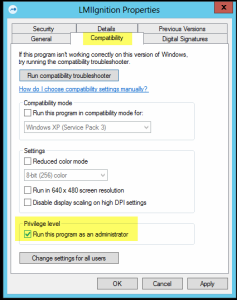
- Once in Properties select the ‘Compatibility’ tab at the top
- At the bottom under ‘Privilege level’ tick the ‘Run this program as Administrator’ box*.

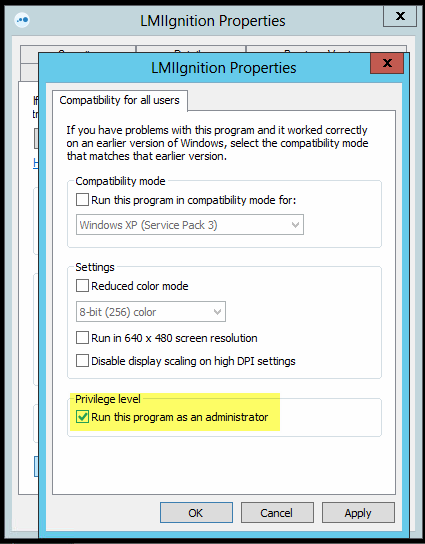
- If you have more than 1 user on the PC, select ‘Change settings for all users’
- Again tick the ‘Run this program as Administrator’ box
- OK out of both windows, If logmein is running. Close it again and re-open it, now using an Administrative logon.
Your Logmein error 4320 should now be resolved. if not see the link below
*If the ‘Privilege level’ box is greyed out, be sure that you are logged on as an administrative user, or log off and back on as one in order to continue.

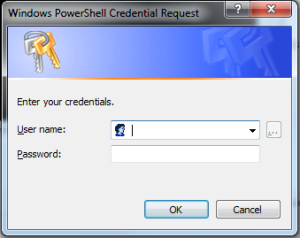 Load up the Azure Directory module, link below: