![[Opinion] STOP INSTALLING OPENCLAW (MOLTBOT) ON YOUR PC/MAC: How to Safely ‘Hire’ AI Agents via Cloud VPS](https://cannotdisplay.com/wp-content/uploads/2026/02/moltbot-banner-1024x435.png)
![[Solved] Help! Windows 365 Cloud PC Switch Feature Has Frozen My Local Host PC.](https://cannotdisplay.com/wp-content/uploads/2025/12/Win365-Cloud-PC-via-Switch-1024x214.png)
To enable remote desktop.
• Open registry editor by running regedit from Run.
• Go to the node HKEY_LOCAL_MACHINE\SYSTEM\CurrentControlSet\Control\Terminal Server
• Change the data of the value fDenyTSConnections to 0.
We can enable remote desktop from windows command line by running the following command.
reg add “HKEY_LOCAL_MACHINE\SYSTEM\CurrentControlSet\Control\Terminal Server” /v fDenyTSConnections /t REG_DWORD /d 0 /f
To disable remote desktop we need to run the below command.
reg add “HKEY_LOCAL_MACHINE\SYSTEM\CurrentControlSet\Control\Terminal Server” /v fDenyTSConnections /t REG_DWORD /d 1 /f
Reboot or logoff is not required after running the above command. I have tested this on Windows XP and Windows 7 and it has worked fine. It would work fine on Windows Vista too.
Stop “installing” autonomous AI agents on your daily driver. You are doing it wrong. Our hero, Jolty (Zoë Roth AKA Disaster Girl) being told to ‘gonnae no dae that!’ a beautiful Scottish expression (please don’t do that) as a fire blazes in the background. This phrase perfectly sums up my feelings on MoltBot and the…
-
-
Quickly find AD user password expiration date
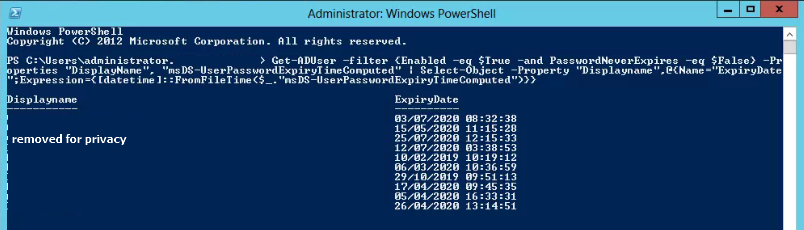
Knowing when a password should expire is sometimes useful information.
To find out all users password expiration date, open up powershell on the DC and run:Get-ADUser -filter {Enabled -eq $True -and PasswordNeverExpires -eq $False} –Properties “DisplayName”, “msDS-UserPasswordExpiryTimeComputed” | Select-Object -Property “Displayname”,@{Name=”ExpiryDate”;Expression={[datetime]::FromFileTime($_.”msDS-UserPasswordExpiryTimeComputed”)}}
It will output for you a human readable list such as in the above post screenshot.
I have tested and can confirm that the above script is working on Server 2008, 2008 R2, 2012, 2012 R2, 2016 & 2019.
-
WPBakery Page Builder not working in chrome and shows console errors
Just a quick one, hoping it will help someone,
If you have a wordpress site with WPBakery Page Builder running on it, and find the frontend builder is not working, and if you also happen to use cloudflare – Rocket Loader™ is your issue.
Go to cloudflare and under speed –> Optimization –> turn off Rocket Loader™
Go back to WordPress and within a few mins, or the time your cache takes to update – your visual composer/WPBakery Page Builder will be working again.
-
Force Active Directory replication on a domain controller
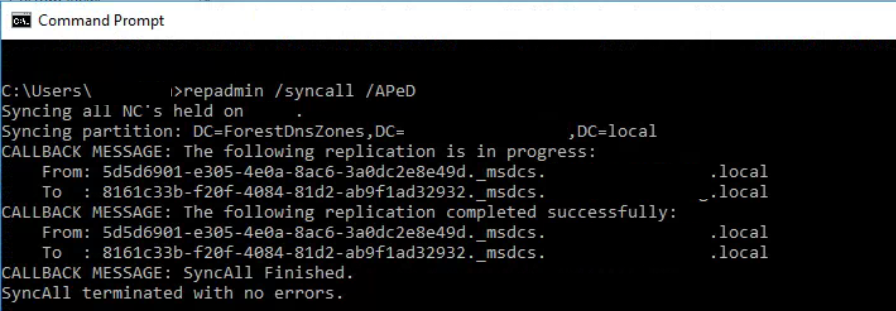
To force Active Directory replication, on the server which needs forced to update, run using elevated CMD:
repadmin /syncall /AeD
A = All Partitions
e = Cross Site (Enterprise)
D = Show server name in output.This will initiate a pull replication.
OR if you are already on on your main DC, and need to update any other servers in the AD, you can do a push replication:
repadmin /syncall /APeD
A = All Partitions
e = Cross Site (Enterprise)
D = Show server name in output.
P = PushThe technet article with further info can be found here:
https://docs.microsoft.com/en-us/previous-versions/windows/it-pro/windows-server-2012-r2-and-2012/cc770963(v=ws.11)
Perhaps, you like me are trying to move away from the old CMD comandlines, and migrate into PowerShell – if that is the case, bad news -currently there is no update alternative for repadmin in powershell – the Get-ADReplication commands are great for troubleshooting but offer no easy interface for updating AD.