Stop “installing” autonomous AI agents on your daily driver. You are doing it wrong. Our hero, Jolty (Zoë Roth AKA Disaster Girl) being told to ‘gonnae no dae that!’ a beautiful Scottish expression (please don’t do that) as a fire blazes in the background. This phrase perfectly sums up my feelings on MoltBot and the…
I’ll keep this post short and sweet, you have lost your PFsense firewall/router Admin login password and need back in. Quick.
There are two options available to you:
To reset PFSense Admin password
Plug a monitor and keyboard into the PFSense appliance/server or connect to console
You can then select ‘Option 3) to reset the webGUI password.
Should this fail, or you have set an admin password to even get this far, then follow below;
1, Reboot appliance
2, Select boot option for ‘Single User Mode’
3, Hit enter to start /bin/sh
3, run mount -a -t ufs
4, run /etc/rc.initial.password and follow the prompts to reset password
5, reboot /sbin/reboot
Depending on what version o PFSense you are using, you will have just specified the new password, or if you did not have that option, then it will have reset to the PFSense default password of: Admin | pfsense
Let me know in the comments if this helped you or was useful to you in any way!
As a wordpress user, or hosting admin i’m sure you have seen it before – the dreaded err_too_many_redirects page.
This is caused by a number of issues, including:
Domain name change
Changing SSL certificate
Incorrect URL configuration
Server misconfiguration
.htaccess errors
Cookie issues
Reverse proxy issues
HTTPS issues
Plugin malfunctions
Bad WordPress upgrades
Server file permission issues
The list goes on, but you get the message…
There are countless reasons that could cause this error, and most of them are easily fixable with a quick google. However Yesterday i came across a new one.
WordPress, Cloudflare & Shared Hosting
If you came here for the Solution here it is:
Edit your wp-config.php file and at the bottom add:
if (strpos($_SERVER['HTTP_X_FORWARDED_PROTO'], 'https') !== false)

$_SERVER['HTTPS']='on';
So what causes this?
Well, in this case it was a combination of things, this is very specific to three things in this environment. 1) Shared Hosting. 2)No root SSL Certificate. 3)CloudFlare ‘Always use HTTPS’ settings.
After taking a step back and working out the basics of what i had, and why other ‘fixes’ that usually work, weren’t- i realised what i had here, was a simply reverse proxy. That is, that where the files are hosted without SSL, but the reverse proxy (in this case CloudFlare) was using SSL.
Finally, i found this nugget in the WordPress Codex:
https://codex.wordpress.org/Administration_Over_SSL#Using_a_Reverse_Proxy
And it all clicked.
“If WordPress is hosted behind a reverse proxy that provides SSL, but is hosted itself without SSL, these options will initially send any requests into an infinite redirect loop.
And that is why we need to tell wordpress to force SSL to prevent this WordPress redirect loop when using CloudFlare.
Does my DMARC record need to include quotation marks or not?
9/10 times, no quotes are needed.
However, this all depends on where you edit your DNS.
In the raw DNS zone file, which is what is passed from machine to machine, the .txt record DOES need to be enclosed in quotation marks if it contains spaces. It is unlikely that your domain/DNS provider however will give you direct edit access to this, and instead will be providing their own interface to edit entries with pre-built in quotation marks. Exceptions to this can be found when directly editing via CLI at the root of a server, or when using the raw edit mode on WHM.
For example, Cloudflare will automatically wrap any string of text in a .TXT record in quotes for you, and remove extra quotes you may add,
namesco however will not automatically remove extra quotations to their already provided ones – which could lead to double quotations, and issues further down the line.
It pretty much boils down to your provider, it is best to have a quick skim of their DNS Q&A section – or to test by trial and error!
My favorite testing site is currently https://mxtoolbox.com/DMARC.aspx
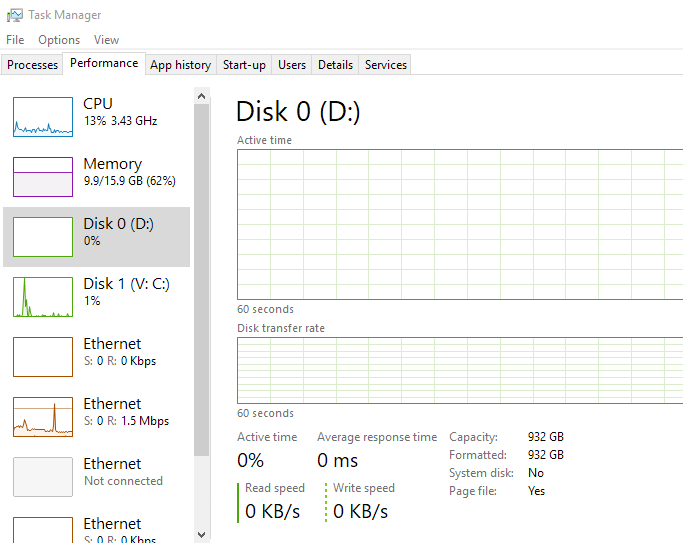
Can’t see the disk performance in task manager on a Windows Server?
There is multiple factors for disk performance not showing up, including raid cards, the server being nested on a HV or running as a VM, there is a simple quick fix though;
Step 1)
Open Elevated Command Prompt
Step 2)
Start disk performance counters: diskperf –y
With any luck, that should be it now showing in Task manager, if it does not, close and re-open it for the disk performance indicators to appear.
On occasion, you may need to re-install/install the latest raid card drivers if they are missing in order for the disk performance indicators to read and run correctly.
![[Opinion] STOP INSTALLING OPENCLAW (MOLTBOT) ON YOUR PC/MAC: How to Safely ‘Hire’ AI Agents via Cloud VPS](https://cannotdisplay.com/wp-content/uploads/2026/02/moltbot-banner-1024x435.png)
![[Solved] Help! Windows 365 Cloud PC Switch Feature Has Frozen My Local Host PC.](https://cannotdisplay.com/wp-content/uploads/2025/12/Win365-Cloud-PC-via-Switch-1024x214.png)
![DMARC with quotes or without? [SOLVED]](https://cannotdisplay.com/wp-content/uploads/2019/01/Image-3888.png)