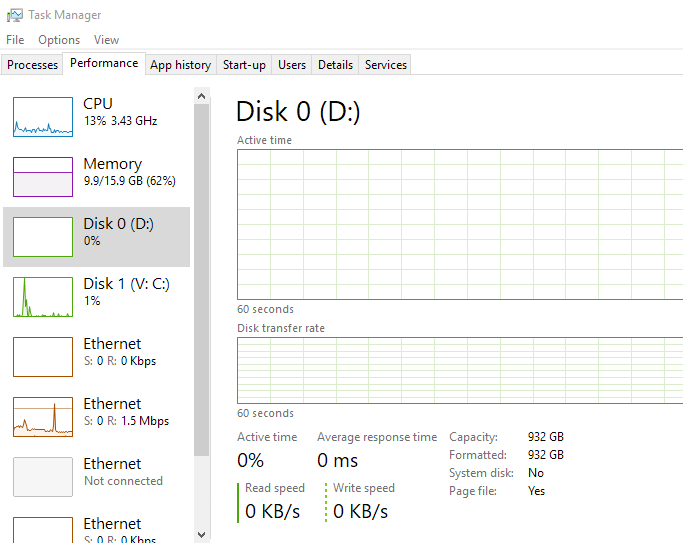
Force Active Directory replication on a domain controller

To force Active Directory replication, on the server which needs forced to update, run using elevated CMD:

repadmin /syncall /AeD

A = All Partitions
e = Cross Site (Enterprise)
D = Show server name in output.

This will initiate a pull replication.

OR if you are already on on your main DC, and need to update any other servers in the AD, you can do a push replication:

repadmin /syncall /APeD

A = All Partitions
e = Cross Site (Enterprise)
D = Show server name in output.
P = Push

The technet article with further info can be found here:

https://docs.microsoft.com/en-us/previous-versions/windows/it-pro/windows-server-2012-r2-and-2012/cc770963(v=ws.11)

Perhaps, you like me are trying to move away from the old CMD comandlines, and migrate into PowerShell – if that is the case, bad news -currently there is no update alternative for repadmin in powershell – the Get-ADReplication commands are great for troubleshooting but offer no easy interface for updating AD.

Adobe reader on Server 2016

Adobe have been rather silent recently when it comes to running reader on server 2016

Adobe reader is used by many professions, and in many capacities. It used to be one of the most commonly installed applications on business PC’s by anyone in any sector. However, Server 2016 is not supported.

https://helpx.adobe.com/reader/system-requirements.html

This makes it a nightmare for modern portable apps, RDS servers(Terminal servers) or even just file servers.

So there is a work around, however it is not recommended. The best fix for this is to scrap Adobe, and move to one off the other large PDF Vendors out there to cater to your PDF viewing needs.

Three that i have personally verified as working and are supported on server 2016 are:

  • Nitro Pro
  • Abby PDF reader
  • TinyPDF

There will however be a small percentage of us admins or superusers, that have to get this Adobe based software working.

Workaround to get Adobe reader on Server 2016

Start by using the latest installer for Windows 10,
Once installed, you may find that it will work for a while, but eventually as it updates you will no longer be able to open PDF documents using it.
To get around this you have to unfortunately turn off protected mode.

Now, i shouldn’t really need to preface this, but i will. This is not supported, nor recommended – Reader has a protected mode for a reason, disabling it is opening you to all sorts of vulnerabilities.

If you do wish to continue, open up Adobe Reader – go into Edit –> Preferences –> Security (enhanced) –>

Turn Protected mode off, and untick ‘ Enable protected mode at startup’

If you like I could not even get to the preferences panel in order to change these settings then all you need to do is open adobe reader by accessing via compatibility mode. Set this as XP (which itself does not support protected mode) – then change settings, and then change compatibility mode back off.

Let me know in the comments if this has helped you.
Get rid of the “Updates are available” pop-up

The Updates are available popup is the source of much irritation for anyone remotely administering windows 10, Server 2012 and server 2016

To get around this popup – which lets face it, is just downright inconvenient; we need to stop the exe file that produces this window from running. Code below, with comments preceded by a #

Run command prompt as administrator (elevated) and enter these commands:

#change directory to system32
cd /d "%Windir%\System32"

#Take over permissions owner to current admin
takeown /f musnotification.exe

#Change permissions to deny anyone/system running from it
icacls musnotification.exe /deny Everyone:(X)

#Take over permissions owner to current admin
takeown /f musnotificationux.exe

#Change permissions to deny anyone/system running from it
icacls musnotificationux.exe /deny Everyone:(X)

You will see form the above, that there are two processes ‘musnotificationux.exe’ and ‘musnotification.exe’ that are responsible for querying updates and notifying the end user. The great part of this fix, is that it will not interfere with any update processes themselves, just the notifications. So have no fear – updates will still continue to function as normal, just now without this troublesome pop-up.

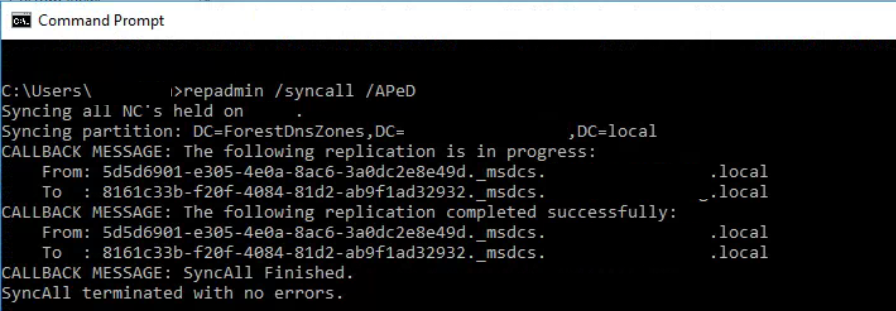
Enable disk performance in task manager, Windows Server

Can’t see the disk performance in task manager on a Windows Server?

There is multiple factors for disk performance not showing up, including raid cards, the server being nested on a HV or running as a VM, there is a simple quick fix though;

Step 1)
Open Elevated Command Prompt

Step 2)
Start disk performance counters:
diskperf –y

disk in task manager

With any luck, that should be it now showing in Task manager, if it does not, close and re-open it for the disk performance indicators to appear.
On occasion, you may need to re-install/install the latest raid card drivers if they are missing in order for the disk performance indicators to read and run correctly.

[SOLVED] Manually Register Acronis Backup Client for Backup Cloud

Manually Register Acronis Backup

Occasionally a backup client will disconnect, or cannot connect in the first place to obtain its backup set and process its jobs.
With pre-provisioning systems, this is often the case for certainly Mac and Linux machines.

Solution

(!) IMPORTANT: This method is NOT supported for registration of Agent for VMware (Windows)

Manually Register Acronis Backup client.
Use quotation marks, if your password contains special characters or spaces.

Windows OS
1. Open Command prompt and navigate to C:\Program Files\BackupClient\BackupAndRecovery: 
cd “C:\Program Files\BackupClient\BackupAndRecovery”
2. Issue this command to register the client machine: 
register_msp_mms.exe register https://cloud.acronis.com 

Linux OS
1. Open terminal as root user
2. Type in the following command to register the agent:
/usr/lib/Acronis/BackupAndRecovery/AmsRegisterHelper register https://cloud.acronis.com 

OS X
1. Open terminal.
2. Execute:
sudo -u root “/Library/Application Support/BackupClient/Acronis/BackupAndRecovery/AmsRegisterHelper” register https://cloud.acronis.com 

From

NB: if you are outwith the normal Acronis Data Centres, as i was, then replace the cloud.acronis.com URL with the URL you use to log into your dashboard. i.e. https://eu-cloud.acronis.com

[Resolved] Find the startup folder in windows 10

Need to find the startup folder in windows 10?

Since Windows 8, the startup folder has been an elusive beast, but fear not, this simple command will force it to reveal itself in no time at all.

1) Win + R
2) shell:startup
3) Enter/OK

find startup folder location win 10 shell:startup

Or the path for the startup folder in windows 10:
"C:\Users\%USERNAME%\AppData\Roaming\Microsoft\Windows\Start Menu\Programs\Startup"

startup folder in windows 10

Printer fix script – Quickly clear print queues and restart print spooler

printer fix script

Printers are the bain of any helpdesk engineer, or actually any one in IT in general!

Here is a quick printer fix script to help:

Whilst basic, (restart spooler and clear all print queues) it does in our office, at least, clear 99% of printer issues.

Copy and paste the below to a batch file (file extension .bat) and click away:

::Printer Fix Script @cannotdisplay.com
net stop spooler
pause
del /S /F “C:\Windows\System32\spool\PRINTERS\*”
del /S /F “C:\Windows\System32\spool\SERVERS\*”
net start spooler
pause
::end

It will prompt you several times to make sure you wish to delete queues and then pause at the end to show you how it went,
Any alterations or suggestions comment below!