• Check if PC is joined to the domain

    Here is a quick way to check the health of a PC joined to a domain controller. This is very useful if you need to do a quick check in the first instance of diagnosing a trust relationship issue.
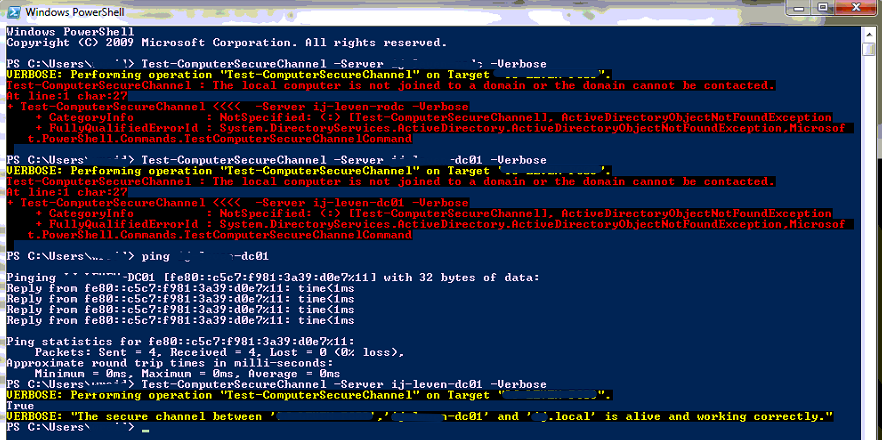
    pc is joined to the domain

    Here are the steps to check if a pc is joined to the domain using Powershell:

    1) Open up a powershell console

    2) Type or copy/paste the following, replacing the *dc mane* with your networks domain controller

    Test-ComputerSecureChannel –Server *dc name* -Verbose

    3) check results, If it comes back with red text it is a pretty good indicator that there is some form of problem going on, however if it returns “The secure chanel between ‘*’, ‘*dc name*’ and ‘*domain*.local’ is alive and working correctly”  then you can continue investigating your problem knowing that the PC is nice and safely connected to the domain.

    For troubleshooting Trust Relationship issues with a Microsoft Domain, please keep your eyes pealed for part 2


  • Set server to automatically update time

    If you have ever been in the situation where a time server or an old server will just not keep in sync, perhaps due to a CMOS battery error, or simply old hardware, then this cmdlet is for you.

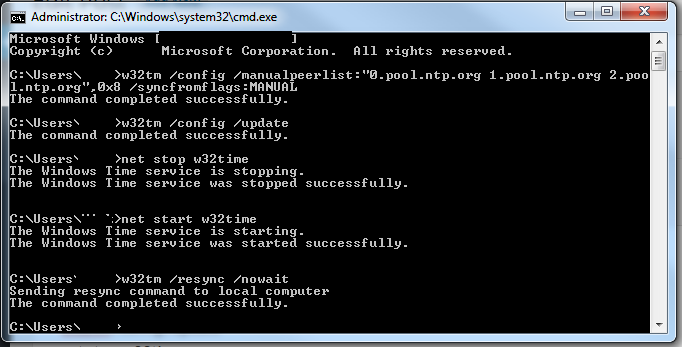
    Here is how to set a server to automatically update time;

    automatically update time

    Open up a command prompt and copy/paste the below:

    w32tm /config /manualpeerlist:”0.pool.ntp.org 1.pool.ntp.org 2.pool.ntp.org”,0x8 /syncfromflags:MANUAL
    w32tm /config /update
    net stop w32time
    net start w32time
    w32tm /resync /nowait

    All that this is now doing is setting the clock to update automatically from a web time server, the servers we are using are the public pool 1, 2 and 3 at ntp.org
    We stop and start the time services, and then tell it to resync with the new settings.


  • Windows Update stuck 3 of 3 – Can’t use PC

    It would seem that the last batch of updates from Microsoft around the 12th-14th May 2015 have been causing quite a few PC’s to hang stopping at Update 3 of 3.

    This so far looks like it is only affecting Windows 7 Pro X64 based PC’s

    As with most IT Professionals, we would never suggest performing a Hard shut-down to your PC, unless there really is no other option, however it does look like in this case this is the only way to fix this particular ‘Stuck Update‘ issue.

    If your Windows Update  stuck: windows update stuck 3 of 3

    Option 1)

    Press CTRL + ALT +DEL
    This seems to be working for 50% of users encountering this issue, if it does not work then proceed to option 2.

    Option 2)

    Step 1) Hold down the power button on your PC for 10+ seconds,
    Step 2) Restart PC by repressing the power button
    Step 3) If confronted with a windows error ‘Your PC did not shut down normally’ screen, select “Start Windows Normally”

    Out of the 7 PC’s we have now done this to, all in different environments, we are yet to see any errors or corruptions caused by this. We are continuing to look into which update specifically caused this and why, and so check back later to keep yourself updated.


    For further reading see this Reddit thread.


  • Use CMD or Powershell to find last boot time

    Ever wanted to check the last boot time of a PC or server?

    There are multiple reasons why you may want to find out the last boot time of a server or a PC, Perhaps your server has been restarted without you knowing, and you want to be able to have a starting time to aid in your search through event logs to see what happened prior to the restart. Maybe you are remotely logged onto a PC which is running slow, but the user hasn’t restarted it for a while.

    Anyhow, below is how to check the last boot time using either Powershell or CMD:

    Powershell:
    Get-WmiObject -class Win32_OperatingSystem | Select-Object __SERVER,@{label=’LastBootUpTime’;expression={$_.ConvertToDateTime($_.LastBootUpTime)}}

    last boot time using powershell

    CMD Method:

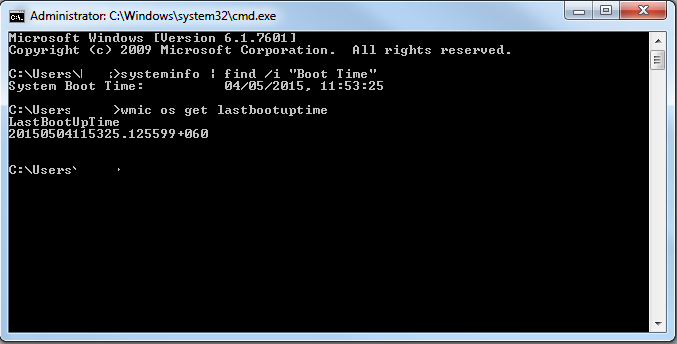
    The built in systeminfo command may however be easier to remember using CMD:

    systeminfo | find /i "Boot Time"
    

    Or with the help of WMIC:

    wmic os get lastbootuptime
    

    wmicLastBoot


    As you can see, the easiest and probably most useful quick command is by using SystemInfo, easy to remember, quick and nicely formatted.


Latest Posts: _