10x Faster IT Troubleshooting: How I Used AI to Solve a Mysterious Windows Process Loop

It’s one of those problems that every IT pro, sysadmin, or power user dreads. Not a blue screen, not a server-down emergency, but a small, persistent, and maddening “ghost in the machine.”

For me, it was a flashing cursor.

For about five minutes every few hours, my mouse cursor in Windows 11 would flash the “waiting” or “processing” icon. Every. Single. Second.

As a problem, it was just annoying. But as a puzzle, it was infuriating. My system was fully up-to-date, drivers were current (or how I liked them), and resources were normal. Task Manager showed… nothing. No CPU spikes, no disk thrashing, no memory leaks.

I work in IT. These sort of things shouldn’t happen to me!
Who is going to help me!?? I am THE HELPDESK!!
(or at least passed by that title to get to my current position.)

Why, oh why is this happening to me!
This is a user problem, not something that I should have to diagnose and solve on …my own device…?

I could have spent the next four hours solving it the old-fashioned way. Instead, I did it in under 30 minutes by using an AI as my troubleshooting co-pilot. This is the story of how that collaboration worked, and why it’s a game-changer for IT pros – at least in some situations.


The Problem: A Ghost in the Machine

My first instinct was to use the process of elimination. The “human” part of the troubleshooting.

  • Was it my screenshot tool, picpick.exe? I killed the process. Nope.
  • Was it a stuck powershell or wt.exe script? Killed those too. No change.
  • Was it a browser tab? Or browser process? Or Windows App?
    Restarted Brave.
    Restarted that long running google updater/chrome process,
    Restarted EdgeWebView2 (which all modern Windows Apps use). Still flashing.
  • Was it the classic: explorer.exe? Restarted it. Nothing.

I was 15 minutes in, and all I had done was prove what wasn’t the problem. Not necessarily a bad thing.

My next step was to break out the heavy-duty logging tools, dig through a million lines of text, and resign myself to a long, tedious hunt.
This is the “grunt work” of IT – the part of the job I can do, but don’t exactly enjoy.


The “AI Nudge”: Asking for a Second Pair of Eyes

Instead of diving into that digital haystack of logs, I took a different approach. I opened an AI assistant.

I didn’t ask it to “fix my PC.” That’s not how this works. I treated it like a junior sysadmin or a “second pair of eyes.” I explained the symptoms and what I had already tried.

My prompt was something like:

"I've got an intermittent flashing 'waiting' cursor on Windows 11. It's not a high-CPU process; Task Manager is clean. I've already restarted explorer and other common apps. I suspect it's a process starting and stopping too fast to see. What's the best way to catch it, which logs should we look at first, or which tools should we spin up?"

The AI’s response was the “force multiplier.”

It didn’t give me a magic answer. It gave me a precise, actionable workflow. It validated my theory (a fast process loop) and recommended the perfect tool and the exact filter to find it. It basically said, “You’re right. Now, go here, use this tool, and apply this specific filter to see only newly created processes.”

This is the power of human-AI collaboration. The AI didn’t replace my skill; it augmented it. It saved me 30 minutes of searching through old notes, Googling, and trying to remember the exact syntax for a tool I use maybe six times a year.


Collaboration: From Digital Haystack to Prime Suspect

With the AI’s “nudge,” I had my prime suspect in less than 60 seconds.

I ran the tool with the filter, and what was previously an overwhelming flood of data became a crystal-clear, one-line-per-second log of the exact same process being created and destroyed.

I’m writing a full, technical step-by-step tutorial on this exact method (at some point!), but the short version is: the filter worked perfectly.

The process name immediately told me it was a system component related to network connections. This is where I, the human, took back control.

  • AI Clue: It’s a network process.
  • Human Hunch: If the client is spamming a network request, the server must be rejecting it.

I immediately logged into my network-attached storage (NAS) / file server and opened the access logs.

Bingo.

A wall of red: “Failed to log in.” My PC’s IP address, every single second, trying and failing to authenticate.


The “Aha!” Moment and the 5-Minute Fix

I now had two pieces of the puzzle: a network process on my PC failing in a loop, and a file server rejecting its login – however, upon testing I could still access the file share? Nothing seemed to be blocked? It is all working as expected! (other than my BLINKING CUIRSOR!)

I could have figured it out from here, but I turned back to my AI co-pilot for the “why.” I fed it the two new clues:

 "I've got this process spamming, and my server is blocking it but I still have access? What is going on here and what process could be causing this if everything works as it should?"

My AI buddy instantly provided the obscure, “textbook” knowledge. It explained a specific, built-in Windows fallback behaviour. When a primary connection to a network share (via the normal SMB protocol) fails, Windows will sometimes try to “help” by falling back to a different protocol (WebDAV), creating this exact kind of rapid-fire loop.

The root cause was that I had updated my file server’s software a few days ago, and my PC was still trying to use an old, expired, cached credential – part of it updated, the other (seldom used) web browser access fall-back element – had not caught up. And according to my AI, once started the process was ‘handed off‘ to the ‘system’ to complete, thus is not tied to a browser and is why a browser restart or closure had not cleared the issue.

The fix was laughably simple.

  1. I went to Windows Credential Manager.
  2. I found the saved credential for my file server.
  3. I clicked Remove.
  4. I browsed to the server again and re-typed my password.

The flashing stopped. Instantly. The problem was solved.


AI Isn’t My Replacement, It’s My Co-Pilot

What would have been a long, annoying afternoon of troubleshooting was over before my coffee got cold.

AI didn’t solve the problem. I solved the problem.

But AI acted as the perfect co-pilot. It streamlined the most tedious parts of the process, provided the “second opinion” to keep me on track, and supplied the deep, “encyclopedic” knowledge when I needed it.
It let me skip the grunt work and focus on the smart work – the analysis, the hunch, and the fix.

This is the future of IT. It’s not about being replaced by AI;
it’s about being 10x more effective by using it.


If you’re curious about the specific tools and filters I used to catch that rogue process, keep an eye out for my next post: “[SOLVED] Beyond Task Manager: Simple Guide to Finding Process Loops with Process Explorer and Procmon.” – when I eventually post it!

[Resolved] Find the startup folder in windows 10

Need to find the startup folder in windows 10?

Since Windows 8, the startup folder has been an elusive beast, but fear not, this simple command will force it to reveal itself in no time at all.

1) Win + R
2) shell:startup
3) Enter/OK

find startup folder location win 10 shell:startup

Or the path for the startup folder in windows 10:
"C:\Users\%USERNAME%\AppData\Roaming\Microsoft\Windows\Start Menu\Programs\Startup"

startup folder in windows 10

[SOLVED] Java update “Failed to download required installation files.”

There have been a few occasions recently where a Java update fails


Java Update failed to download the required files

Having looked about for a solution, there is two methods that i have found to quickly rectify the problem.

1) The cheats way.
Re-install java on top of itself.

NB, Java has many different versions depending on which OS and update version of the OS you are using, the quickest way to re-install with the latest version i have found is to use Ninite. This will find version and install it correctly for you.
https://ninite.com/java8/

2) Edit compatibility settings on the Java updater.

go to: %PROGRAMFILES%\Common Files\Java\Java Update

and find jucheck.exe (updater)

right click --> Properties --> Compatibility

select the tick box to run with a previous version of windows, anything before Vista seems to do the job. (XP, Win95 etc…) As this is just the updater and not java, it ensures you still get the correct version.

BONUS 3)
This seems to be an issue with privilege elevation in windows – if you have access to an admin account, then you can log into that then try updating 8/10 it works without the above.

Check if PC is joined to the domain

Here is a quick way to check the health of a PC joined to a domain controller. This is very useful if you need to do a quick check in the first instance of diagnosing a trust relationship issue.

pc is joined to the domain

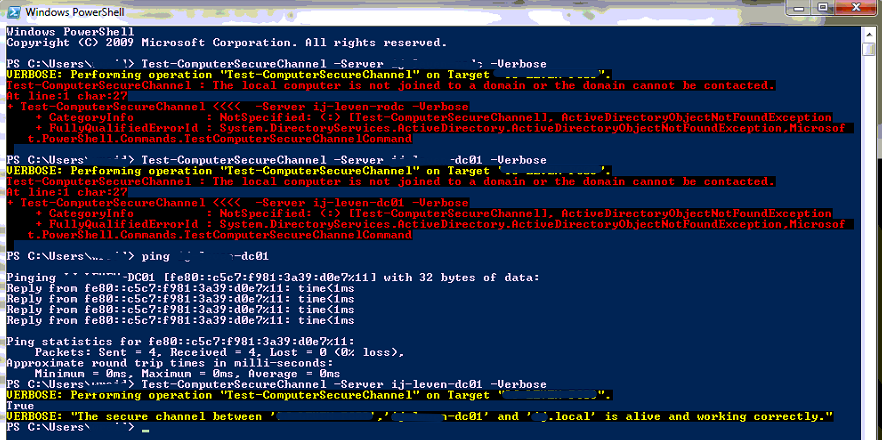
Here are the steps to check if a pc is joined to the domain using Powershell:

1) Open up a powershell console

2) Type or copy/paste the following, replacing the *dc mane* with your networks domain controller

Test-ComputerSecureChannel –Server *dc name* -Verbose

3) check results, If it comes back with red text it is a pretty good indicator that there is some form of problem going on, however if it returns “The secure chanel between ‘*’, ‘*dc name*’ and ‘*domain*.local’ is alive and working correctly”  then you can continue investigating your problem knowing that the PC is nice and safely connected to the domain.

For troubleshooting Trust Relationship issues with a Microsoft Domain, please keep your eyes pealed for part 2

Set server to automatically update time

If you have ever been in the situation where a time server or an old server will just not keep in sync, perhaps due to a CMOS battery error, or simply old hardware, then this cmdlet is for you.

Here is how to set a server to automatically update time;

automatically update time

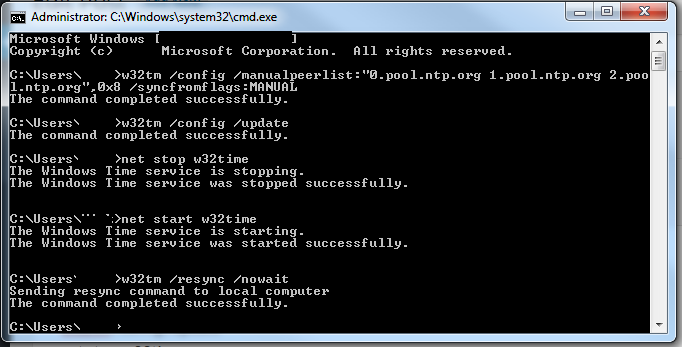
Open up a command prompt and copy/paste the below:

w32tm /config /manualpeerlist:”0.pool.ntp.org 1.pool.ntp.org 2.pool.ntp.org”,0x8 /syncfromflags:MANUAL
w32tm /config /update
net stop w32time
net start w32time
w32tm /resync /nowait

All that this is now doing is setting the clock to update automatically from a web time server, the servers we are using are the public pool 1, 2 and 3 at ntp.org
We stop and start the time services, and then tell it to resync with the new settings.

Windows Update stuck 3 of 3 – Can’t use PC

It would seem that the last batch of updates from Microsoft around the 12th-14th May 2015 have been causing quite a few PC’s to hang stopping at Update 3 of 3.

This so far looks like it is only affecting Windows 7 Pro X64 based PC’s

As with most IT Professionals, we would never suggest performing a Hard shut-down to your PC, unless there really is no other option, however it does look like in this case this is the only way to fix this particular ‘Stuck Update‘ issue.

If your Windows Update  stuck: windows update stuck 3 of 3

Option 1)

Press CTRL + ALT +DEL
This seems to be working for 50% of users encountering this issue, if it does not work then proceed to option 2.

Option 2)

Step 1) Hold down the power button on your PC for 10+ seconds,
Step 2) Restart PC by repressing the power button
Step 3) If confronted with a windows error ‘Your PC did not shut down normally’ screen, select “Start Windows Normally”

Out of the 7 PC’s we have now done this to, all in different environments, we are yet to see any errors or corruptions caused by this. We are continuing to look into which update specifically caused this and why, and so check back later to keep yourself updated.


For further reading see this Reddit thread.

Use CMD or Powershell to find last boot time

Ever wanted to check the last boot time of a PC or server?

There are multiple reasons why you may want to find out the last boot time of a server or a PC, Perhaps your server has been restarted without you knowing, and you want to be able to have a starting time to aid in your search through event logs to see what happened prior to the restart. Maybe you are remotely logged onto a PC which is running slow, but the user hasn’t restarted it for a while.

Anyhow, below is how to check the last boot time using either Powershell or CMD:

Powershell:
Get-WmiObject -class Win32_OperatingSystem | Select-Object __SERVER,@{label=’LastBootUpTime’;expression={$_.ConvertToDateTime($_.LastBootUpTime)}}

last boot time using powershell

CMD Method:

The built in systeminfo command may however be easier to remember using CMD:

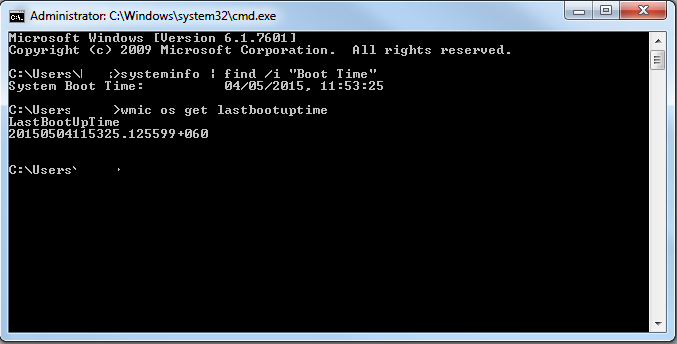
systeminfo | find /i "Boot Time"

Or with the help of WMIC:

wmic os get lastbootuptime

wmicLastBoot


As you can see, the easiest and probably most useful quick command is by using SystemInfo, easy to remember, quick and nicely formatted.


Can’t use browser – Jump to URL (hh h)

Ever been stuck with a web browser so full of toolbars or extensions that its almost impossible to do anything? Is your browser unresponsive or you are unable to use the internet?
Then you need to deploy the Windows hidden Cutdown browser:

Here is how to access the web when you can’t use browser.

Simply use the following hotkeys Win+R  to open the Run box, then type “hh h” and hit enter
Cutdown web browser HH H useful can't use browser

This will bring up the ‘HTML Help’ documentation window,can't use browser

Right Click and select ‘Jump to URL’
Cutdown web browser HH H

Enter URL of site you need, in this case a copy of RKILL to help get pc back into shape,
Cutdown web browser HH H

See our List of top free products to recover your PC from a virus for more info.


Resolve Logmein Error 4320 (Method 2)


Another way to resolve Logmein Error 4320 

As discussed in my previous article on this logmein issue, this error code is most commonly found in a domain environment, or where there may be some form of user lockdown, and may even occur on a multi user non domain PC.

Basically, it is meant to protect the users PC from being accessed by someone other than the logged in user who installed logmein in the first place.

  1. First off, lets open up the logmein Control Panel (Right-Click on the logmein icon in the taskbar, or open from the start menu)
    Add users logmin
  2. Next we are going to select ‘Options’
    Add users logmin
  3. Then ‘Preferences’
    logmein properties
  4. Select the ‘Security tab’
    logmein properties
  5. Click on ‘Show Details’
    Error 4320
  6. Click on  Browse and select the correct user you want to add to allow access to the PC. You can choose from a list either by selecting the local PC name, or if you are on a domain, then the domain name that the PC is registered with.
    Logmein Error 4320
  7. Click OK to close all windows, Turn off Logmein then turn it back on,
  8. You are good to go!


Preventative measures could be taken however, When installing logmein, if you do so whilst logged in as a local admin for the PC, this seems to resolve the issue. Please note, this is only for the LOCAL admin for the PC, a domain admin account will most likely not work, and provide the same Logmein error 4320 as discussed above.

Resize VHD / Shrink Virtual xp Disk

So you still have something running on that Virtual XP machine silently consuming space on your HDD?
Finally decided that you need to resize VHD disks to free up wasted storage? Here is how;
Run out of space HDD

1) Turn off your VHD or close any programs that may be running  (status should be Powered down)
resize vhd for windows xp mode

2) In the Virtual Machines manager, right-click and select settings

4) Select the HDD you want to shrink and click ‘Modify’
modifying to resize vhd for windows xp mode

5) Then select ‘Compact disk’ and wait.
compacting windows xpo mode vhd disk

This process will assess how much space is currently being used, and the, remove the rest leaving 10-20% headroom for growth of the disk. It can take up to 30+ mins to complete this process, so be patient! By using this simple tool, you can shave a good 60+GB of wasted space into freely usable storage.