Unifi: self-hosted UniFi server or a Cloud Key or other UniFi server?

If you are considering using the UniFi controller software to manage your network, you may be wondering whether to use a self-hosted UniFi server or a Cloud Key or other UniFi server. In this post, we’ll take a look at the pros and cons of each option to help you make an informed decision.

First, let’s define what we mean by a self-hosted UniFi server. A self-hosted UniFi server is a dedicated Linux server that runs the UniFi controller software. This allows you to manage your UniFi network using the UniFi controller software on your own server, rather than using a cloud-based server or a dedicated hardware device like a Cloud Key.

Now, let’s compare the pros and cons of using a self-hosted UniFi server vs a Cloud Key or other UniFi server.

Pros of a Self-Hosted UniFi Server

  • Greater control: With a self-hosted UniFi server, you have complete control over the server and the UniFi controller software. This allows you to customize the software and configure it to meet your specific needs. You can also choose your own hardware and operating system for the server, giving you more flexibility and options.
  • No subscription fees: A self-hosted UniFi server does not require a subscription fee, unlike some cloud-based UniFi servers. This can save you money in the long run, especially if you have a large network or multiple locations.
  • On-site management: With a self-hosted UniFi server, you can manage your network on-site, which can be convenient if you have a large network or multiple locations. This also allows you to manage your network even if you don’t have an internet connection, which can be useful in certain situations.

Cons of a Self-Hosted UniFi Server

  • Initial setup: Setting up a self-hosted UniFi server requires some technical expertise and can be time-consuming. You’ll need to install the UniFi controller software on a dedicated Linux server and configure it to your liking. This can be a challenge if you don’t have experience with Linux servers or the UniFi controller software.
  • Maintenance: As with any server, a self-hosted UniFi server requires regular maintenance and updates to keep it running smoothly. This can be time-consuming and may require additional technical expertise, depending on the complexity of your network. You’ll also need to make sure the server is backed up and secure to protect against data loss or cyber threats

Pros of a Cloud Key or Other UniFi Server

  • Easy setup: A Cloud Key or other UniFi server is a dedicated hardware device that comes pre-configured with the UniFi controller software. This makes it easy to set up and get started with the UniFi controller software, even if you don’t have much technical expertise. You simply plug the device into your network and follow the instructions to connect it to the UniFi controller software.
  • No maintenance: A Cloud Key or other UniFi server requires very little maintenance. The UniFi controller software is pre-installed and updates are handled automatically, so you don’t have to worry about keeping it up to date. This can save you time and hassle, especially if you don’t have a dedicated IT staff or expertise in networking.
  • Remote management: With a Cloud Key or other UniFi server, you can manage your network remotely using the UniFi controller software. This is convenient if you have a large network or multiple locations, as you can manage everything from a single interface. You can also access the UniFi controller software from any device with an internet connection, which can be useful when you’re on the go.

Cons of a Cloud Key or Other UniFi Server

  • Subscription fees: Some cloud-based UniFi servers, including the Cloud Key, require a subscription fee. This can add up over time, especially if you have a large network or multiple locations. Be sure to factor in any subscription fees when comparing the costs of different UniFi servers.
  • Limited customization: With a Cloud Key or other UniFi server, you have limited control over the UniFi controller software and the hardware. You can’t customize the software or choose your own hardware, which may be a drawback if you have specific requirements or preferences. You’ll also be limited to the features and capabilities of the UniFi controller software as it is provided, which may not meet all of your needs.
  • Dependency on internet connection: A Cloud Key or other UniFi server requires an internet connection to access the UniFi controller

Conclusion

As you can see, there are pros and cons to both self-hosted UniFi servers and Cloud Keys or other UniFi servers. Ultimately, the best choice for your business will depend on your specific needs and resources. If you have a large, complex network and want complete control over the UniFi controller software and hardware, a self-hosted UniFi server may be the best option. On the other hand, if you have a smaller network or less technical expertise, a Cloud Key or other UniFi server may be more convenient and cost-effective. Consider your budget, technical capabilities, and networking needs carefully when deciding which UniFi server is right for you.

Running a company with a full Ubiquiti stack

Say you wanted to run a company completely using a Unifi stack, here are some examples of different products from Ubiquiti and potential use cases for a medium-sized business:

UniFi Access Points (APs)

These wireless APs offer high-performance Wi-Fi coverage and can be easily managed using the UniFi controller software. They are ideal for businesses that need to provide reliable Wi-Fi access to employees, guests, or customers in a variety of settings, such as offices, retail stores, or restaurants.

UniFi Switches

These managed switches offer a range of port configurations and advanced features, such as PoE (Power over Ethernet), VLAN tagging, and link aggregation. They are ideal for businesses that need to create a high-performance network infrastructure, such as for VoIP (Voice over IP) or video conferencing.

UniFi Security Gateway (USG)

This device combines a router, firewall, and VPN server in one compact package. It offers advanced security features, such as content filtering, intrusion prevention, and anti-malware protection. It is ideal for businesses that need to secure their network and protect against cyber threats.

UniFi Video Camera

These high-definition, network-attached cameras offer real-time video and audio monitoring, as well as advanced features like motion detection and night vision. They are ideal for businesses that need to enhance security or monitor their premises, such as warehouses or office buildings.

Self-Hosted UniFi Linux Server

A self-hosted UniFi Linux Server allows you to manage your UniFi network using the UniFi controller software on a dedicated Linux server. This offers advanced network management capabilities and can be particularly useful for businesses that need a high level of control over their network, such as those with multiple locations or remote workers.

Conclusion

In conclusion, using a full Ubiquiti stack to run your company’s network offers a range of benefits. The company’s high-quality, reliable products, wide range of options, scalability, ease of use, and affordable prices make it a solid choice for businesses looking to upgrade their networking capabilities. One of the key benefits of using a full stack of the same product is the ability to manage and maintain the network more efficiently. With all the same product, you can use the same management tools, such as the UniFi controller software, and benefit from consistent features and performance across the network. This can help streamline your company’s networking operations and reduce the risk of downtime or other issues. Consider switching to a full Ubiquiti stack to take advantage of these benefits and streamline your company’s networking operations.

Enable Remote Desktop using CMD

To enable remote desktop.
• Open registry editor by running regedit from Run.
• Go to the node HKEY_LOCAL_MACHINE\SYSTEM\CurrentControlSet\Control\Terminal Server
• Change the data of the value fDenyTSConnections to 0.
We can enable remote desktop from windows command line by running the following command.
reg add “HKEY_LOCAL_MACHINE\SYSTEM\CurrentControlSet\Control\Terminal Server” /v fDenyTSConnections /t REG_DWORD /d 0 /f
To disable remote desktop we need to run the below command.
reg add “HKEY_LOCAL_MACHINE\SYSTEM\CurrentControlSet\Control\Terminal Server” /v fDenyTSConnections /t REG_DWORD /d 1 /f
Reboot or logoff is not required after running the above command. I have tested this on Windows XP and Windows 7 and it has worked fine. It would work fine on Windows Vista too.

Force Active Directory replication on a domain controller

To force Active Directory replication, on the server which needs forced to update, run using elevated CMD:

repadmin /syncall /AeD

A = All Partitions
e = Cross Site (Enterprise)
D = Show server name in output.

This will initiate a pull replication.

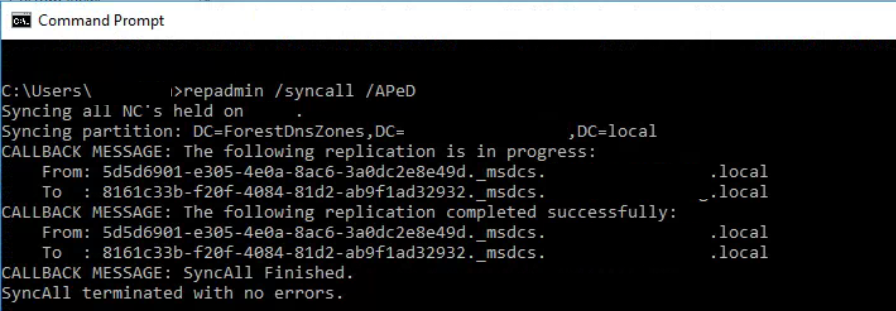
OR if you are already on on your main DC, and need to update any other servers in the AD, you can do a push replication:

repadmin /syncall /APeD

A = All Partitions
e = Cross Site (Enterprise)
D = Show server name in output.
P = Push

The technet article with further info can be found here:

https://docs.microsoft.com/en-us/previous-versions/windows/it-pro/windows-server-2012-r2-and-2012/cc770963(v=ws.11)

Perhaps, you like me are trying to move away from the old CMD comandlines, and migrate into PowerShell – if that is the case, bad news -currently there is no update alternative for repadmin in powershell – the Get-ADReplication commands are great for troubleshooting but offer no easy interface for updating AD.

Adobe reader on Server 2016

Adobe have been rather silent recently when it comes to running reader on server 2016

Adobe reader is used by many professions, and in many capacities. It used to be one of the most commonly installed applications on business PC’s by anyone in any sector. However, Server 2016 is not supported.

https://helpx.adobe.com/reader/system-requirements.html

This makes it a nightmare for modern portable apps, RDS servers(Terminal servers) or even just file servers.

So there is a work around, however it is not recommended. The best fix for this is to scrap Adobe, and move to one off the other large PDF Vendors out there to cater to your PDF viewing needs.

Three that i have personally verified as working and are supported on server 2016 are:

  • Nitro Pro
  • Abby PDF reader
  • TinyPDF

There will however be a small percentage of us admins or superusers, that have to get this Adobe based software working.

Workaround to get Adobe reader on Server 2016

Start by using the latest installer for Windows 10,
Once installed, you may find that it will work for a while, but eventually as it updates you will no longer be able to open PDF documents using it.
To get around this you have to unfortunately turn off protected mode.

Now, i shouldn’t really need to preface this, but i will. This is not supported, nor recommended – Reader has a protected mode for a reason, disabling it is opening you to all sorts of vulnerabilities.

If you do wish to continue, open up Adobe Reader – go into Edit –> Preferences –> Security (enhanced) –>

Turn Protected mode off, and untick ‘ Enable protected mode at startup’

If you like I could not even get to the preferences panel in order to change these settings then all you need to do is open adobe reader by accessing via compatibility mode. Set this as XP (which itself does not support protected mode) – then change settings, and then change compatibility mode back off.

Let me know in the comments if this has helped you.

Get rid of the “Updates are available” pop-up

The Updates are available popup is the source of much irritation for anyone remotely administering windows 10, Server 2012 and server 2016

To get around this popup – which lets face it, is just downright inconvenient; we need to stop the exe file that produces this window from running. Code below, with comments preceded by a #

Run command prompt as administrator (elevated) and enter these commands:

#change directory to system32
cd /d "%Windir%\System32"

#Take over permissions owner to current admin
takeown /f musnotification.exe

#Change permissions to deny anyone/system running from it
icacls musnotification.exe /deny Everyone:(X)

#Take over permissions owner to current admin
takeown /f musnotificationux.exe

#Change permissions to deny anyone/system running from it
icacls musnotificationux.exe /deny Everyone:(X)

You will see form the above, that there are two processes ‘musnotificationux.exe’ and ‘musnotification.exe’ that are responsible for querying updates and notifying the end user. The great part of this fix, is that it will not interfere with any update processes themselves, just the notifications. So have no fear – updates will still continue to function as normal, just now without this troublesome pop-up.

Enable disk performance in task manager, Windows Server

Can’t see the disk performance in task manager on a Windows Server?

There is multiple factors for disk performance not showing up, including raid cards, the server being nested on a HV or running as a VM, there is a simple quick fix though;

Step 1)
Open Elevated Command Prompt

Step 2)
Start disk performance counters:
diskperf –y

disk in task manager

With any luck, that should be it now showing in Task manager, if it does not, close and re-open it for the disk performance indicators to appear.
On occasion, you may need to re-install/install the latest raid card drivers if they are missing in order for the disk performance indicators to read and run correctly.

[SOLVED] Manually Register Acronis Backup Client for Backup Cloud

Manually Register Acronis Backup

Occasionally a backup client will disconnect, or cannot connect in the first place to obtain its backup set and process its jobs.
With pre-provisioning systems, this is often the case for certainly Mac and Linux machines.

Solution

(!) IMPORTANT: This method is NOT supported for registration of Agent for VMware (Windows)

Manually Register Acronis Backup client.
Use quotation marks, if your password contains special characters or spaces.

Windows OS
1. Open Command prompt and navigate to C:\Program Files\BackupClient\BackupAndRecovery: 
cd “C:\Program Files\BackupClient\BackupAndRecovery”
2. Issue this command to register the client machine: 
register_msp_mms.exe register https://cloud.acronis.com 

Linux OS
1. Open terminal as root user
2. Type in the following command to register the agent:
/usr/lib/Acronis/BackupAndRecovery/AmsRegisterHelper register https://cloud.acronis.com 

OS X
1. Open terminal.
2. Execute:
sudo -u root “/Library/Application Support/BackupClient/Acronis/BackupAndRecovery/AmsRegisterHelper” register https://cloud.acronis.com 

From

NB: if you are outwith the normal Acronis Data Centres, as i was, then replace the cloud.acronis.com URL with the URL you use to log into your dashboard. i.e. https://eu-cloud.acronis.com

[Resolved] Find the startup folder in windows 10

Need to find the startup folder in windows 10?

Since Windows 8, the startup folder has been an elusive beast, but fear not, this simple command will force it to reveal itself in no time at all.

1) Win + R
2) shell:startup
3) Enter/OK

find startup folder location win 10 shell:startup

Or the path for the startup folder in windows 10:
"C:\Users\%USERNAME%\AppData\Roaming\Microsoft\Windows\Start Menu\Programs\Startup"

startup folder in windows 10